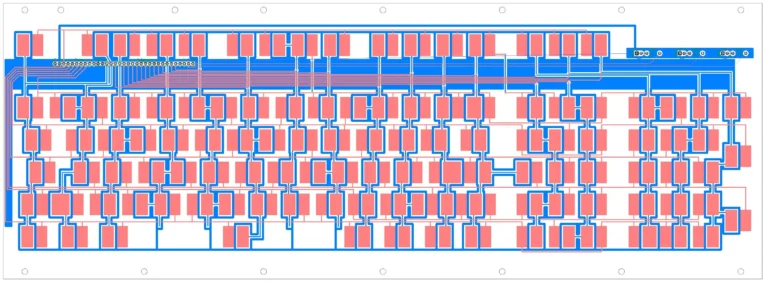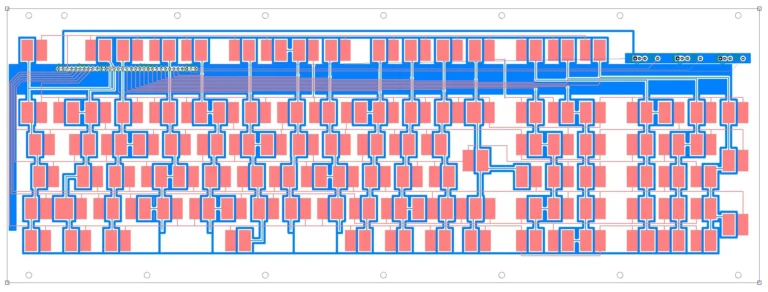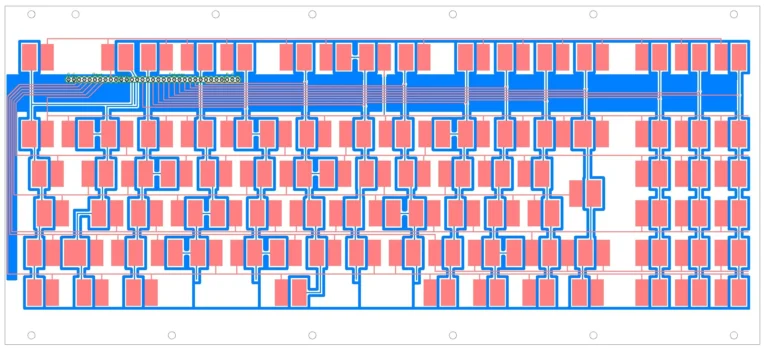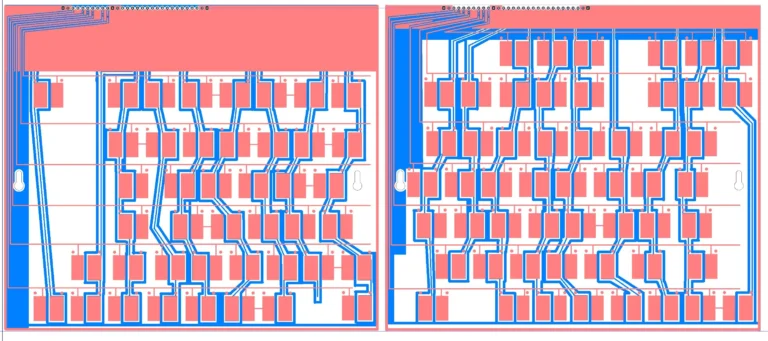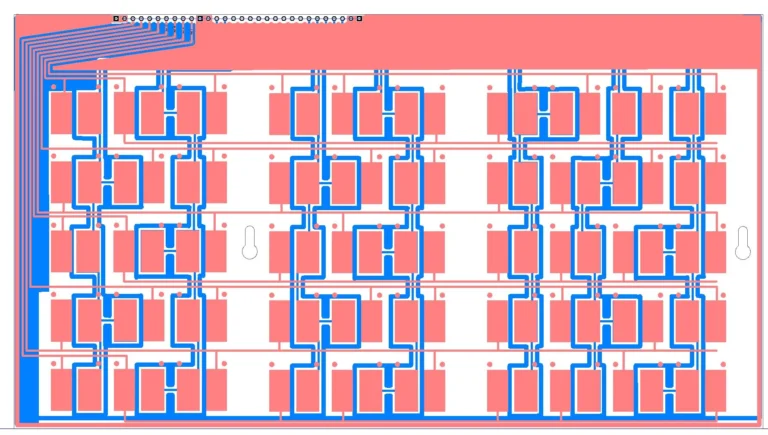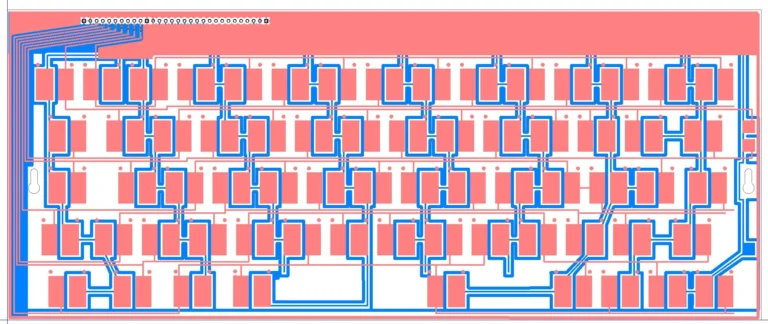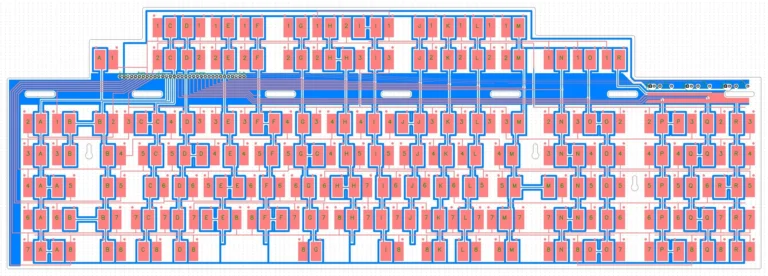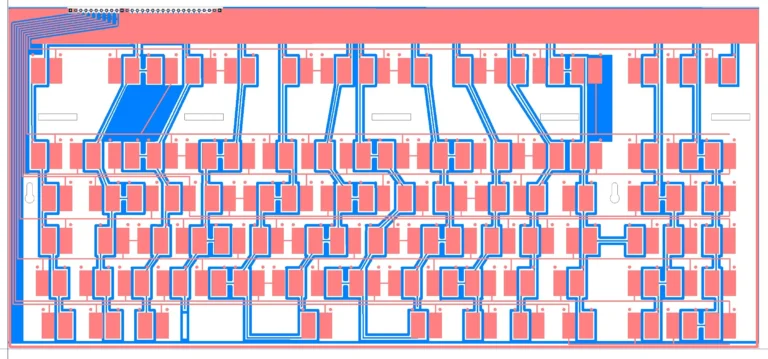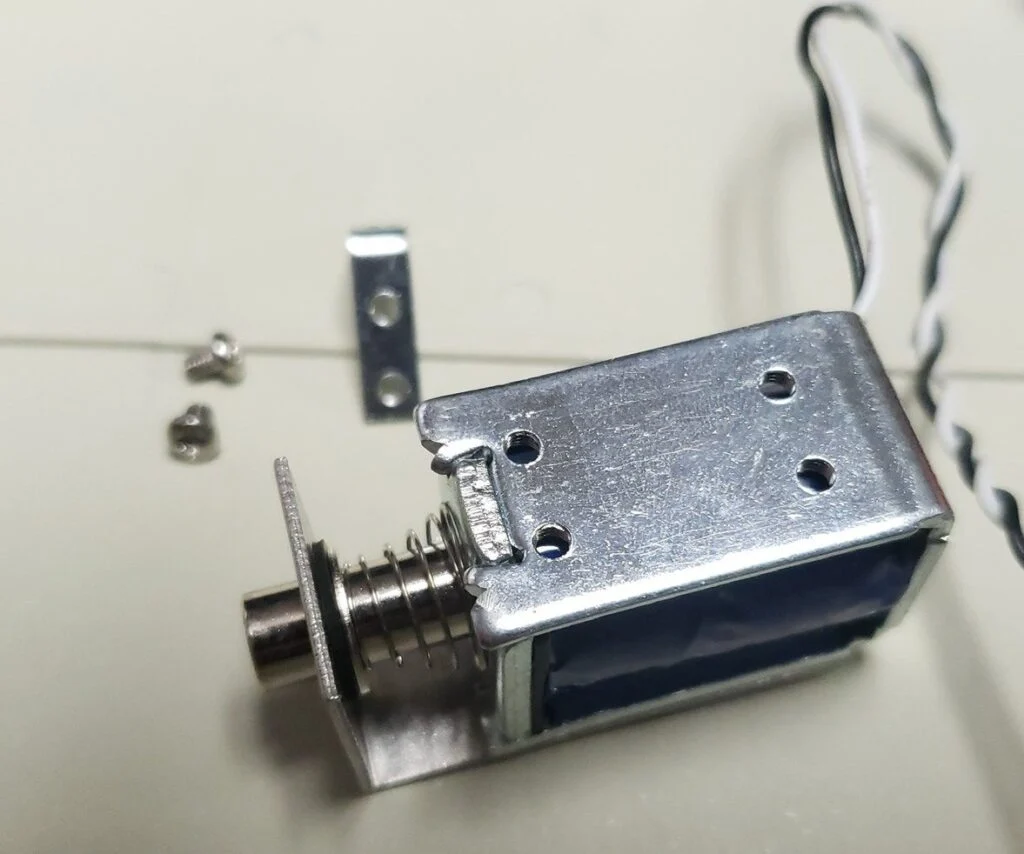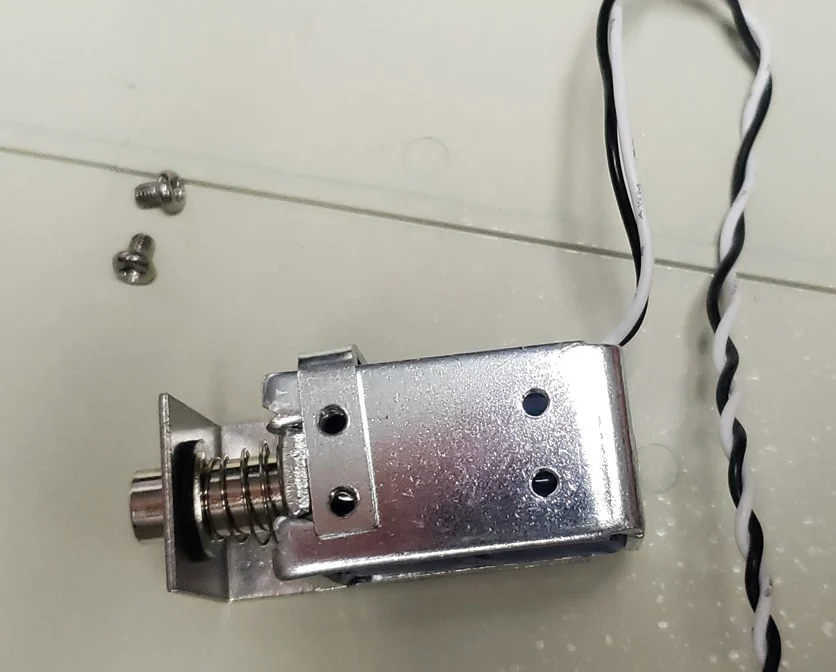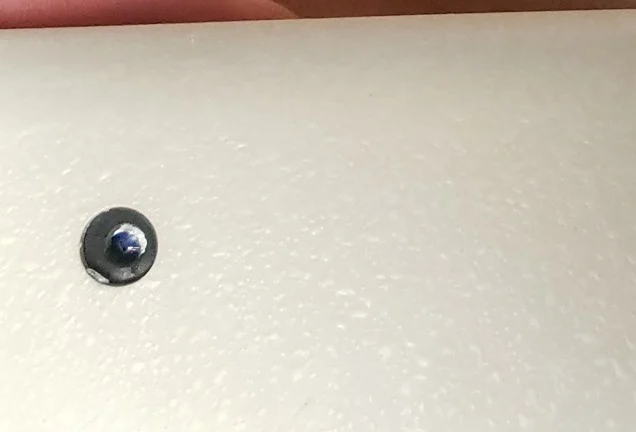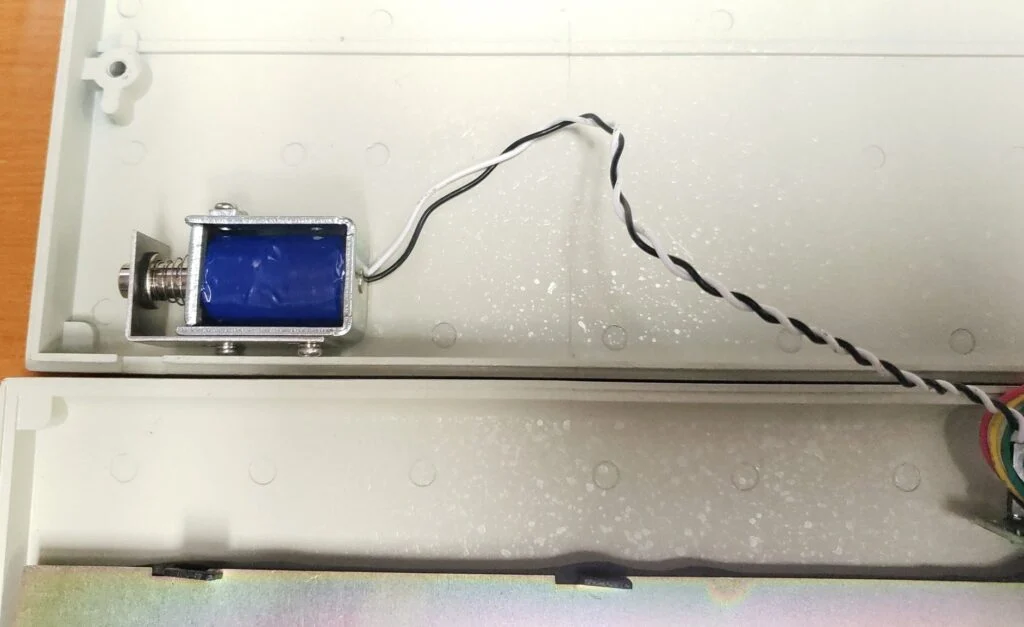
Brand New Model F and Beam Spring Keyboards Manual


This manual has been reorganized into Action Steps.  Only perform the actions in each step, and only perform them after reading that particular section.  Skipping ahead or thinking you know what to do because you have used a Model F, Model M, or other mechanical keyboard will almost guarantee that you will break something or have to spend much longer to redo things the right way.  Folks have told me they literally spend an hour on something that they realized after reading the manual that it would take a minute.  

Please do not email me.

Please do not post issues on the forums / social media.

Important note, please do not email me immediately if something appears wrong, and do not post on the forums or the Q&A page; I will just refer you back to this manual.  In other words, don’t stop going through setup and decide you will instead email me for help or bother the forum members.  The first step is to go through the manual line by line; this will take care of 99% of all possible issues. If there is still an issue, the manual notes that the absolute last step is to email me with documentation (do not call; support is not available by phone), not to post on the forums.

What you should do for each Action Step:  First read the section, then watch the video in each step, and finally you can do what is mentioned in a particular step with your Brand New Model F Keyboard.  Do not only follow the videos and skip reading the manual, thinking wrongly that the videos have everything you need to know.  You will be lost, frustrated, and will waste hours of time if you do not follow the written manual.  For reference here are links to each step:

  1. Learning what you need to know about this project and about Model F keyboards
  2. Inspect what you received. Do this within a few days after your keyboard is delivered, when you are ready to start setup.
  3. Installing the stabilizer inserts. Do this after confirming everything is good with what you ordered, per the previous step. Do this before installing any keys.
  4. Next up is getting the spacebar right.
  5. What you need to know before starting to install keys. After reading this section, follow the last step in this section to inspect and adjust springs that may have shifted (pun intended!) out of position during rough shipping and handling.
  6. Time to install the keys.
  7. Test all keys on the computer to make sure they are reliable and then adjust any non-reliable keys.
  8. Check for rarely seen issues noted below, and fix them by following the steps in this section. Also follow this section if you can’t get a key working after following the previous Action Step
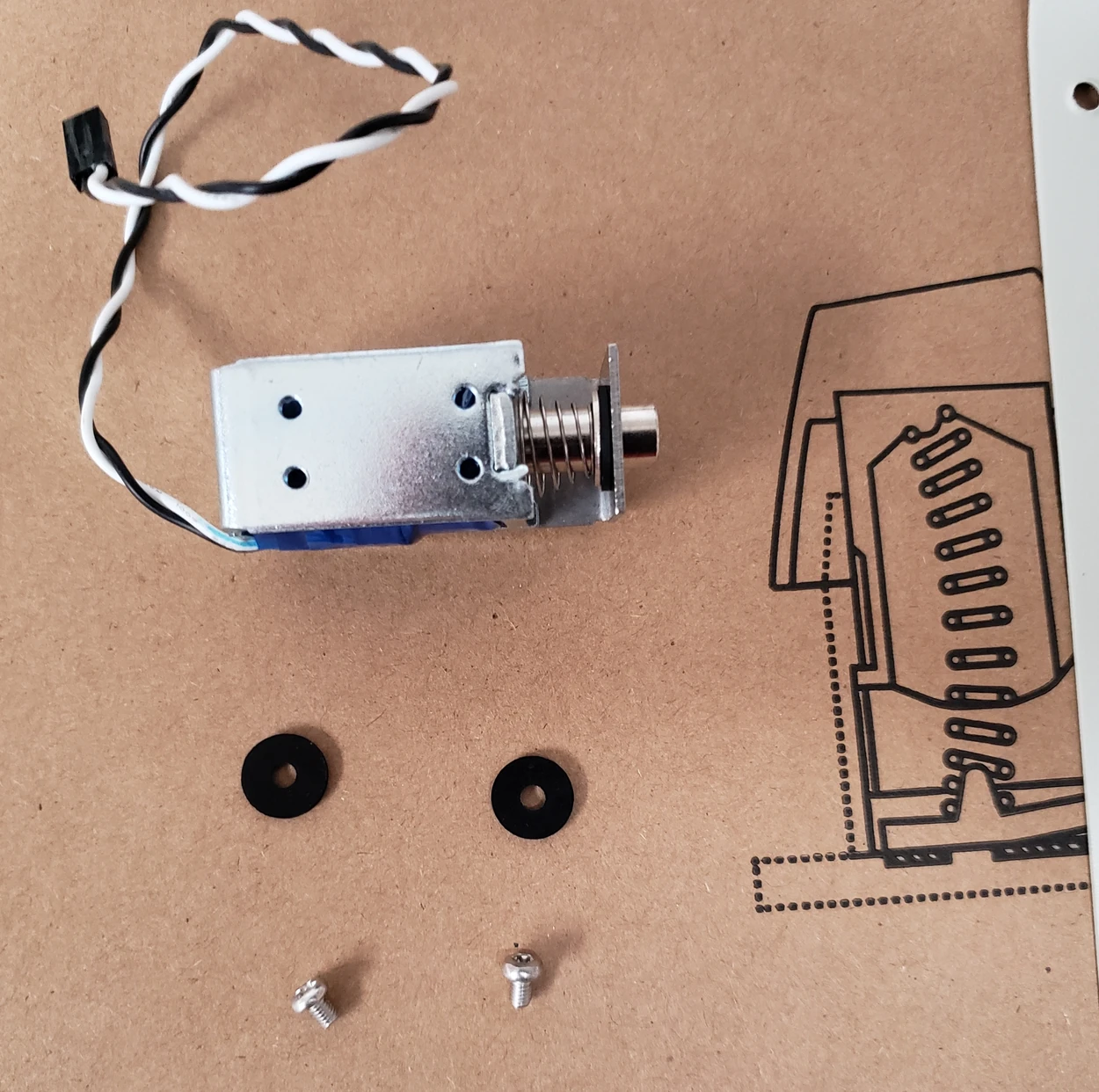
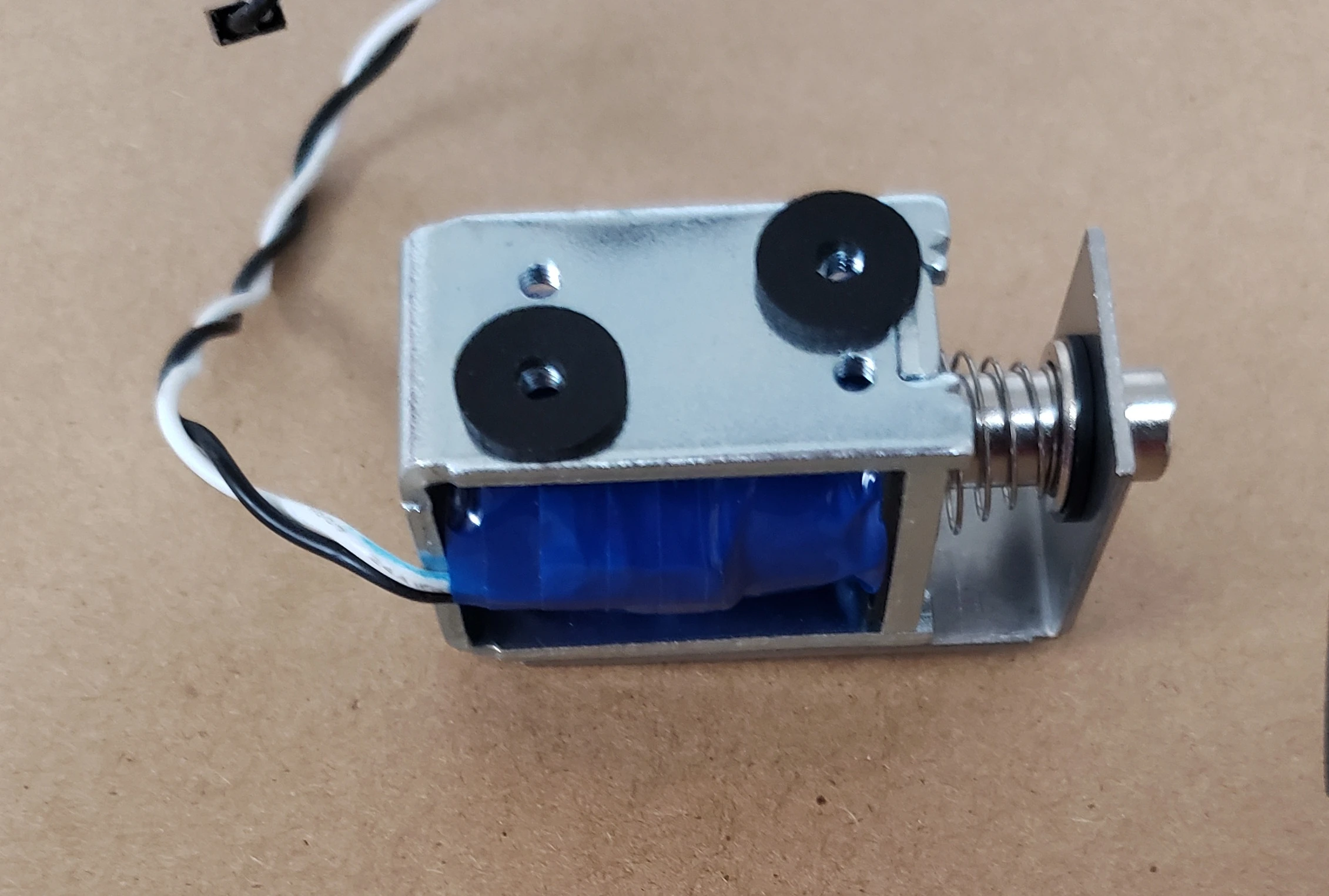
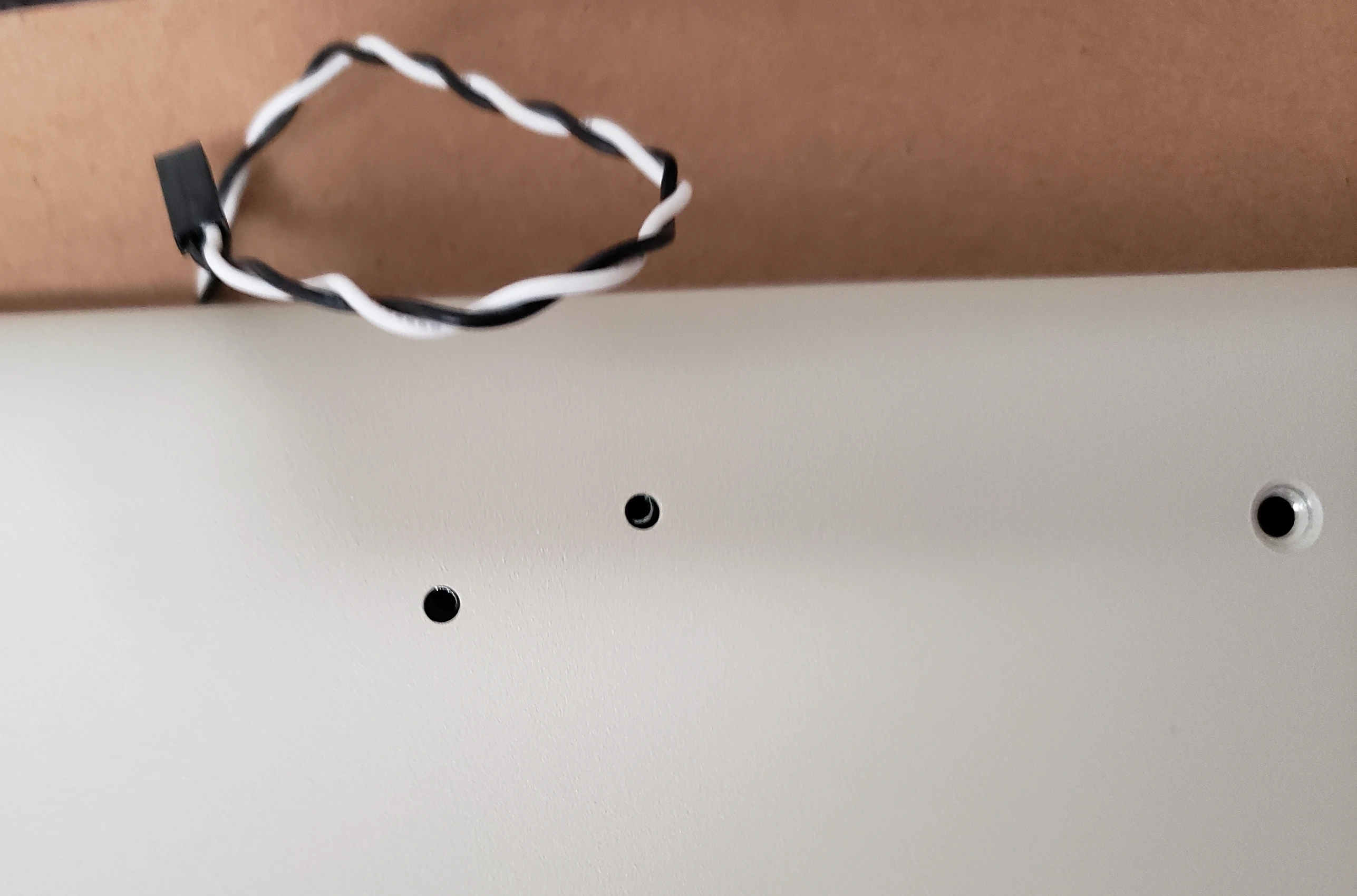
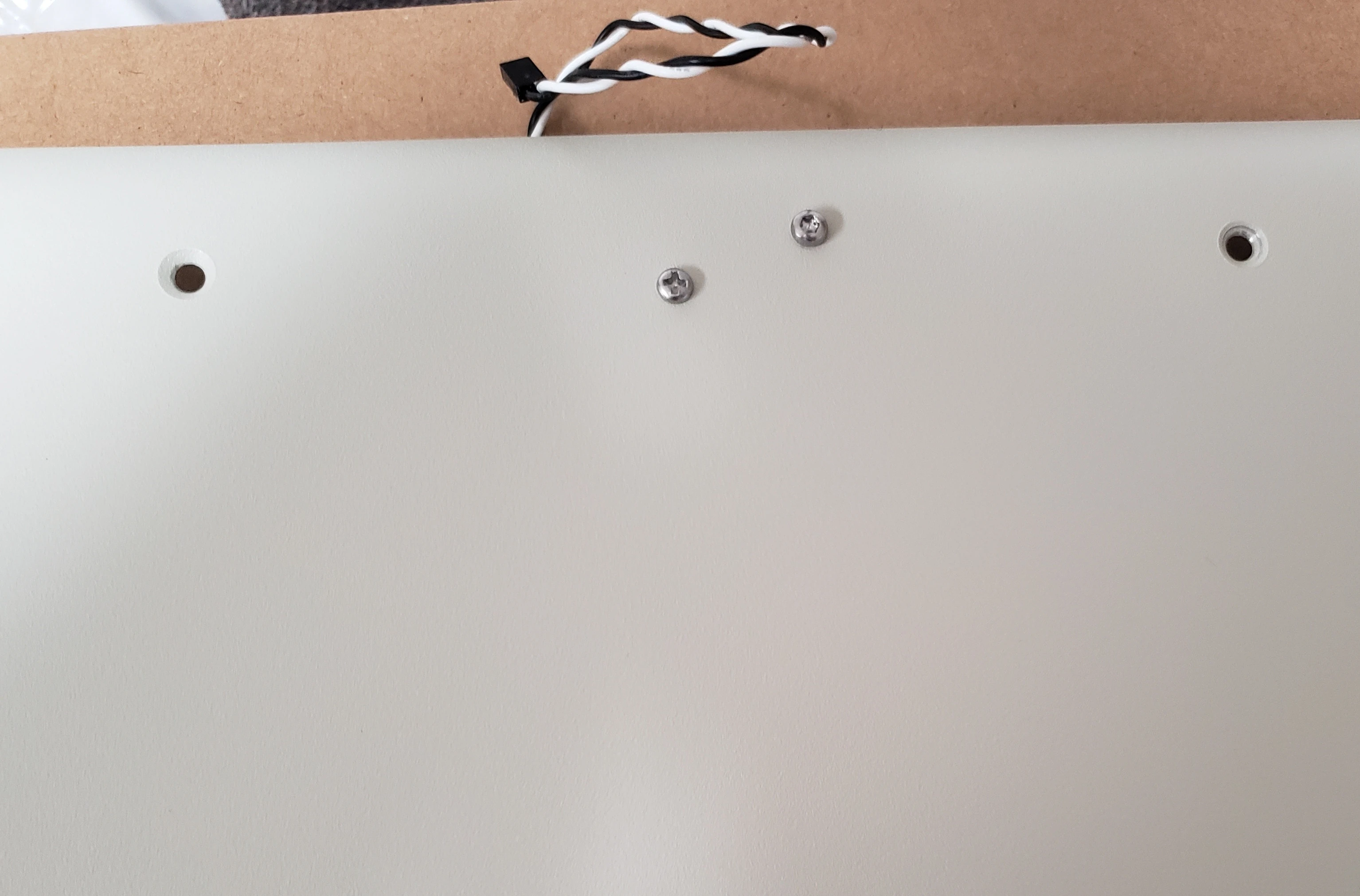
  9. Optional:  Solenoid setup
  10. Optional:  Flashing firmware
  11. Optional:  Opening up the keyboard inner assembly, changing case styles
  12. Appendix: Maintenance, cleaning, spills, noise dampening, Mods, Project Philosophy, Full QMK/Vial Configuration
Bottom of page:  Beam Spring Keyboard manual including setup video
 
A reduced-content, simplified manual is available here on an as-is basis.  It is not recommended (my recommendation remains to use the manual on this page) but feel free to email me feedback:  https://www.modelfkeyboards.com/manual-draft-2/
Action Step 1:  Learning what you need to know about this project and about Model F keyboards.  Read this section any time before opening up the box (before you’ve bought the keyboard, before delivery, after delivery, etc.).
 
Do not skip this step, thinking the first step in a manual is always fluff, or you will be confused reading all the steps after this one.
 

My goal is to teach every Model F keyboard user how to maintain their keyboard hopefully for decades more, and this starts with the initial setup.  Almost every error can be avoided and issue can be fixed yourself by reading the manual fully and watching the installation videos as you set up your keyboard.  

The manual contains important steps to diagnose each issue and you have to complete all the steps before emailing me, or I will just refer you back to the manual.  If I don’t know what to do, only then should we post on the forums. One example problem is “a key doesn’t work” — such a broad range of possibilities that it is not useful to inform me; instead the manual goes through various steps including the use of a software program to diagnose the signals coming from the keyboard; it is a dead giveaway that you didn’t fully read the manual if you are emailing me without providing screenshots of this report as instructed in this manual. 

In other words, if you are emailing me right away and it is clear that you did not follow the manual, you will be redirected back to the manual before we can proceed, but please note that I stand by these products and no one will be left with a non-functional keyboard if they follow the steps on this page.  If the manual does not resolve your issue, the final step is to email me with documentation in the specific formats detailed on this page, including screenshots from the diagnostic tool, photos, and a summary of which steps in the manual you tried and did not try.  Just emailing me things like “a few keys don’t work,” “this key doesn’t click,” “this key gets stuck when I press it,” “I can’t edit the keymap with Vial” are clear giveaways that you tried to set things up by yourself instead of following the manual.

Additionally, I recommend reading your keyboard’s product page (the page you configured the keyboard on) to understand all of the various options and recommended add-ons that are available to order.  The great communities of mechanical keyboard fans have been around for more than 10 years and have been very helpful to sort out all types of issues.  My primary focus is on continuing to mail out all the keyboards!

Skip to the bottom section for the Brand New Beam Spring keyboards.  As an optional step, consult the solenoid section if you have purchased the solenoid driver and solenoid.

Since the goal of the project is that you have a keyboard that you will use and maintain for life, just like the IBM originals, you’ll need to have some tools on hand (these tools are not included).  These basic tools will be quite helpful for all sorts of projects and things in your life, not only keyboards, so they are an excellent investment.

    • Normally required tools:  a precision screwdriver set (you’ll need Philips and Torx T8 drivers), a wire key puller, and tweezers to quickly adjust springs
    • Possibly required tools:  basic soldering iron kit.  Also tools to open and close the inner assembly:  channel lock pliers and/or regular pliers (preferably one of each), five or more 2-inch C clamps

Please subscribe to the project’s YouTube channel:  https://www.youtube.com/@Brand_New_Model_F_Keyboards

As always, all videos in the manual are companion videos to visually explain parts of the manual; they do not contain all of the needed details.  If you only watch the videos and you don’t read all of the manual, you’ll waste hours of time when you make a mistake and you’ll think the keyboard is broken or defective.  As a note, the previous hour-long setup video has been broken down into the videos below; do not watch that video.

The Model F keyboard, if properly set up and maintained, can provide you with decades of pure typing pleasure and performance, and it can hopefully be something you will use for the rest of your lifetime and maybe pass down to future generations. Check out some excellent Model F overview videos such as this one:  https://www.youtube.com/watch?v=y9Jds326gks

The thing is, while you set up your keyboard, you need to review the manual and watch the videos in each Action Step. This manual will review everything you need to know about the Model F.  It will help you become a responsible steward of the best keyboard technology ever made, so your keyboard does not end up in a landfill after something stops working. The goal of this community-oriented project is to give you a keyboard that you can learn to take care of yourself and that will serve you well for decades to come, long after production has ended.  The product does not exist to work perfectly out of the box, last for a year, and then be discarded right when it stops working.  Instead, you have to put in some time to learn how the keyboard works and to set it up yourself, so that you will be confident enough in the future to fix it.  Do not plug in the keyboard to your computer until instructed to!

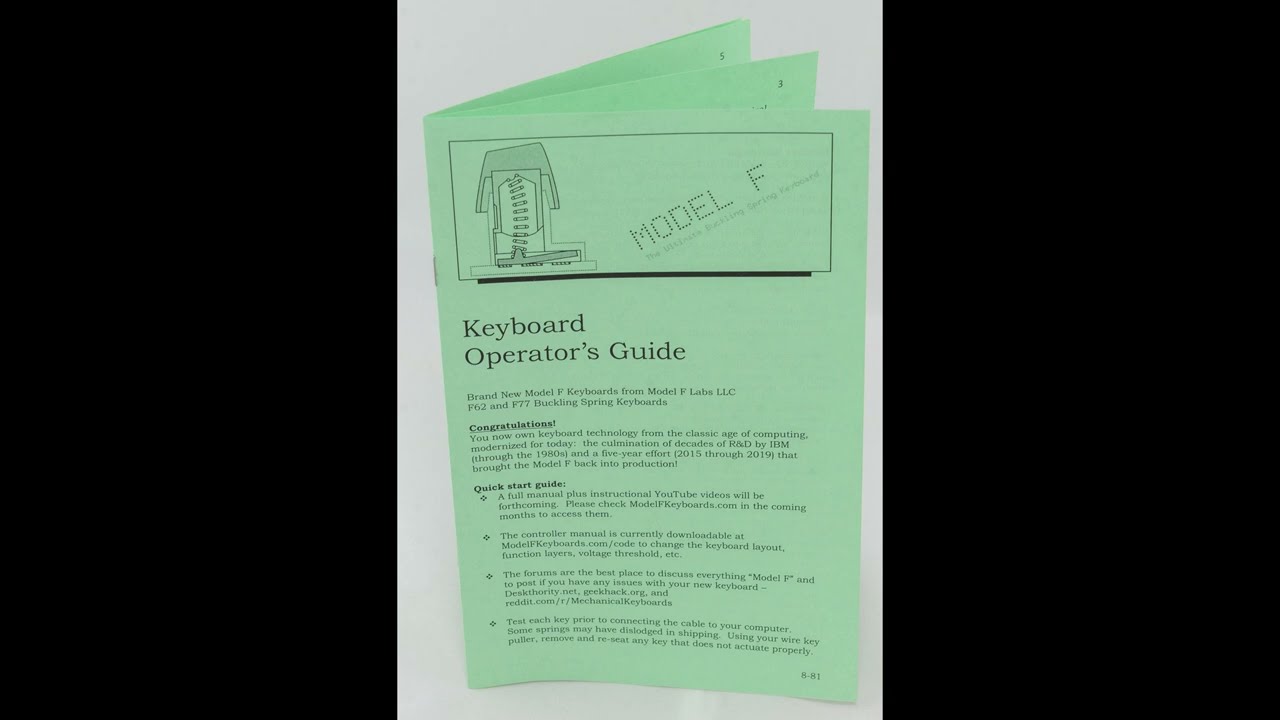
Do one or more keys not work when you are setting up your keyboard, or only work intermittently?  The only reason you would worry about this is because you did not read the manual and watch the setup videos as noted in the included green booklet.  The booklet highlights that it is completely normal and expected for some keys not to work right away, and you have to follow the step-by-step manual and videos to get each key working.  Just installing the keys to the keyboard and starting to use the keyboard will guarantee that your keyboard does not work.  Fixing springs and reseating keycaps are both normal and required setup activities to get your keyboard working.  If you have an issue, please do not post on the online forums or email me for technical support as I cannot offer any recommendations other than directing you to the manual (this manual does highlight when I would need to step in and mail you replacement parts or repair the keyboard myself but this is extremely rare; nearly all of the time the issue is not a defective part but an improper setup).  I guarantee there will be far more frustration and time spent if you try to figure it out yourself without following the manual step-by-step.  Part of your responsibility is learning how to set up and troubleshoot issues with the keyboard. This should not scare anyone away from using a Model F keyboard; the most basic recommended maintenance involves checking that each key works reliably and taking off the keys with a wire key cap puller to clean them with mild soap and water every now and then.  If you can follow step-by-step instructions and use a screwdriver, tweezers, and pliers then you are most of the way there!

Can I just skim the manual and jump around for whatever step I want to do?  What we’re about to go over is not something you can easily figure out on your own, even if you have used a Model F or Model M keyboard before. The time spent reviewing the manual will save you a lot of frustration and spending hours more than you need to. For example it should take no longer than a few minutes to fix any specific key; if you are spending hours then you are doing something wrong or there are some troubleshooting steps noted in this manual that you are not following.  Don’t be the one who stops reading or listening now and starts installing keys, and then spends an hour trying to fix something that would take a minute if you went through the manual beforehand. Please follow exclusively what is written in this manual – do not try to figure something out through hours of your own experimentation or through reading or posting on the keyboard forums. All the answers are on this page.  Most issues can be fixed within minutes, not hours. If it takes an hour to fix something, you are probably missing something important in the manual or it would be better to stop what you are doing, review the relevant videos and parts of the manual, and ask for help.  The big thing is in adjusting and reseating the springs, which is an important part of the setup and it may take you several tries to install properly.  If you are breaking parts trying to install them, then you are not installing it correctly.

Why does the Model F outlast just about every other keyboard?  The Model F keyboard is a robust design. Every part is 100% user-replaceable / user-repairable, often needing just a couple tools: screwdrivers, tweezers, pliers, and at most a soldering iron and $3 C clamps. Compared to other consumer electronics products, Model F repair is easy and even a complete beginner can get up to speed quickly. The great communities of mechanical keyboard fans on sites like Deskthority, geekhack, and reddit are great at sorting out all types of issues. You will never be out of reach of someone who can offer you advice and help in the coming years. While the project philosophy encourages you to be self-reliant and responsible for set up and maintenance, you are not alone and no one who buys a keyboard here will be left with a non-working keyboard, as long as you put in the work that is needed.  The current state of low-quality manufactured goods encourages a culture of just throwing something away or bringing it back to the store if anything is wrong with it. For something complicated like a motherboard or graphics card that’s probably the best option, but the new Model F project philosophy is for the users to be able to fix small issues themselves due to the simplicity and full repairability of the Model F design (many buyers come from the world of the original IBM keyboards that are decades old and almost certainly require some maintenance work, so they expect it and are used to it).

There are two essential requirements to help your Model F keyboard last a long time:  educating yourself on how to set up and maintain your keyboard and also making sure you have plenty of spare parts on hand now, so they will be available to you long after production has shut down and this project has ended.  Buying spare parts is essential to help keep your keyboard operational in the decades to come. Please check out all the other items in the store. The most important extras are the First Aid Kit of spare parts for future repairs once production has long shut down (over 1000 kits ordered so far!), spare flippers with springs, spare barrels, key pullers, extra key sets (the key tops do wear down over time and you won’t be able to buy more XT quality one-piece keys after the end of the project) and also a spare custom made 3-meter USB cable. There is also the ever-popular add on:  the solenoid with solenoid driver which can be turned on and off from a key combination.  I hope to be able to manufacture as many First Aid Kits and spare parts as possible to keep all these great Model F keyboards running decades from now.

If you like using Model F and Model M buckling spring keyboards, the best way to help the project is to tell other “tech-minded” people you know about the project. That would be greatly appreciated. And please do share some photos of your newly set up Model F Keyboard on the Deskthority and geekhack project threads! 

Key (pun intended) features of the new Model F – why is it different from other keyboards

  • The Model F technology features heavy duty metal parts contributing to the 5- to 10-pound weight of each keyboard, including a metal top and metal bottom inner “sandwich” plates with interlocking tabs, and a powdercoated metal case for this project and for some of the original models. The Model F design is robust and easy to clean and self-repair with nothing more than a screwdriver, pliers, tweezers, and a key puller.
  • High-quality parts contribute to its long life, with many Model F’s still in operation after decades of continuous usage. Still the best technology keyboard out there. Will possibly outlast all other parts of every computer you will buy from now until the end of your life.
  • Capacitive sensing buckling spring technology – long life enhanced by no metal-on-metal key contact
  • Dye-sublimated PBT keycaps: text does not wear off like most keyboards.
  • Individual injection molded barrels for each key made of premium plastic for enhanced smoothness and key travel
  • Large injection molded capacitive flippers for a solid sounding click

Model F Reproduction Keyboards specific features:

  • Factory customizable with dozens of possible combinations of case color, key layout, key language, and custom birth date/serial number availability to choose from
  • New available layouts not possible with the original Model F’s – HHKB style split right shift, split spacebar. Can split keys like the original F’s (split back space, left shift, right shift, enter)
  • Leverages the new open-source, full N Key Rollover xwhatsit and Leyden Jar software and hardware built from the ground up as a Model F keyboard controller replacement. Fully programmable with multiple firmware options including QMK and Vial
  • Parts made from brand new tooling and molds – like getting a Model F from the early 1980s right when they were introduced!
  • Metal stabilizer tabs – Metal tabs attached to the top inner assembly for the Model M style spacebar stabilizer wire – upgraded from the plastic tabs in the original Model F keyboards

Project Philosophy: Full user control of product maintenance and repairs

Why do I want to teach everyone lifelong skills to setup and maintain your new Model F keyboard for the rest of your life, rather than offer a full-service, maintenance-free product designed to be disposed of in a year when the next model comes out?

The project’s goal is to offer the best quality product at the lowest price point, with a focus on the end user being able to stockpile spare parts as well as set up and fix their Brand New Model F. There are definitely markets for hardware with service contracts. Not sure about a market for a +$100 more costly keyboard with full maintenance and technical support though. IBM’s 1980s price guides mentioned they would require charging banking customers a minimum of about $100 per year (not adjusted for inflation) for each original Model F keyboard in maintenance costs as part of a service contract. However, if I had to hire staff to deal with “free” returns, more personalized technical support / phone support, and doing even the most minor repairs (re-seating keys, replacing springs and barrels, changing the USB cable, etc.), each keyboard would cost a lot more because of overhead costs, and these keyboards are already not inexpensive to begin with. And it would slow me down even further mailing out these great keyboards. I believe that this direct to consumer, community type project is the best way to bring the Model F to as many people as possible and at the lowest possible cost.

Read more about the mission statement of the project on the About page:  https://www.modelfkeyboards.com/about/

A. Safety precautions:  Always consult the booklet included with your new Model F keyboard for safety precautions and other important information. Severe harm or even death can occur with any product if safety precautions are not followed. Model F Labs does not condone using these heavy, solid metal keyboards as weapons of defense in the event of a zombie apocalypse. Always use the right tools for the job – you will need a wire key puller to properly set up your new Model F keyboard as one or more keys may require more than one try to install it correctly. Only use the USB cable that came with the keyboard, as not all USB cables are compatible or safe, especially the “smart,” Apple, or “E-Marked” USB-C cables.

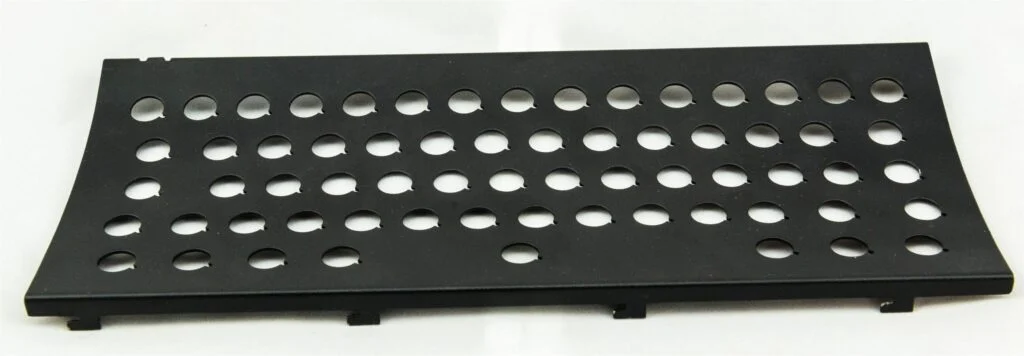
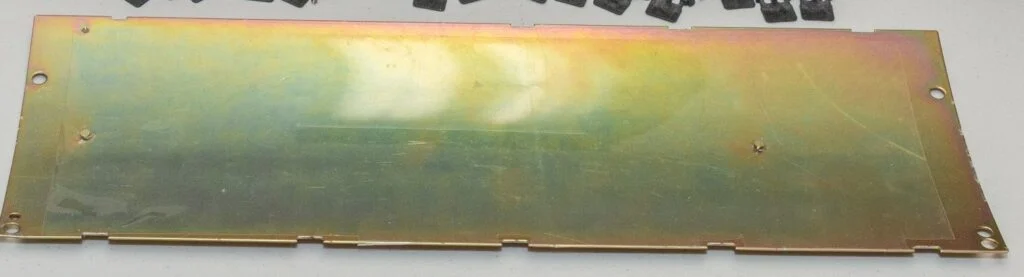
B. Parts identification for Model F Keyboards.  Time to learn what each part looks like, and to what name each part will be referred in this manual.

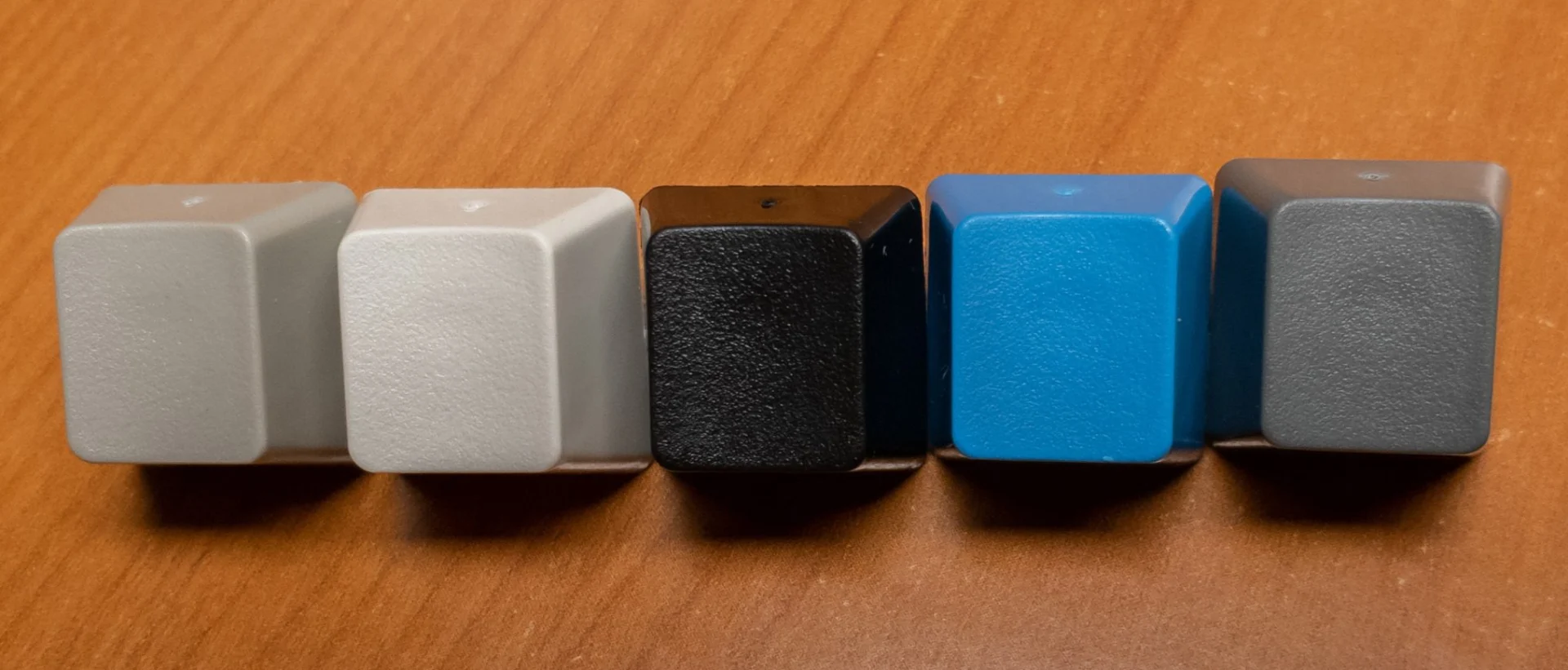
  1. Keys (from left to right:  Pebble, Pearl, Black, Industrial SSK Blue, 60% Dark Gray)
  2. Barrel
  3. Flipper with spring
  4. Top inner assembly
  5. Bottom inner assembly
  6. Inner foam
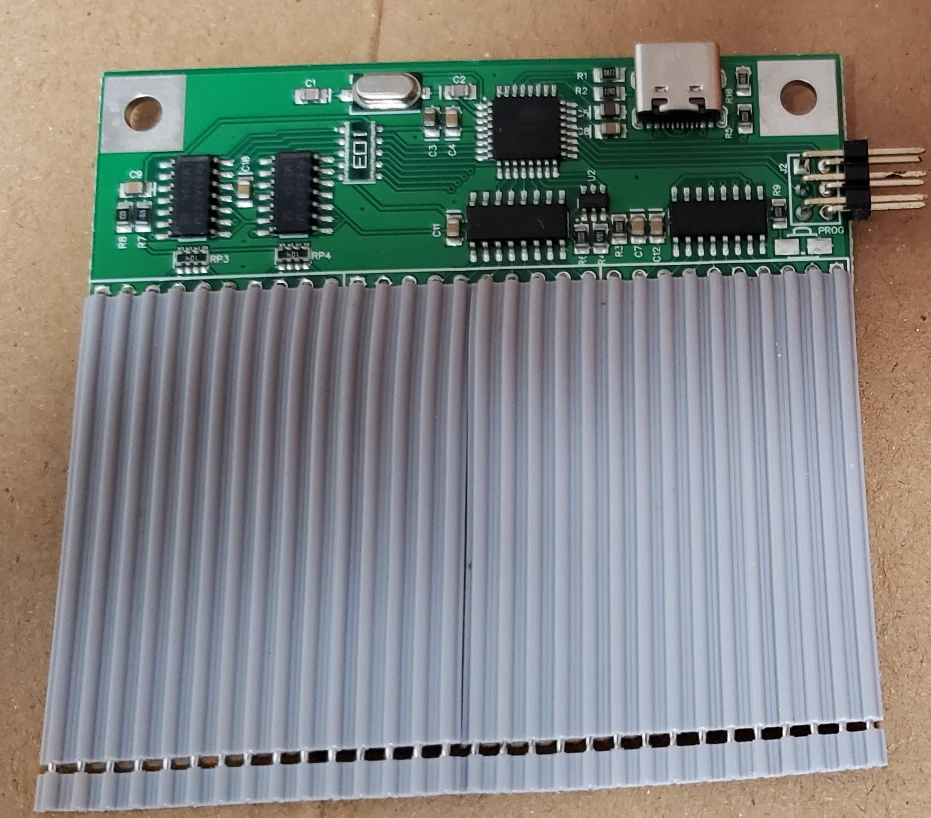
  7. Controller PCB with ribbon cablexwhatsit controller
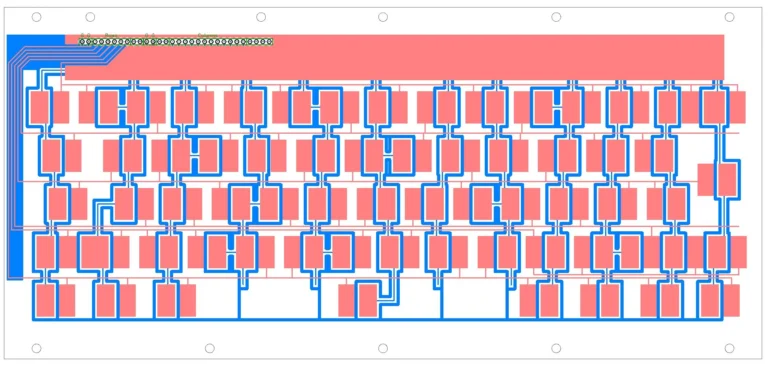
  8. Large capacitive PCB
  9. Top and bottom case
  10. Solenoid (optional)
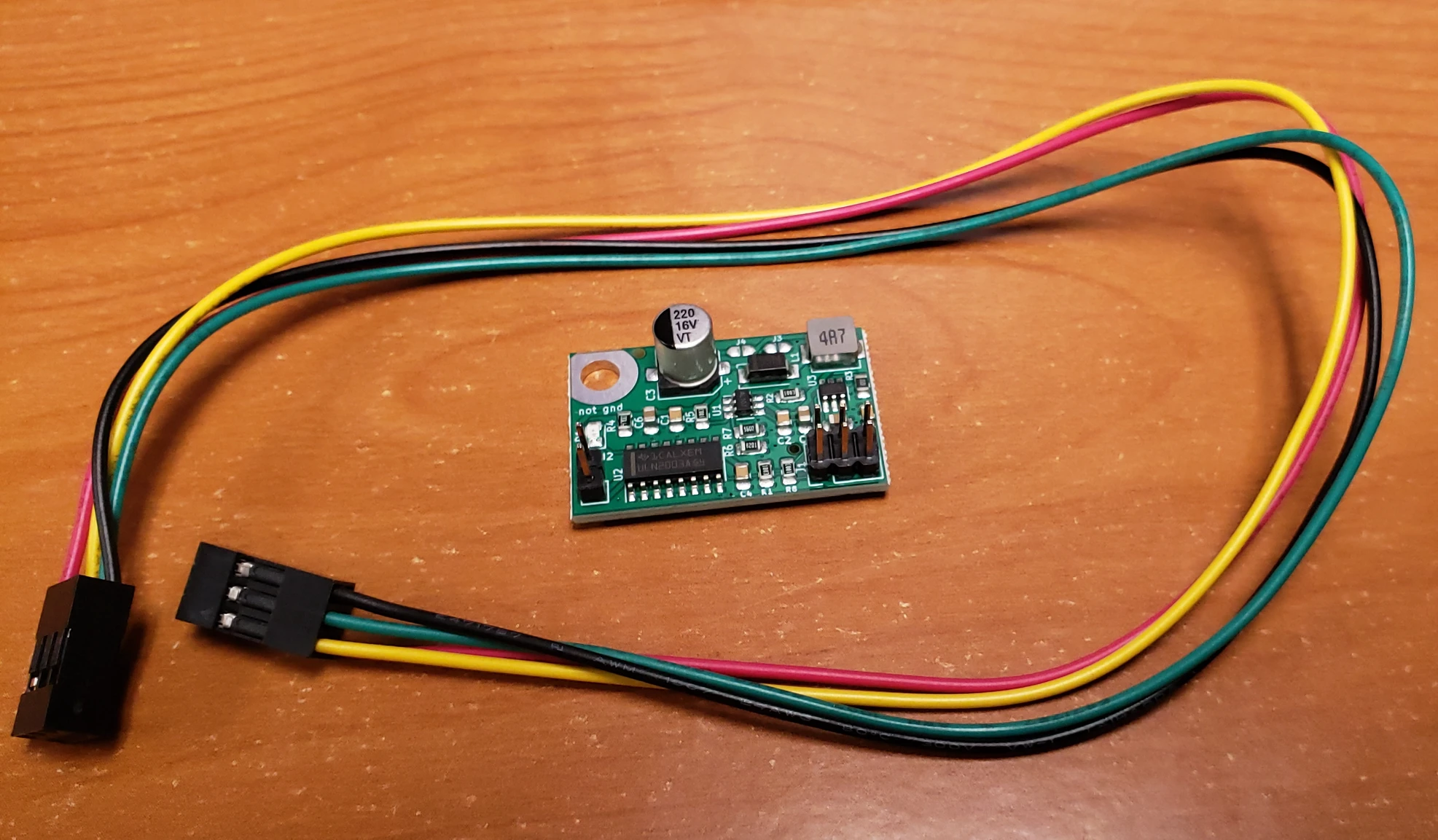
  11. Solenoid driver (optional)

Action Step 2:  Inspect what you received.  Do this within a few days after your keyboard is delivered, when you are ready to start setup.

  1. First up after your keyboard arrives in the mail, inspect the keycaps, flippers, springs, and layout. Make sure you received everything you ordered and that nothing is broken. The keyboard must be used with 4 feet (bumpers) installed; you should have received them in one of the various bags.  Part of a keycap may have snapped off in shipping; if one keycap’s bottom leg (the stem) appears chipped and does not look like all the other stems, do not use it. Check all the various bags as parts may be mixed inside other bags.
  2. Before installing any keys, make sure all springs on their flippers are present and move freely – a stuck flipper can usually be carefully nudged with tweezers so that it moves freely, but it might require taking apart the keyboard if it cannot be loosened from the top side of the keyboard (if you have to open up and slide apart the keyboard’s inner assembly plates, be sure to remove the keys first!). To do this, move each spring with your finger and see if each one moves like the others.  If you see a flipper nub without a spring, the spring may have fallen off in shipping and needs to be replaced (refer to the spring installation section for details, and then come back to this section).
  3. You may notice some barrels without any flippers and springs. This is intentional!  The extra wide keys have stabilizer inserts which go inside these barrels. It is best to use new Model F stabilizer inserts with new Model F project keys and other stabilizer inserts with other keys; your keys may get stuck if you use other inserts with new Model F keys or vice versa.
  4. It is also important to make sure the layout you ordered is the layout you received. For key sets with full size Left and Right Shift keys, there should be no flipper and spring in the right barrel of the Left Shift, and nothing in the Left Barrel of the Right Shift. For standard horizontal Enter (example:  US) and 2U backspace keys, there should be no flipper in the left barrel. For ISO Enter, there should be no flipper in the top barrel of that key.
  5. If your layout is not the one you wanted, head over now to the section on opening the inner assembly. It is easy to change it if you haven’t skipped ahead to installing keys – it only takes a few minutes without keys installed. The only thing you can’t change is going between HHKB-style split right shift and regular right shift.

Action Step 3:  Installing the stabilizer inserts.  Do this after confirming everything is good with what you ordered, per the previous step.  Do this before installing any keys.  

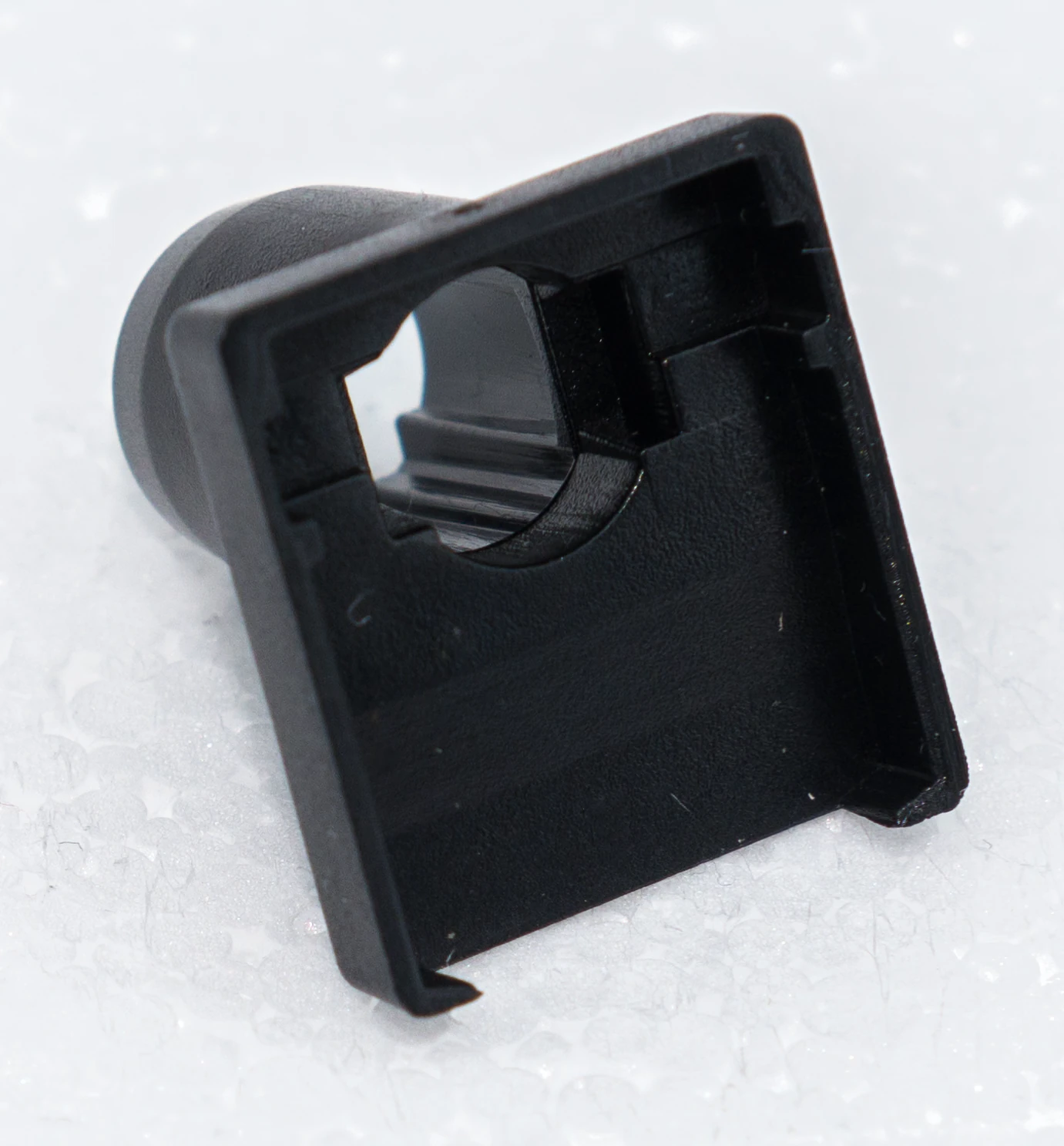
  1. Important notes before doing anything with stabilizer inserts: check that your horizontal stabilizer inserts match the design of the white insert pictured below, and that the vertical inserts match the black insert pictured below.  Occasionally a white insert may in fact be a vertical insert, and a black insert may actually be a horizontal insert.  If it has unevenly-sized ears like the vertical insert shown below, then it is a vertical insert even if the color is white.  You can’t put an insert in a barrel if there is a flipper in that barrel – you’d have to open up the inner assembly to remove the flipper.  On rare occasions (sometimes for the F Split Ortho for example) the horizontal white insert may perform better with 2U vertical keys than the vertical insert.  
  2. Horizontal inserts (white stabilizers) are used for the 2U and wider keys in the barrels that do not contain a flipper and spring, except for the spacebar which does not use inserts.  I recommend installing the horizontal inserts with the cavity number in the 12 o’clock position (closer to the top row of keys; the cavity number can be found inside the part, near the top).  Install horizontal inserts (white inserts) as pictured below, with the “ears” on the left and right sides. For the horizontal inserts, be sure to press the insert all of the way down into the barrel, so that the top of the insert is flush or flat with the top of the barrel.  
  3. For the vertical inserts (black stabilizers), it is best to leave them about 1mm above the top of the barrel to start with; it is much easier to push down the insert than to pull it up!  This is recommended mostly for the vertical + key.  You may find operation to be more reliable when the insert is not flush with the barrel.  However, for ISO Enter keys I have found pushing the stabilizer insert into the barrel as far as it will go (so that the top of the insert is below the top of the barrel) results in reliable operation, while keeping the top of the insert above the top of the barrel often results in the ISO Enter key getting stuck. The vertical stabilizer inserts are installed also as pictured for the number pad 2U Vertical keys, but must be installed differently for ISO Enter! The photo below shows each photo in the “right side up” orientation so for ISO Enter you’d just install the vertical (black) insert 180 degrees rotated from the photo, so that the larger “ear” of the insert is on the left.  In other words, the insert is installed with the larger ear on the right side for most 2U vertical keys, and it is installed with the larger ear on the left side only for the ISO Enter key.
  4. Stabilizer inserts require a good amount of force to install, more so with the vertical inserts; I prefer to use a tool to (gently) hammer or tap in the vertical inserts, but remember to follow what was written above and not tap them in all the way – leave 1mm to start with, and maybe they will end up being 0.5mm or flush with the top of the barrel (or below the top as possibly with ISO Enter) after you are done.  Usually I push the plus key’s insert all the way and leave the enter insert a little higher, but it’s better to start with them higher and leave them higher up if the keys actuate reliably when pressed. 
  5. If you mistakenly install the stabilizer incorrectly, or install the incorrect stabilizer, you will need to take off all the keys and take apart the keyboard to push out the stabilizer insert from the other side. That is why I recommend installing stabilized keys first, in terms of the next step.  An alternative to this would be to use straight tip lock ring / snap ring pliers, though not all of them would fit. I personally use Wilde Tool G407 lock ring pliers to remove stuck inserts without having to take apart the keyboard. Another alternative:  Check out this great method to safely remove horizontal and vertical stabilizer inserts without having to open up your new Model F keyboard to push out the insert!  https://deskthority.net/viewtopic.php?p=477651#p477651  Another way to remove a stuck stabilizer insert:  Quoted from a Model F owner: “If one of those little white plastic stabilizer inserts gets stuck in a barrel, a 1/4-20 inch thread tap (and tap wrench) will grip it well enough to get it out without damaging the barrel.”  


Action Step 4:  Next up is getting the spacebar right.

With the keyboard positioned in its intended use position, press your spacebar a few times and see if you like the sound.  Model F keyboard spacebars are highly adjustable so you can dial in the kind of spacebar you want, to some degree. This is a key you will be pressing a lot so it is a good idea to get it right before proceeding because it is trickier to adjust the spacebar after you have installed all keys.  Do not skip this step and just start installing keys, thinking you’ll come back to this or any other step; only do the steps in their stated order.

  1. You can install a large new Model F spacebar on a keyboard configured for the medium spacebar, but the reverse can’t be done unless you open up the keyboard to add a barrel and flipper with spring, or click the layout modification service checkmark when configuring the keyboard.  You don’t have to remove the 1.25U key’s barrel and flipper with spring; just be sure to set this 1.25U key to no function in Vial if doing this.
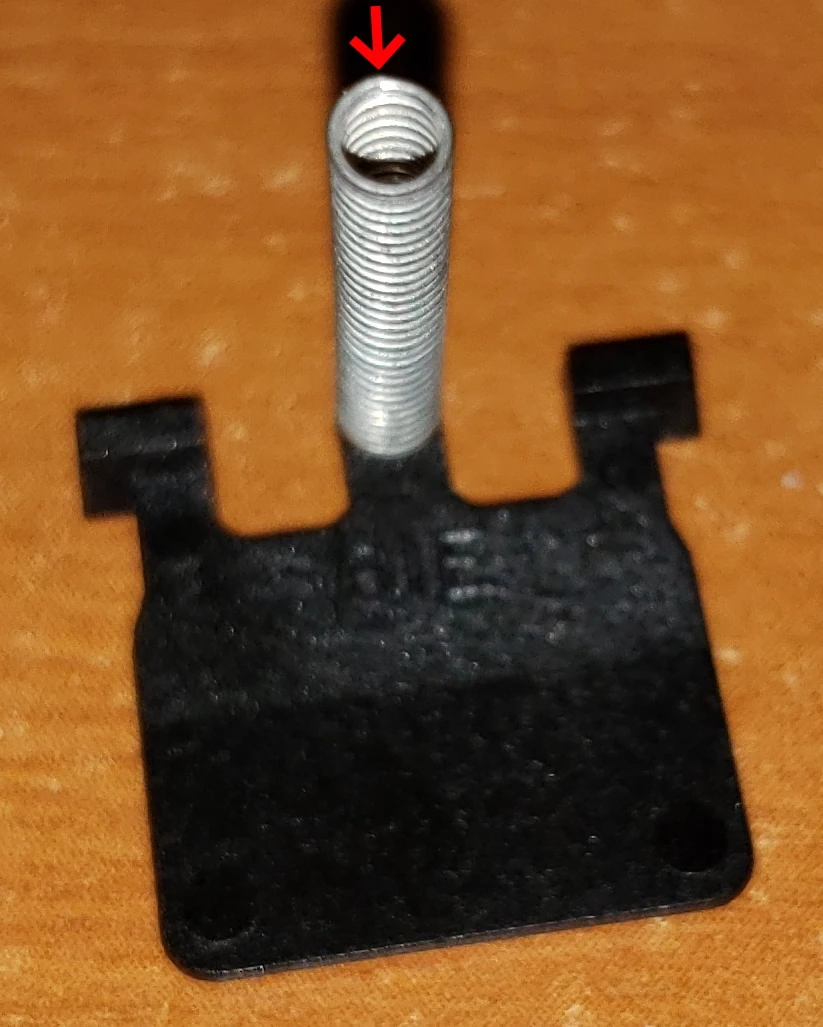
  2. If the spacebar is not actuating, test with a 1U key to make sure spring is good and properly aligned in the barrel. Please carefully remove and reseat the spacebar. For keyboards shipped in 2020 or earlier: if spacebar gets stuck, push down a little on the metal tabs. The updated production rounds shortened the metal tabs slightly to eliminate that issue of the tab end making contact with the spacebar.  
  3. Bending the spacebar wire:  See the below video in this section.  Sometimes the spacebar requires adjustment after the keyboards are bounced around in shipping – sometimes they are bounced so much that people have found the spacebar separated from its keyboard barrel! It’s a matter of slightly bending the spacebar wire so it performs optimally. More of an art than a science. When the spacebar gets stuck, I usually take the wire with two hands, with the long part of the wire closest to my thumbs, and use both thumbs to very slightly push up the wire – I do this about 4-5 times but not too hard that the bend becomes noticeable. That way the wire is pushed out of the way enough of the metal stabilizer tabs so that there is a little room, maybe 0.5mm. A slight bend or bow to the wire is often recommended; if they’re too close to the back of the metal tabs, the spacebar wire can get in the way of normal operation. This will also make the spacebar stabilizer wire ever so slightly wider in the two places where it connects to the spacebar itself – this also helps adjust the looseness vs. tightness of the spacebar while in operation. One potential issue if there is too much space between the back of the metal tab and the spacebar wire is that pressing the > . key may make contact with the wire; if this is an issue you should adjust the stabilizer wire so that it is closer to the back of the metal tab.  This will move the spacebar physically away from the > . key so that the stabilizer wire does not make contact when the > . key is pressed.  Additionally, as shown in the second photo below, you can bend the spacebar in the other direction, which would move the wire farther away from the > . key.  Check that the spacebar wire is underneath the top of the metal tab – for both tabs, as shown below. Bend the spacebar in the direction shown, just a little, so that the spacebar is about 1mm away from the back vertical part of both metal tabs.  You need to really move away the spacebar wire from the end/vertical area in the back of the metal tabs that are welded to the top inner assembly, so there is a good gap there, even bigger than you may have thought you needed – and for both tabs. I run into the same issue sometimes and the gap needs to be big enough so it won’t get stuck.
  4. Tightening the wire stabilizer ends:  You can also tighten up the spacebar actuation and reduce rattle by removing the spacebar wire and tightening the left and right parts of the wire so that they are moved inwards, but not too much that the bar cannot be reinstalled! If these left and right ends of the wire are too far apart from each other, then pressing the alt keys may contact the spacebar, so you should just move these left and right parts of the spacebar wire inwards (use pliers). 
  5. If you need to separate the stabilizer wire from the spacebar, always hold the spacebar upside down and make sure the spacebar wire is flat against the spacebar, so when you stretch the wire at one end the other end is held firm against the thicker post on the spacebar (so as not to snap off the little tabs holding the wire in place).  Then you can pull the spacebar wire from one end in order to separate it from its hole in the spacebar. Always remove the spacebar wire stabilizer from the spacebar before adjusting it. If you just try to pull the wire straight off (or push on to) the spacebar, you will weaken or break the spacebar’s little tabs.
  6. Adjusting the black metal tabs on the top inner assembly plate:  The metallic twang / reverberation / ringing is definitely the sound I am going for (!) but there are ways of reducing it. The bigger the thud of the spacebar, the better in my view! One can carefully push down the metal spacebar tabs for a reduction in rattling sound. Always push the side of the spacebar whose tab you want to adjust towards the metal tab in order to get that wire nearly touching the back of the metal tab before you push down that tab, then repeat for the other side. Pushed down even more and it may make the spacebar require “heavier” force to actuate (push down too much and the spacebar will get stuck frequently!).  Usually I remove some keys above the spacebar and nudge the stabilizer wire towards the spacebar with a screwdriver or tweezers, which will slightly move up the tabs again.  To replace a broken or missing tab:  the replacement tabs available in the shop have homing alignment bumps on one side and no bumps on the other side.  Unless you are replacing an original or reproduction F that has holes or space corresponding to these bumps, it may be better to use the tabs with the smooth, non-bumpy side attached the inner assembly plate; use your discretion.
  7. If your spacebar lags a bit, just need to loosen the clips a touch with a screwdriver, or you may need to bend the stabilizer wire a bit more. I believe that the nice spacebar thud sound (and minimizing rattle) is highly contingent on the proper placement of the metal tabs relative to the stabilizer wire– bending the stabilizer wire slightly away from the metal tab ends results in a more rattly spacebar with a lighter actuation force that some people prefer, while pushing too much towards the metal tab ends can slightly increase actuation force for the spacebar. Excellent spacebar stability and sound is most likely to occur when the wire is directly against the back of the metal tab, or very close to it. The spacebar tabs may have been pushed down too much, or not enough or the spacebar wire is bent out of shape (should be precisely rectangular as a starting point). The spacebar should be installed as shown in the video (space bar end up but a 45 degree angle).  Another way of reducing the spacebar force slightly is to squeeze the stems of the key as described later on in the “wiggle method” section.
  8. Regarding squeaky spacebars: that is nearly always the case of adjusting/slightly stretching or replacing the spring rather than due to the spacebar stabilizer wire. A “squeaking” or stuck spacebar is often due to an improperly positioned spring combined with the need to slightly adjust the bend of the spacebar stabilizer wire – you can replace the spring without opening up the keyboard by using tweezers as shown later on. 
  9. If the spacebar is making contact with the keys above it: it is a matter of adjusting the shape of the spacebar stabilizer wire, and maybe putting some scrap foam or other material between the spacebar stabilizer wire and the back of the metal tab so that the stabilizer is moved upwards a bit – the spacebar needs to be moved farther away from the key it is making contact with, and that can be done by bending the spacebar and/or putting some material as noted above. “Putting a rectangular piece card stock vertically between the inner face of the tab and the wire did the trick” for one DT member.
  10. Setting expectations (don’t expect everything to be perfect):  it is a good time here to remind everyone about setting expectations for their Model F keyboard.  Do not expect the keyboard to be perfect, exactly as you imagined.  You’ll have to adjust your expectations to the reality of the finished product.  You may not be able to 100% eliminate all sounds and other issues that you don’t like with these keyboards, including reverberation/ringing, the spacebar still making slight contact with the stabilizer wire, and/or some spacebar wire rattle.  Rattle was also an issue with the original Model F keyboards due to the looser tolerances of Model F keyboard design which was made to be manufacturable with 1980s technology.  The originals were also warped (a limitation of PBT) and the spacebar could rotate 1-2mm in various directions.
  11. Additional adjustment ideas from the mechanical keyboard community:
    1. Some prefer putting a clear plastic tube where the metal stabilizer wire touches the metal tabs.
    2. “Applying a single layer of electrical tape where the stabilizer met the clips, as suggested by dotcom, helped immensely. I haven’t tried clickclack’s spacebar heat shrink mod but might do that someday. As it is, the spacebar is now the best sounding key on the keyboard.”
    3. One Deskthority member recommends automotive “silicone grease lightly applied (to the outsides of the barrels and the friction points for the stab wire).”
    4. Another user: “try putting thin adhesive neoprene under the stabilizer wire next to the tabs on the barrel frame. This has made the spacebar quieter and more solid, without making it mushy.”
    5. To quote another DT member: “Regarding spacebar rattle on the F62, I did several things, and the rattle has disappeared. Not sure which of these items worked or if it is the combination: Put strips of self-adhesive rubber inside the spacebar. I used strips intended as non-skid feet for the undersides of various things, such as keyboards. Applied a dab of silicone-base grease to the spacebar stabilizer clips on the top plate of the keyboard and on the spacebar itself. Put strips of ultra-thin self-adhesive foam on the top plate of the keyboard where the spacebar stabilizer wire hits the top plate. I used Poron ThinStik polyurethane foam. Put an O-ring at the base of the two spacebar barrels. The dimensions of the O-rings are 16mm OD, 12mm ID, 2mm thickness.”

Action Step 5: What you need to know before starting to install keys.  After reading this section, follow the last step in this section to inspect and adjust springs that may have shifted (pun intended!) out of position during rough shipping and handling.

  1. When you are installing the keys you are not just pushing every key in its place; doing that will ensure that a dozen or more keys will not work when you are using the keyboard.  While you install the keys, you are simultaneously checking that each key is not broken or chipped, adjusting springs when needed, making sure each key properly clicks, evaluating the sound of the spring as you test each key to make sure the key actuates properly when it is pressed, and reducing the buzzing sound of a key and/or fix a key whose spring does not click/buckle as it is pressed down. 
  2. It is important to know that installing the keys involves adjusting any keys that do not click reliably, and the main way to do that is to use tweezers to adjust the springs.  It is completely normal for many keys not to function on your first try. Removing and reinstalling a nonworking key a few dozen times (or spending hours fixing keys) is not the way to go about setting up your new Model F!  It is expected and normal that for all keyboards (including yours!) some keys will initially not click reliably (they will not click sometimes when the key is pressed) and some keys will be initially transposed, reversed, swapped, or out of order when typing two keys fast. No single Model F operation should take more than a few minutes.  If you find yourself taking an hour to do something, stop right away and review the relevant video and portion of the manual because you are doing something wrong.  Otherwise you will get frustrated and some of you may just give up or it might take you hours longer than those who follow directions.
  3. The fix for these issues involves adjusting the spring, reinstalling it the same way or reinstalling it upside down, replacing the spring, and/or pressing on the key a bunch of times to properly settle things.  You may need to press on a key many times after reinstalling the spring and key to “break in” the key and eliminate any occasional transposed keys or keys not registering consistently.  If one key position is not working but the flipper and spring move freely and you have tried all of the other steps below (for example the top-left key position Esc does not work), then you should install another key into that Esc key spot on your keyboard as there is a small chance that the keycap itself was bad.
  4. Proper key installation involves holding the keyboard vertically, spacebar side up. Don’t let the keyboard rest horizontally until each key has been fully pressed in.
  5. See the below video to see how I reinstall the springs, install each key, and make sure it is properly installed, and how to adjust things if the key does not actuate properly.
  6. Do not connect the keyboard to a computer until you have installed the keys. Per a DT user: “When there are no keycaps, all the flippers will rest on the pcb giving you pressed keys all over.” 
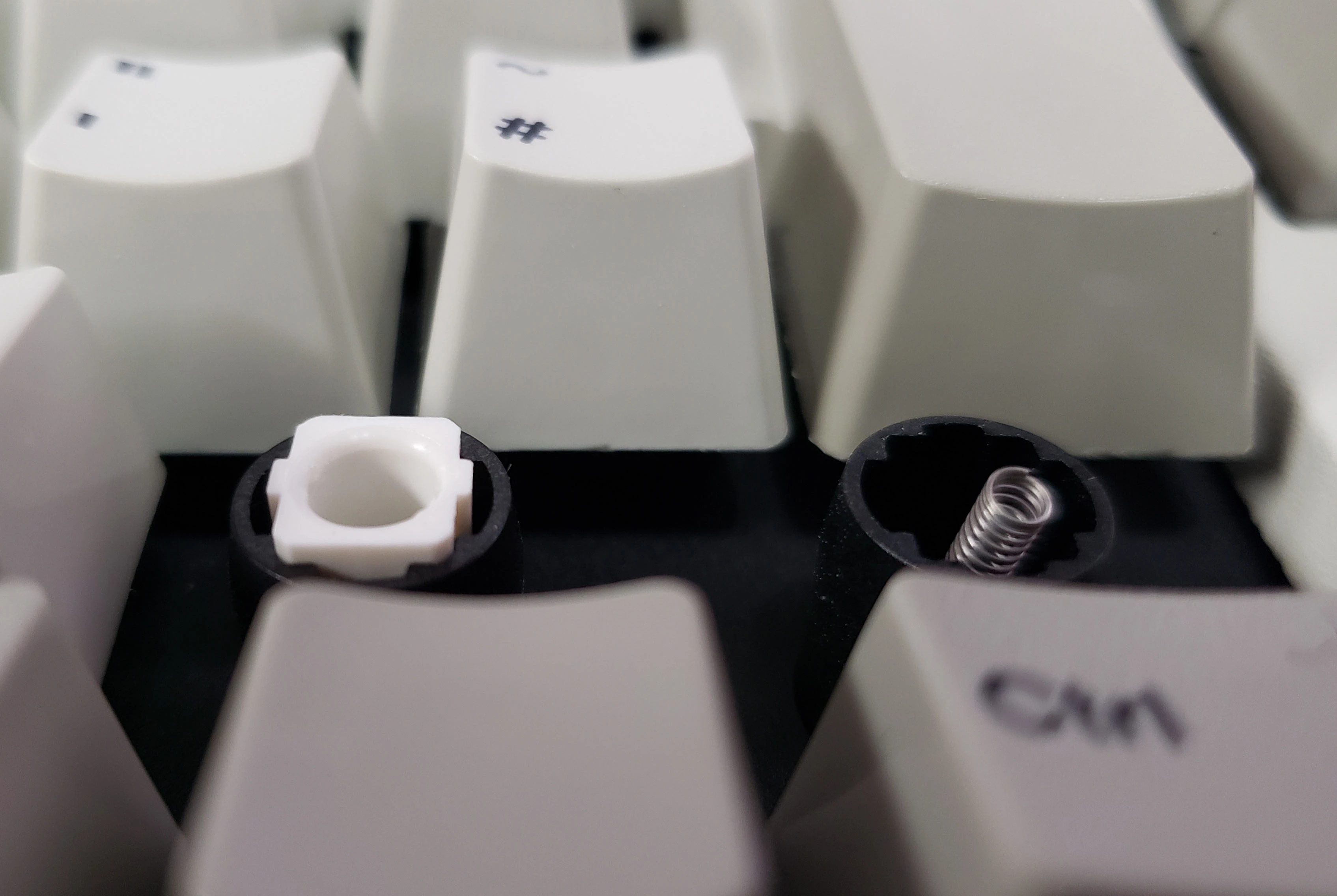
  7. It is important to test the Model F before you start using it on your computer: Even though there is strong protective packaging, Model F springs are often dislodged during shipping which can result in a bad click sound or no click at all, and keys (and sometimes springs) may need to be reseated. Test each key to make sure it buckles properly. There is a Quality Control Secrets portion of the below video that will show you step by step how to fix a nonworking key as well as help you determine what keypress sounds good vs. what is a potential issue. The fix for each key takes less than a minute per key – you should not spend more time than that. The last step is to replace the spring or switch it with another key’s spring – often springs may be damaged during installation and once damaged, a spring is no longer usable and must be replaced.
  8. Before installing any keys, you should learn the process for inspecting and adjusting the springs:  This point describes how to remove and re-seat springs, which is the main way to fix keys that are not working well.  The main reason that you see issues such as transposed or out of order keys, keys emitting double presses when you press them one time, or keys not emitting any signal when pressed are because the springs need to be adjusted, so follow these steps and watch the video to see how to adjust the springs.  The 3 possible culprits for key-related issues are needing to reseat the springs and keycaps (this step alone fixes nearly all of these issues), needing to clean the PCB of dust and debris (less likely if the board is new), or needing to push down the PCB about 1mm if it got pushed out of place (see Step 3 below for photos and details). Please email me to let me know if you are still having an issue after trying all 3 steps discussed in this section.  You can’t just look at the spring and think that because it is not visibly different from the other springs that the spring is fine and installed correctly, fully pressed down on the nub and in the correct orientation and distance from the edge of the barrel.  A spring may look perfect but not work.  Our next step is to remove and re-seat any loose/non-working keys. Regarding re-seating springs, in nearly all cases you do not need to take apart the keyboard to fix keys that do not click or spend a few minutes pressing a troublesome key. Reattach the key as shown in the video, with the keyboard positioned as shown (vertically, with the spacebar row up).  After reinstalling the spring, be sure to carefully reinstall the keycap; I like to do this step slowly to make sure that the spring is correctly positioned inside the key because if you are pushing in the key too fast, it may bounce the spring out of place. 
  9. Do keys near one of the keyboard edges get stuck when you try to install or press a key? Sometimes all of the keys on the leftmost or rightmost side (or top/bottom row) may be stuck because they are too close to the case. Things may have shifted in shipping; all you need to do is loosen the screws on the bottom and slide the inner assembly away from the edge it is too close to, and of course tighten it back again when done. A second thing to check:  make sure the inner plates slide in fully so the sides of the tabs touch the sides of the bottom inner assembly (see photo below). If there is some space in between the tabs, then there could be issues with keyboard functionality.   The top left tab should be folded down a little to lock everything in place.tab alignment
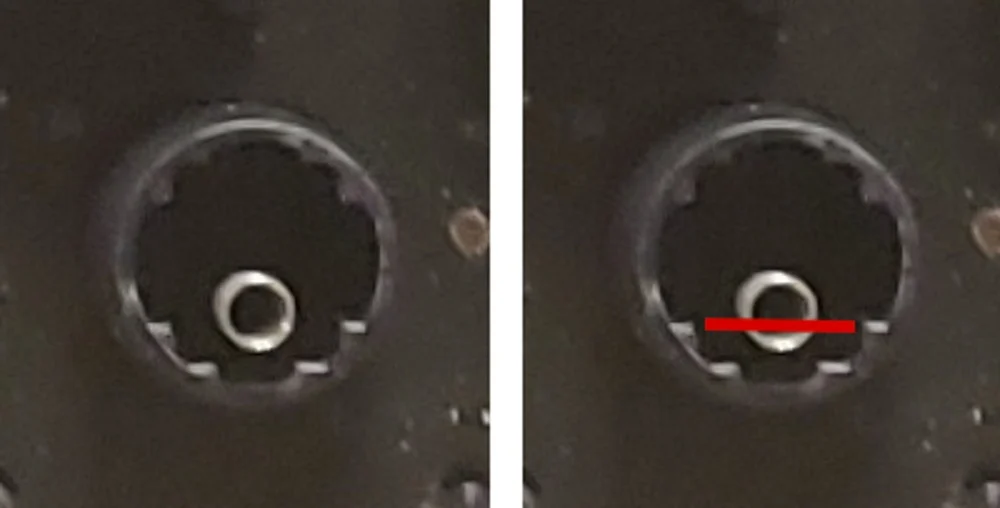
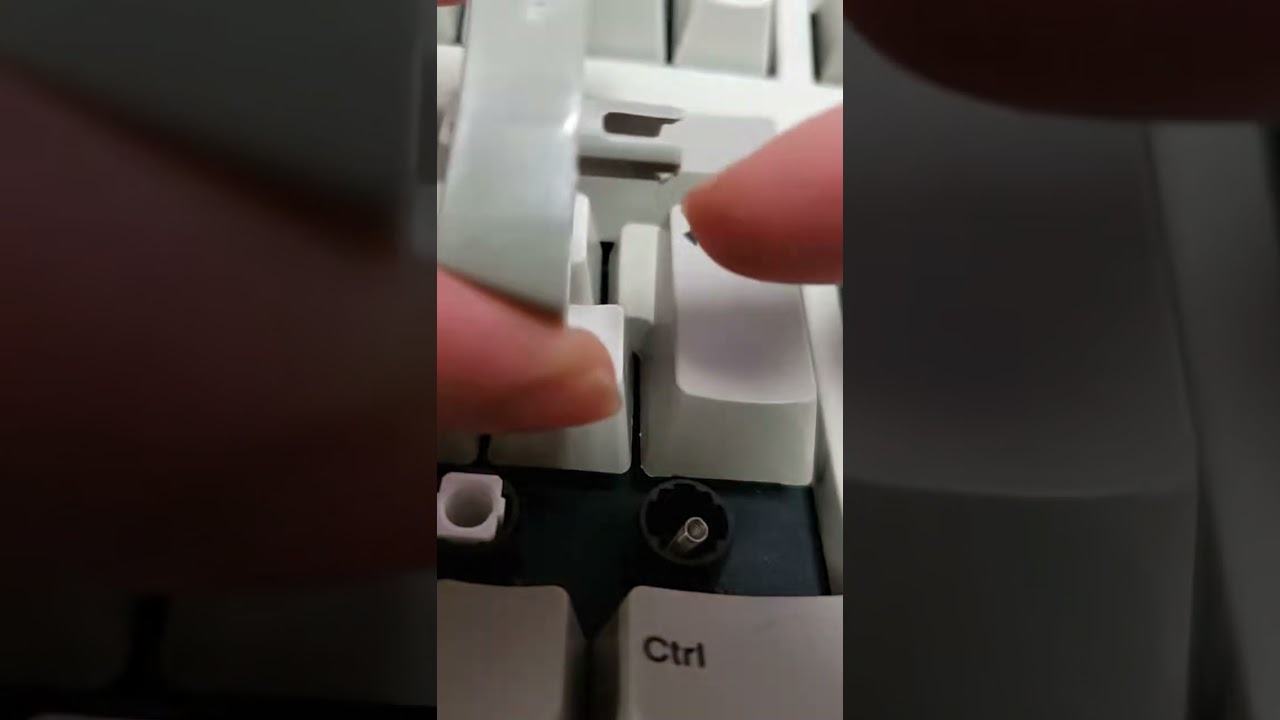
  10. Before starting to install the keys, it is often best to inspect all springs to make sure they are properly positioned as per the photo below.  The ones that are way too far away from the correct position below should be (carefully) pushed down or removed and reinstalled.  Take a look at all the springs while the keyboard is held vertically, spacebar end up.  The springs that are close to touching the barrel are properly positioned and will likely produce a better sound.  Some springs may have moved out of place and are more towards the center of the barrel.  Before you install all of the keys, use tweezers or another tool to slightly push down towards the edge of the barrel or twist off (counterclockwise) and reinstall these springs for ease of installation, reduced possible issues with nonworking keys, and improved sound.  Take a look at the bottom of each key as you prepare to install it; all the key stems should look the same except for the 2U Vertical and ISO Enter key stems which will look a little different.  Do not try to install a key that is damaged.  Often re-seating a key is not enough to make the key work or to reduce or eliminate a buzzing sound when a key is pressed, and you need to remove and reattach the spring as shown in the QC secrets video. I have found that carefully removing and flipping the spring upside down can fix most spring issues, and replacing the spring with another spring is a last, but often necessary step. Springs must always be removed with a gentle twisting motion (it should come off easily – otherwise you’re twisting the wrong way), never pulled straight up. Twist counterclockwise looking at the spring straight down, like in the below picture. Springs should always be put back by pushing them straight without twisting, as shown in the video.  Be sure to press the spring all the way down onto the nub of the flipper so that the spring is tightly secured on the flipper.  The goal is (1) to have the spring be about 1mm above the 12 o’clock position of the barrel when the keyboard is positioned that way, and (2) have the end of the spring in the 12 o’clock position relative to the flipper, as pictured below. If the spring end is not positioned at 12 o’clock (per the video) and the spring is not about 1mm away from the edge of the barrel, buckling error is more likely to occur.

Action Step 6:  Time to install the keys.  

  1. The first keys you should install are the ones 2U and larger.  Due to the design of buckling spring keycaps, 2U and larger keys are most likely to become stuck when pressed all the way down and require following these steps to fix such instances of key binding.  Do not proceed to install any other keys until these keys are fully working, since if there is a major issue you may need to remove all keys.
  2. “The Wiggle Method” – the best Method if a 2U or larger key is stuck:  you have to do some of the below steps several times in some instances of binding. Do the steps, install the key and test with 10-20 key presses, then remove and do the steps again if needed.  Do not sand away parts of the keycap, add lubrication, or do anything else on your own as it is unnecessary. Do not use this method on keys smaller than 2U, including 1.5U keys, as it will likely have little to no effect.  The wiggle method is for stuck keys.  If a key is not working, the wiggle method will not fix it and you may just snap the key.  A key that does not buckle when pressed but otherwise does not get stuck is usually related to the spring.  Make sure you’ve properly followed all of the setup steps before trying this, especially those steps on spring adjustment, as the key may be stuck because the stabilizer insert or spring was out of place or incorrectly installed.
    • Start with this step for keys with the stabilizer posts:  Gently pinch the affected key’s outer stem/ear and stabilizer insert pole between your thumb and forefinger and wiggle side to side about 20-30 times. Your fingers should be positioned so as to squeeze deeply into the key, as deep as possible, not just at the very end of the key stem. See the video above, which shows the wiggle method.  Please note the wiggle method is not recommended for 2U vertical keys’ stems as you may just snap off the stems.  It can help with the 2U vertical keys’ posts though.  Keep reading this action step fully for additional instructions; the wiggle method should not be the first thing to try for those keys.
    • After squeezing, gently wiggle the key post (the part that goes into the stabilizer insert) 10 times in the direction of the left and right sides of the key if you were to look at the key as oriented on a keyboard – seems to eliminate binding when the extreme edges of a key are pressed. Be very gentle as this is the easiest part to break on a key!  Do not touch the stabilizer insert itself or add any lubrication to it.
    • Burnish the back side of the key stem (see the below video) – use your fingernail on the back side and the angled part of the stem where the back side and bottom meet.  This single step seems to significantly improve key binding/resistance for 2U and wider keys.  Also shown in this video:  widening the stem a bit if needed: 

    • If it is still stuck but maybe a little better, repeat the prior two steps and test again. Sometimes the two “wings” of the stem get stuck too close together so you have to gently spread them apart maybe a total of 1 mm or so. For 2U height keys like 2U Vertical (num pad area) and ISO Enter, some folks have reported that the horizontal/white stabilizer insert works better with the vertical keys instead of the vertical/black insert.
    • Keeping the stabilizer insert 0.5mm to 1mm above top of barrel may reduce the extra pressure needed to press a key at the edges and binding,  especially for the shift keys:
  1. Best Method if the key is too loose and pops off:  you just need to gently widen the stem a bit without breaking it. The stem consists of the two “legs” that go into the barrel. It’s common for the larger key stems to be slightly too narrow or too wide. Please use the other keys’ stems for reference on the proper width. 
  2. Other potential fixes – not necessary or recommended:
    • Add a 1mm piece of foam under side of key where stabilizer insert goes. Example story:  “It seems like the left barrel (the empty one) on the spacebar was binding a bit. I solved it by cutting a thin foam disk (about 2mm thick) and sticking that into the outer barrel on the bottom of the spacebar. This limited the travel just enough to avoid binding. Once that was done, the keyboard was perfect.” 
    • And one last method that worked: “I did add a little bit of Syncro Superlube and that did it.
  3. After confirming these keys all work 100%, then install the remaining keys.  Keep in mind the above Action Step 5 to adjust and test each key and spring.  Make sure all the 2U and larger keys are good before installing other keys.  There is definitely a break-in period with Model F keyboards – especially with the springs. There’s a good chance that the springs will sound even better over time with usage! Also pressing a key a few dozen times may fix an initially flaky key (do not reinstall a key dozens of times as that is ineffective at fixing any issue).
  4. You’ll have to open up the case to install screw-on bumpers such as the medium threaded or 1″ large bumpers.  Note that for the F122, do not use the 2 bolts that are covered by these bumpers (just leave these empty, since there are bolts a few inches away).

(The video in the above action step also includes information for this step and for the following step.  You may benefit from watching it a few times, especially for the portions of the video where I am adjusting the springs and using the wiggle method

Action Step 7:  Test all keys on the computer to make sure they are reliable and then adjust any non-reliable keys.  If every key is reliable, then this may be the last step to complete your setup!  If you ordered a solenoid, see the solenoid setup below.  The additional topics listed below (firmware, mods and disassembly, etc.) are not required for most setups unless you are taking apart the keyboard or adjusting the layout using Vial.  Hint:  as noted before, don’t just remove and reinstall a keycap for an hour straight; that won’t fix an issue.  This section will help you determine what to do to fix a key that doesn’t work.  Several parts of the keyboard need to work correctly together for each key.  Do not think that because a key doesn’t work that you need to return the keyboard to me for a repair; after you read this section you will understand what to do to fix an issue yourself quickly. 

  1. Do one more check before plugging in your keyboard. Be sure you can hear the snap of the flipper when pressing each and every key. Every spot on the keyboard for a key must have a key installed before proceeding; do not leave any empty spaces on the keyboard where you can see the barrels and springs.  I like to press each key a few times to be sure of a reliable actuation. If you are just feeling the pressure of a spring when a key is pressed, but without a snap, that means you have not installed a key properly and many keys on the keyboard will not work, due to the way a pressed key confuses the autocalibration when a keyboard is plugged in. Many errors are from folks with one improperly installed key and they think there is a major hardware problem, when in fact it is user error with installation.  Some folks at this time also like to adjust springs that function perfectly but have a sound that is a little off, such as a buzzing or other weird sound not in line with the other keys (just a reminder that every key will sound slightly different in a Model F keyboard so do not think you can get every key to sound the same). 
  2. Now that the keys are all installed and you tested each key several times before this step, we are going to connect the keyboard to the computer for the first time!  Occasionally you may plug in the keyboard for the first time and your computer does not detect anything as shown in the Device Manager.  If that is the case, then open up the Device Manager program and check if you see Atmega (then you would just need to go to the firmware section in this manual to follow step by step instructions to re-flash the firmware) or you may see nothing appear or disappear when plugging in and unplugging the keyboard (in this case, you would need to follow the specific instructions to flash the pads on the controller itself; see the firmware flashing step below before you continue this step).  Some folks report that after setting up the keyboard and connecting it to your computer to test each key with a keyboard tester program or web site, you should unplug the keyboard for at least 15 minutes while following the QC secrets video above to adjust any keys and springs that are flaky. Sometimes unplugging the keyboard and plugging it back in fixes a random issue you may be having.  If a non-stabilized key (a key smaller than 2U) gets stuck when pressed, after adjusting the spring and making sure it is properly installed and making sure the spring on its flipper moves freely (per the previous Action Step), install another key in that spot and inspect the inside of the key for damage and molding errors.  If the alternative key works in that spot and sends a signal to the computer when pressed, then a key may have a physical issue.  Important note:  While all of these keyboards work fine with Windows 11 among many other operating systems including Mac and Linux, due to increased security on Windows 11, for flashing Atmega controllers (i.e. all controllers except the Leyden Jar) you may need to use a computer running another operating system such as Windows 10, or try going to Windows Security > Core isolation and toggle “Memory integrity” OFF, then restart the computer, though this is not a confirmed fix as of now.  Free programs like Rufus allow you to make a “Windows To Go” Windows 10 USB memory key using a freely downloaded trial iso of Windows 10, which will allow flashing.  If you refuse to use something other than Windows 11 and you cannot change the aforementioned setting, you will be unable to flash firmware which may be required to fix bugs and other vulnerabilities.
  3. Be sure to plug the keyboard directly into the computer, not into a USB hub, and make sure there are no other connected USB devices besides the mouse (this latter point is just for troubleshooting, to check for conflicts). Sometimes you may need to try other USB ports for some reason.  An important note on USB hubs and docking stations from one new Model F user: “Key presses would register or not register. Random text would appear while typing. Unusable. Turns out I was using a 4 port non-powered Anker USB hub. Works fine for my model M’s, and the rest of my keyboards BUT not the F77. I then plugged the F77 into a powered USB hub and all is good.”
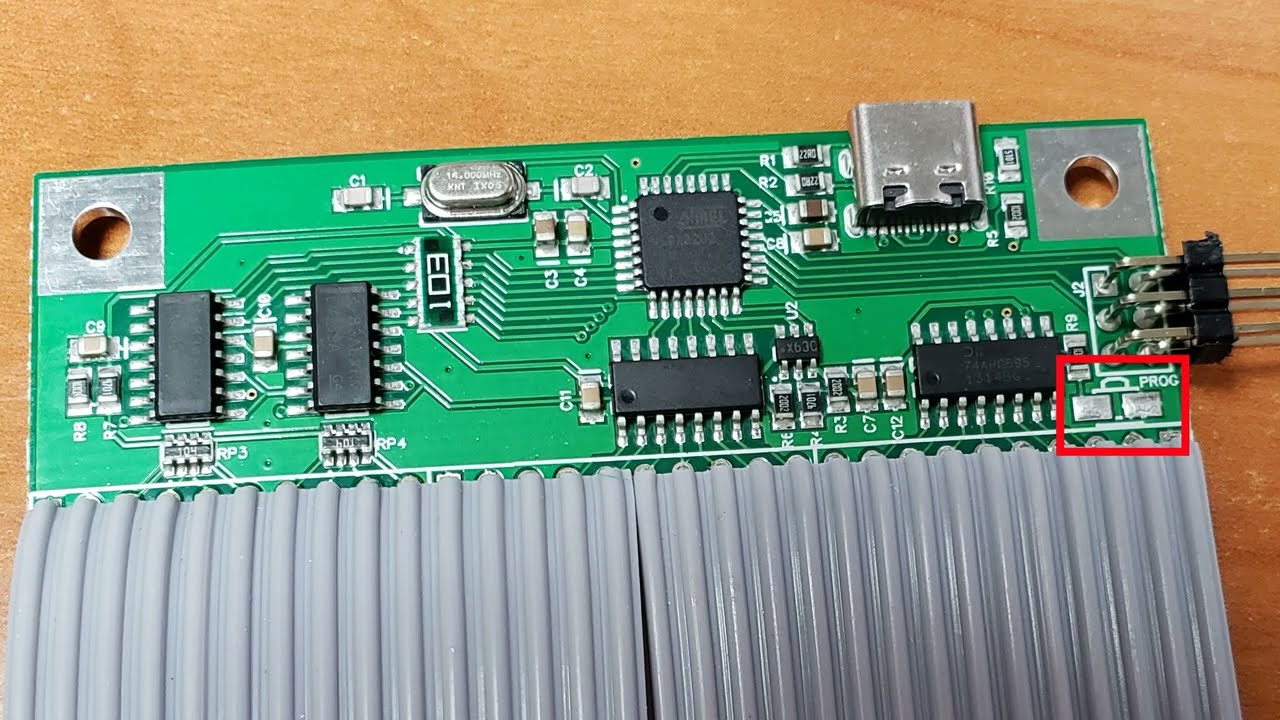
  4. Check that your keyboard is detected by the computer.  If the keyboard is not detected – check that the USB cable is plugged in fully on the controller end of the USB cable as well. If you see “ATMEGA32 DFU” in your device manager (Windows), System Information (Mac), or “hardinfo” on Linux, you may have accidentally cleared the firmware and need to reflash it – see the firmware section below to fix this. Also, try on another port and on another computer. In the extremely rare instance that your keyboard is not detected at all (no ATMEGA or Model F keyboard listed in device manager) when you plug it into the computer, it does not mean that it is broken.  The controller may have fallen out of place in its alignment with the bottom inner assembly tab causing a grounding issue – make sure these controller tabs line up exactly with the silver ground area as shown here (you may need to loosen the ground screws, push the controller by hand so the silver ground square lines up better with the tabs, and tighten both screws while holding the controller in place).  If you are having difficulty, first remove both controller screws and lift the controller upwards so it is not contacting the bottom inner assembly.  Now, connect the USB cable to the controller and computer.  If it suddenly appears in the device manager, then you know everything is good and you just have to carefully realign it so that the two squares line up perfectly with the bottom inner assembly ears.  If even after lifting up the controller it is still not detected at all when you unplug and plug back in the controller or if you get an error “Unknown USB device (Device descriptor request failed)”, you should physically short the prog pads (see the Intermediate – Firmware section a few paragraphs down:  “short PROG on the actual xwhatsit controller” in bold).  Also, make sure you are not using a USB hub, USB extension cable, or KVM switch as those have been known to cause this and other issues.  Sometimes switching to another USB port fixes this issue.
  5. Are you using an Apple/Mac computer?  There is usually a pop up the first time you plug in a new keyboard on a Mac that lets you configure the keyboard (I have linked to it below).  If this does not show up, the other option is to go into Mac settings, keyboard, and switch the modifier keys (for command, select Option in the drop down menu, and for option, select command in the drop down menu). No extra software like Karabiner is required unless you want to make other remappings.  https://iboysoft.com/wiki/keyboard-setup-assistant-mac.html  

  6. Test each key with the keyboard tester web site, pressing each key several times and making sure a key registers one time each time it is pressed. After that, I also strongly recommend going to a typing competition web site like 10fastfingers to make sure that your typing is accurate and there are no occasionally non-working or transposed keys due to the springs (if there are, see the above sections as well as the below Part 3 section for the needed steps).  One key may be factory programmed as the Fn key, so when you press this key it will not be detected and it will appear that the key is broken! The Fn key does not show up on any keyboard testers.  For HHKB style layouts, the Fn key is the key to the right of the shorter right shift key.  For the latest xwhatsit firmware, the key between Right Alt And Right Ctrl is factory set to Fn, so it would be this key that would not be detected by keyboard testers.  For Leyden Jar firmware (F122, Classic B104/B122) and older xwhatsit firmware (F62/F77 that has not been reflashed to Vial, the Right Ctrl key is factory set to Fn. This key cannot be remapped in software; you need to go into Vial (or flash Vial, if it is not already flashed) to change this (follow the steps in the firmware section below). Be sure to close the pandrew or Leyden Jar diagnostic tool before using Vial.rocks or the Vial software.  If you notice that there are four springs to the right of the spacebar but you are using the large spacebar, and you notice that the GUI button is accidentally pressed: go to the website Vial.rocks, layout tab, click the check mark for split spacebar, then go back to the first tab, double click that key immediately to the right of the spacebar (the fourth key from the right key) and enter KC_NO to disable it. In summary, the keys to the right of the spacebar should be KC_NO, Alt, Menu, and Right Ctrl or Fn.

  7. You should also diagnose an issue with a nonworking key with the signal level monitor in the pandrew or Leyden Jar utility which is in the comprehensive firmware zip file (do not use QMK Toolbox, Vial, or a keyboard tester website for this part of the setup process).  Currently, the Leyden Jar controller and Leyden Jar diagnostic utility are used with the F122 and Round 2 B104/BSSK, while all other keyboards use the xwhatsit controller (F50, F62, F77, FSSK, F104).  Everyone should download this file (includes all needed xwhatsit and Leyden Jar files)  https://www.modelfkeyboards.com/wp-content/uploads/2020/07/QMK-layout-files.zip Additionally, as of 10/27/25 there are updated (beta) precompiled Linux and Mac pandrew utilities available here:  https://github.com/ploxiln/vial-qmk/releases/tag/newfxx_r5c  Per forum member ploxiln: “On macOS, open the DMG and drag the app to your Applications folder (or wherever). Your first attempt to run it will be blocked because it’s not signed, then go to System Settings -> Security and Privacy and at the bottom there will be a button to “Open anyway”. Thereafter it will open directly without complaint.” 
  8. For keyboards using the Leyden Jar controller (F122, Round 2 B104/B122, and others in the future), use the Leyden Jar diagnostic tool, which can be found in the above zip file.  This works the same way as the pandrew utility, but with some differences.  First of all, you have to plug in the keyboard and then click the Refresh button in the diagnostic tool.  Then you can click Signal Level monitor and proceed with the same instructions as the pandrew utility.
  9. Here are the instructions for using the pandrew or Leyden Jar Signal Level Monitor: 
    1. The tools are not interchangeable.  Only use the Leyden Jar tool with Leyden Jar controllers (F104, B104, B122, and others in the future) and the pandrew tool with xwhatsit controllers (other models).
    2. Always unplug the keyboard, wait a few minutes, and plug it back in before starting the troubleshooting process and maybe after changing something; this often fixes things!  Also typing normally for a while can also fix odd and intermittent issues.  With the keyboard in its normal horizontal position with all keys properly installed and tested, plug in the keyboard, load the utility program, and click Signal Level Monitor.
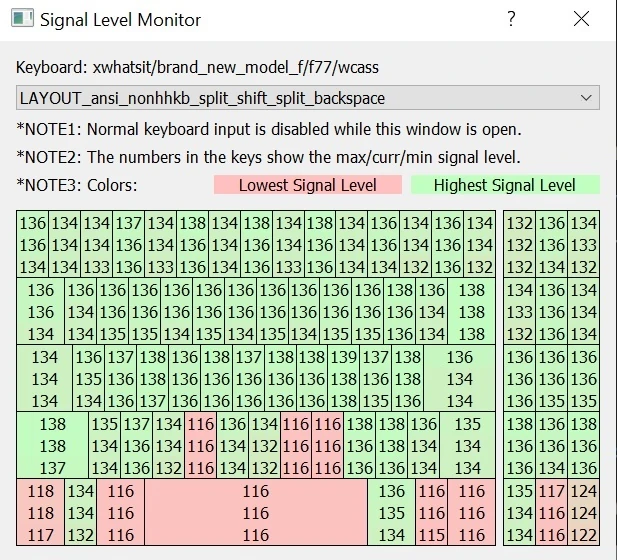
    3. Very important, when testing keys, always press and hold the key for several seconds minimum to see if the middle number turns green and the value increases from the bottom number (in the Signal Level Monitor window, the three numbers for each key show the highest, current, and lowest values). The signal level monitor should show the key starting out at an unpressed state (showing a red color and a value of about 110 to 125 or so) and then when you press the key (or uninstall the key and let the flipper be loose so that the flipper contacts the PCB, with the keyboard positioned normally and flat on your desk) the middle number of the three numbers should turn green and go up to 150 or higher (generally 155-175+ is recommended).  A quick press will not register in the Signal Level Monitor. 
    4. Never use the Key Press Monitor functionality of the pandrew or Vial utilities, QMK Toolbox, or the like; they do not work properly for Model F diagnostics. 
    5. Remove any keys at issue. Use your fingers to move the spring, to make sure it moves freely and make sure the flipper is not stuck. The flippers would then freely make contact with the PCB. If you see the middle number of three numbers for each key being a solid green when the flipper is left alone, very close in numerical value to the bottom number for that key, that means there’s an issue with the installation of the key or of the spring – see if the flipper moves freely and the middle values change when the key is removed, if you move the keyboard so it is vertical, spacebar side up, and then move it so it is horizontal once more.
    6. See the image below for how the matrix should look in the QMK utility after you have pressed each key one time and opened the Signal Level Monitor window in the pandrew utility program. The keys that stay red represent pads without flippers (may vary based on layout).  Pressing a key should turn the middle section of the key green in the Signal Level Monitor window (see the video for details).  If the middle row changes to green without an installed key, that means that you need to adjust the spring by following all of the steps detailed earlier.
    7. Removing and reseating the key again and again without doing anything else is unlikely to work.  Below is a screenshot of the Signal Level Monitor window of the pandrew utility showing a normal US ANSI style keyboard with all keys pressed.  You’ll notice that the “hidden pads” for the extra large keys like shift, enter, and backspace remain red as they cannot be pressed.  Since this screenshot was taken before the keycaps were installed it shows higher values than with all the keys installed. 
    8. If you need to email me after having tried all steps above and below this point without success, please attach screenshots of the signal level monitor after having pressed and held for three seconds each nonworking key (you can press and hold many keys at one time to save time).  The capacitance  strength is shown by the shade of the color. 
    9. The Leyden Jar diagnostic tool shows lower strength keys (with pressed values within 3 values of the reference level for the bin) with a light blue color.  It is normal for flipper capacitance to vary; this does not indicate a problem.  Keys will function fine if they are any shade of color when pressed.  This means that you may see a key change colors or flicker between light blue and dark blue, but this is not a cause for concern.  The only concern should be if a key is pressed but the pressed value does not meet the reference level, meaning that a key press would not be sending a pressed signal to the computer. 
  10. If you see issues with holding down a modifier key and another key, or issues with key presses being out of sequence from what you typed when typing fast, fixing the grounding screws may solve the issue, though it is far likelier to be an issue with the springs or with caked-on debris on the bottom of one or more flippers or on top of the PCB pad for an affected key.  I strongly recommend tightening the two controller screws that ground the controller as they may have loosened as these keyboards are bounced around in shipping (!). Do not use the Keypress Monitor part of the pandrew utility or QMK Toolbox as they do not function correctly.  Plug in the keyboard before closing up the case.  
  11. One less common issue you may find is inconsistent key registration, such as double presses, transposed (swapped or reversed) keys, key ghosting, keys not recognized, key spamming (extra keys when one key is pressed or when the keyboard is moved or tapped). Double presses and other issues could be related to the two controller ground screws not being tight enough (the most likely culprit!), the seating of the spring on the flipper nub, or some kind of damage to the spring (the tops of the springs can get caught on something and bend out of shape – spring damage can’t be 100% fixed in my experience without replacing the spring itself), or the debounce filter and threshold (these two are xwhatsit firmware issues only-xwhatsit firmware stopped being used in early 2020; update your firmware if it is that old!). This is usually an issue with the way that the keys were installed or if the springs need to be reinstalled (did you follow every step so far? If the keyboard wasn’t held upright and each key tested for the proper click beforehand, that may be the cause). For example, you may see double presses if the spring is not properly reinstalled, especially if it is not pushed down all the way onto the flipper nub, if the spring rests 1mm from the barrel as per the above photo, or if the spring is not reinstalled with its end between 12 and 1 o’clock.  Don’t forget that one of the steps to fixing keys involves replacing the spring itself as shown earlier.  Sometimes, just restarting your computer (or a cold boot – turning it on from a powered off state) fixes the issue.  The Leyden Jar diagnostic utility does not factor debouncing into the signal level monitor, so if you see other keys turning blue for a split second when not pressed, it may not be a real issue.  After testing in the Signal Level Monitor, always do real-world testing in a notepad program or online key tester to determine if there is an issue with a stuck key, phantom key press, etc.
  12. When testing, always make sure the xwhatsit controller is attached to the bottom inner assembly with both ground screws. If, after you have followed these instructions completely and many keys in a row or column do not work, please follow the section on additional diagnostics through the pandrew utility.  If you are emailing me for help with keys not working after having tried every single step, you will need to email me screenshots of the pandrew’s signal level monitor utility after pressing the non-functional keys and holding each affected key down for a few seconds, as detailed below. If one or a few scattered keys do not work, it is most certainly not a hardware error but instead a user installation error or debris that entered the keyboard and moved between the flipper and capacitive PCB, thereby interfering with the keypress signal.  That is why opening up the keyboard to check for and remove debris is the last step to fix a nonworking key.  Please continue to the “Diagnosing Issues with Keys” section below to troubleshoot any nonworking keys.

Action Step 8:  Check for rarely seen issues noted below, and fix them by following the steps in this section.  Also follow this section if you can’t get a key working after following the previous Action Step.

        • If a key doesn’t work and its flipper is not registering in the Signal Level Monitor utility, after you’ve adjusted/replaced the spring and removed the key for testing
        • Transposed keys (two keys typed fast switch places, always involving the same few keys), repeated keys, or unreliable keys that persist after correctly reorienting and replacing the spring per the above steps (usually displayed as a key with a weak pressed value in the signal level monitor)
        • Entire matrix rows or columns not working
  1. As mentioned above, it is completely normal and expected that some keys will not work right away when you are setting up the keyboard and in the initial time spent using the keyboard.  Do not immediately think that the keyboard is defective or broken, and do not waste hours reinstalling one keycap or adjusting a spring; if you are spending more than an hour or two to set up your keyboard then you are doing something wrong.  There is a specific process of a half dozen or so steps to reinstalling springs and keycaps, and a video that shows how to adjust springs and keys. 
  2. Do not fiddle around on your own to reinstall the spring or try other methods as you can permanently damage the spring (once a spring is damaged, never attempt to repair it as you will just waste time). Many people who don’t follow these directions say their key is completely broken and they tried to fix it to no avail, but then after following the above directions they tell me they fixed the issue 100%. 

This section will show you step-by-step how to correct the nearly 99% of keyboard functionality issues that fall into the first three categories below:

    1. Not correctly following the setup manual and video, most especially the multi-step process for fixing individual keycaps that do not function.  Most issues reported to me fall into this category.  Most issues take a few minutes to fix.  If you are spending hours trying to fix one issue then you did not review and follow the manual fully before starting.  If you have spent a few minutes trying to fix something and it is not working, stop what you are doing and review this section once more.  You may be trying something over and over again (such as adjusting springs and reinstalling keycaps) that will have zero chance of actually fixing the issue, which may be due to something else.
    2. Dust or debris inside the keyboard causing unreliable operation, occasional transposed keys, missed keys, or repeated keys (reminder, almost all of the time the aforementioned issues are due to the above category, not due to dust or debris).  The capacitive sensing is so reliable that this issue is extremely rare but do not rule it out if adjusting the springs and following the other steps in the manual do not solve the issue.  Sometimes the debris can also be from a broken keycap stem or flipper, not just from dust.  This is the only category where you’d have to open up the inner assembly to wipe off the PCB and check for dust. For example, a piece of oily or sticky debris on the PCB below a flipper may cause the flipper to physically move but not register a key press, even if the pandrew signal level monitor screen registers a key as pressed when you remove the key and the flipper and spring are loose inside the barrel.  In that extremely rare case you’d have to remove all keys, open up the keyboard, and look for debris.  Unreliable operation can also be caused by the large capacitive PCB that slid slightly out of place (see below for the recommended fix).
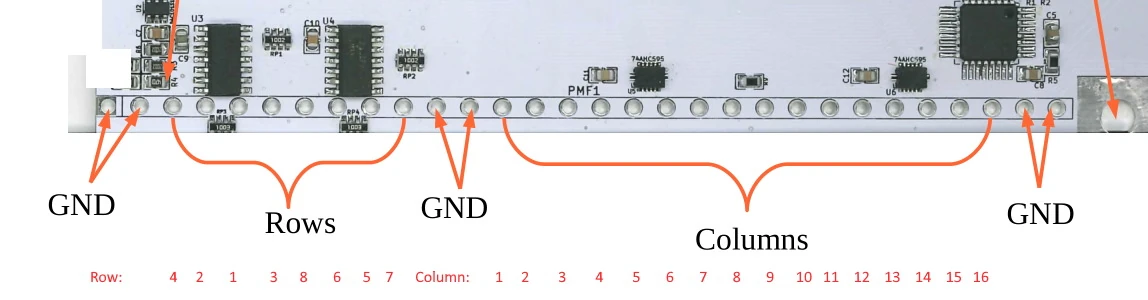
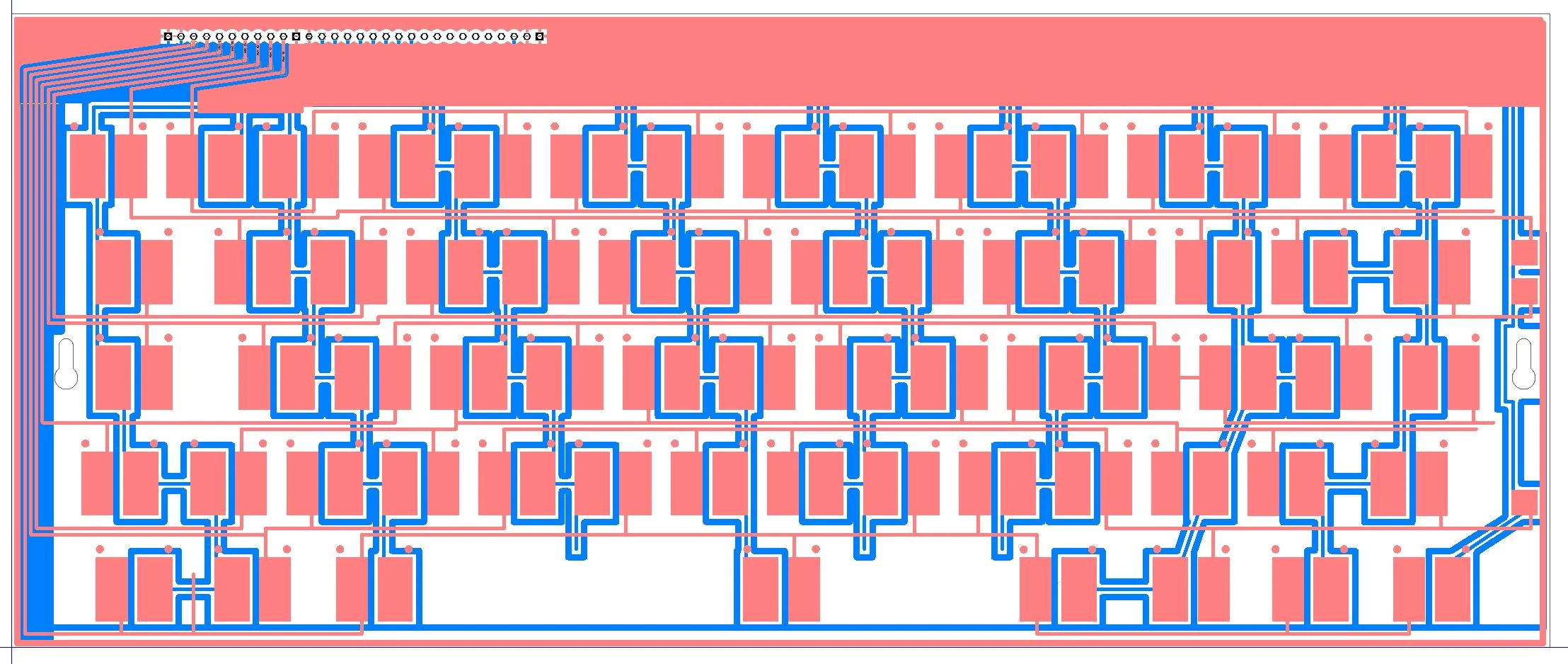
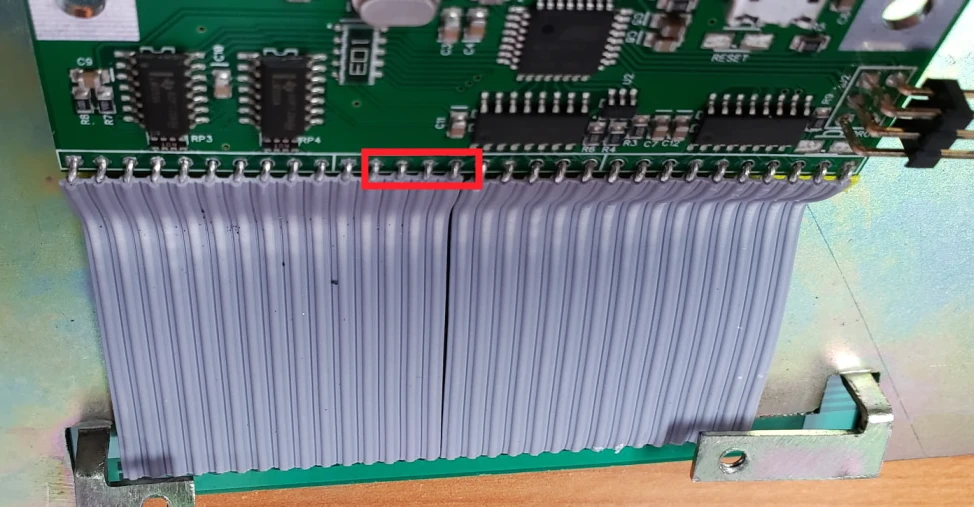
    3. An entire row or column in the controller matrix not working, indicating that some through holes for the ribbon cable need to be touched up with solder.  This affected a small number of boards with the earliest production batches but is not much of an issue these days.  
    4. Category 4:  Email me for help with other damage only after going through the entire manual and videos, including all of the below steps.  The fourth category of issues involves very rare problems often resulting from shipping damage due to the rough handling from all of the shipping services these days.  If there are persistent problems not mentioned in the manual and you have worked through the above three categories of troubleshooting issues during setup, it is now when you will need to email me for help.  Do not post on the Q&A page or on the forums asking for help; unless I have no idea what to do or if I later determine it is a firmware issue (highly unlikely due to the thousands of new Model F keyboards mailed over the past five years with no reliability issues).  Even seemingly unsurmountable issues like the keyboard not being detected at all can be fixed on your side without contacting me (for that specific example, if you are seeing ATMEGA DFU in the Device Manager or Devices and Printers window then you need to reload the firmware as noted in the firmware section of the manual.  Sometimes the USB-C end of the cable (the end connected to the controller) needs to be removed, flipped around 180 degrees, and reinserted as it may have fallen loose in shipping.  Or maybe the cable got pinched somewhere and became damaged (test with another USB-C cable and email me).
  1. Category 1:  Issues related to individual keys and not following the setup instructions step-by-step (see Action Step 7 above).
  2. Category 2:  Fixing dust/debris related issues:  If you are seeing issues with double key presses, transposed keys, etc. and you have already properly followed the guide to reseating keys and springs above, it may be due to some dust/debris entering the keyboard’s inner assembly below the flipper, but most of the time it is due to a spring or keycap requiring adjustment.  Do not automatically take apart the entire keyboard unnecessarily as when you reassemble the keyboard, the problem will still be there if it is a spring adjustment related issue from the above category.  If you are seeing a value in the pandrew utility’s Signal Level Monitor only increase a little when a key is pressed (not enough to actuate reliably), blowing compressed air may help move the debris and prevent you from needing to open up the keyboard to clean and/or replace the flipper and spring.  It could be just a spring that needs reinstalling because it is not positioned relative to the barrel as described and pictured in step 5. Sometimes moving the spring several times at different vertical angles (spacebar end up, left shift side up, spare bar end down, etc.) can loosen the debris below a flipper. Taking it apart is the very last resort step and is often not needed.  If you are taking apart the keyboard and opening up the inner assembly (don’t forget to remove all the keys first!) then I do suggest replacing the spring and wiping clean the PCB, keeping an eye out for stuck-on debris, solder flux residue, or dust, and consider replacing the affected flipper and spring to be safe.
  3. Before opening the inner assembly, one way to test for the issue of dust or debris on top of the large capacitive PCB underneath all the keys is to press and hold the key for two seconds, then release for one second, then press down again (must do this maybe 20 times). For PCB pads and traces without dust, it usually has approximately the same pressed PCB value, maybe somewhere between 160 and 180 as an example. But for keys in the dusty areas, performing this test results in sometimes the key press value in Signal Level Monitor of 150, other times 168, other times 130 or 140. The result is not consistent because the dust moves around on top of the PCB and changes the measurement value.  (Note:  a changing measurement value on its own does not indicate that there is a defect, as the main reason for a changing measurement value is an issue with the spring installation).  Sometimes you may have luck removing the affected and nearby keycaps, holding the keyboard vertically in different directions and moving the springs (which also moves the attached flipper) by hand to move some debris out of the way.  To remove dust from the PCB, if the compressed air or DataVac does not fix the issue then you have to remove the keys and open up the inner assembly.  Then you will see the PCB which you can wipe with a dry, lint-free cloth like a microfiber cloth.  Look at the PCB surface to make sure there is no dust that is stuck on the PCB.  You can also remove the PCB itself to clean underneath the PCB but this is less likely a source of dust unless the room is extra dusty!  Also very important, while you have the keyboard open, check the PCB to make sure it has slid down all of the way on the bottom inner assembly post.  Unreliable operation, transposed keys, and repeated keys may be caused by an out of place capacitive PCB.  You may need to adjust the ribbon cable to get the PCB to stay in its new position.  Here is a photo of the correct PCB position relative to the bottom inner assembly post: 

  4. Category 3:  Entire row or column issues:  The remaining steps in this section deal with determining whether you need to open up the case to do some soldering of the ribbon cable, for example if you are seeing a nonworking entire row or column of the matrix (note the row of the controller matrix is not the same as a row of keycaps).  This is an extremely rare issue and you can notice it pretty quickly with the below steps.  Fortunately you do not have to remove keys or take apart the inner assembly for the soldering as you can access both ends of the ribbon cable by unscrewing the 2 controller grounding screws.  If you see something like the below example screenshot (indicating a bad matrix row), then you’ll need to do some touching up of the solder. As you can see further below, the traces in the keyboard controller matrix do not correspond to actual rows of keys.
  5. Now switch to the matrix view:  In the matrix view (screenshot below) you may see a few pressed signals by default; these are not actual keys that are pressed. There is one key in the 16th column:  the bottom right physical key on the example F62 keyboard shown below. With this view you can more easily see if a row or column is damaged.
  6. If many keys read “0” for the value, then there is possibly a short to ground and it is best to add a couple layers of insulating tape (polyimide/Kapton, electrical, Super 33, etc.) to the bottom of the controller where the ribbon cables are and check for solder bridges to ground. This is more likely to happen to the ultra-compact cases as they are bounced around in shipping and the ribbon cable may break through the factory-installed tape. If entire areas of the keyboard are not working and you are using an ultra compact case, sometimes the ribbon cable wire has broken through the Kapton / polyimide tape and is touching the case – one or more entire columns or rows would not function. In this situation, you would see the problem go away when the keyboard inner assembly is outside of the case. While the controller is installed and the keyboard is upside down with supports on either side (e.g. a book or something) so that the keys do not get pressed, push down on the part of the controller with the ribbon cable so that the ribbon cable end of the controller moves about 1-2 mm closer to the bottom inner assembly (gold color) plate – so as to move it away from making contact with the bottom of the case.
  7. If the row or column reads a value higher than 0 (example: 110) but does not respond to key presses, then maybe the row or column needs more solder applied to the through hole, on the controller and/or on the capacitive PCB. This also unfortunately does happen after these keyboards are bounced around in shipping, but the good thing is you don’t have to open up the inner assembly at this time. It is rare as I confirm each column and row before shipping, but it has been documented a few times. The controller is fine and not defective; you just need to add more solder to the holes for the ribbon connections for the missing column, on the PCB side of the components (see red rectangle in second photo below – doesn’t indicate the specific columns for you to solder – just a general photo). Just make sure you don’t touch any of the components themselves, just the column. No need to add solder on any of the other connections unless the connection looks like it needs more solder.
  8. If the right ctrl on F62 or the right arrow key on the F77 (bottom right key) is not registering in the pandrew utility with the key removed, that usually means that column 16 needs to be retouched. These keys are special in that only one key is in column 16.  Some folks think the key is broken because it does not register as Ctrl when pressed, but did not read the product page which notes this key is factory programmed to Fn for some layouts.
  9. How do you find out which row or column needs more solder?  In the bottommost image below of the PCB traces, you can see the traces that the keys that don’t work are located. For example, left alt, right alt, V, spacebar, M, the < , key, the key between right alt and right ctrl, and right ctrl are all on the same trace even though they are not on the same physical row. You can follow the red line in the image and see that they are all connected to the leftmost trace, which is connected to the third through hole from the left, so that would be the area to touch up. You need to add solder from the side of the controller components, not the bottom of the controller (just unscrew the two controller screws and gently bend the controller back as shown in the below photo). You should carefully add solder to the large capacitive PCB (the other end of the ribbon cable for the same through hole you added solder to on the controller side). Important note:  you should not open up the inner assembly for this procedure:  you should add solder from the side that you can see and access already (the underside of the large capacitive PCB shown in the below photo with the controller). An important note that the row and column numbers shown in the controller image below should be disregarded for this purpose – just follow the traces and solder the one where all keys on that trace do not work.  Only if there is still a problem after following these steps and retesting should you open up the inner assembly and remove the large capacitive PCB to inspect for shorts as shown below.
  10. Do two keys press when you press one key?  Occasionally there will be a solder bridge connecting two rows/column traces together, either somewhere on the PCB or specifically on the 30 through holes at the top of the board. Just remove the bridged material carefully and then all will be well!  Most likely the bridge is on either end of the ribbon cable wires but occasionally it is on the large capacitive PCB itself as shown below.  Often the cap sense keyboards need to settle a bit for the first time they are set up. it is a best practice after testing the board initially to unplug it for 15 minutes if there are issues, and/or to let the board acclimate to room temperature for that amount of time before plugging it in.
  11.  
  12. For example, if the keys 2 Q W A S Z X and Left Alt do not work, then the second grouping of columns in the matrix below are at issue. You can see that the 14th through hole from the left connects to the column that includes all those keys, so you would solder that through hole on both the front side of the controller (unscrew the controller as shown above) and if that doesn’t solve the issue, also add some solder to the accessible part of the large capacitive PCB-do not take apart the keyboard for this; just add from the bottom side that you can access with the inner assembly upside down.

(Note:  the video in the above Action Step regarding the pandrew utility’s Signal Level Monitor also applies to this Action Step)

To see your specific capacitive PCB traces, click here to go to the gallery:  https://www.modelfkeyboards.com/rl_gallery/capacitive-pcbs/

Does your keyboard occasionally disconnect and then reconnect?  Check if you are using any of these problematic connections: USB hub, KVM switch, extension cable, the USB port on a computer case instead of the one directly attached to the motherboard, third party USB cable, a failing or underspecced USB port that can no longer provide sufficient power, etc.  Try another USB port, a USB 2.0 port, a port directly on your motherboard, and try it on another computer.  Does your computer use an intel processor and chipset? Some intel chipset users have reported issues with random USB disconnections. These are generally issues with devices that draw higher USB power, not a bug with the specific chips used in these controllers.  This has happened on my own computer with non-xwhatsit, non-leyden jar devices. Replacing the motherboard with one that had a newer intel chipset resolved the issue.

And finally, after you have gone through all these steps, an optional step is to adjust the keyboard’s Vial firmware.  There are many such guides to using Vial; one such guide is below.  Save this video to watch later!  Here are some factory preprogrammed keypress commands in Vial and QMK.  Older Leyden Jar firmware files before 5/19/25 may have different layer mappings; please reflash the latest firmware to have the above-mentioned mappings.  Depending on your keyboard model, the FN key is factory set to the key between Right Alt and Right Ctrl (latest F104/FSSK/etc. models), the key to the right of the shorter right shift (for all HHKB style models), or Right Ctrl (for the older models like F62/F77).

Hold down the keys Fn+Spacebar+
T–>Toggle the Solenoid On/Off Any key HPT_TOG
+= Increase Solenoid dwell time HPT_DWLI
-_ Decrease Solenoid dwell time HPT_DWLD
E–>EEPROM Reset (erases all settings like if you adjusted a dwell time for solenoid)
R–>Reset (enter bootloader)
D–>Debug

N–>Toggle NKRO

Hold down the keys Fn+

Esc–>Power
F1–>Brightness Down
F2–>Brightness Up
F6–>Media Stop
F7–>Media Prev
F8–>Media Play
F9–>Media Next
F10–>Media Mute
F11–>Vol Down
F12–>Vol Up
Print Screen–>Eject

The following example discussion shows how to flash an alternative right side block to an F77 (and how to adjust other models to work with these other right side blocks):

Just double clicking the bat file noted below will for sure not work at all, unless you follow the steps in the manual – flashing firmware section.

You can flash the pre-made right side block bat file, and then adjust it to remove the split right shift (if you have an ANSI/ISO/JIS layout):

Flash the right side block that you want (see the nlock / simulock discussion below):  “f77 ansi HHKB 2U Backspace, Regular position Caps Ctrl block5 nlock.bat” or  “f77 ansi HHKB 2U Backspace, Regular position Caps Ctrl block5 simulock.bat”

Go to the web site Vial.Rocks in a Chromium-based browser, or download and use the Vial program

Click the Layout Tab.  For the split right shift option, set it to “No Split”

Click the Keymap tab.  The right shift key defaults to MO(2) (aka Fn) but you want it to be right shift.  Just click the MO(2) key, then click the RShift key in that second keyboard diagram below the one on top.  That should change MO(2) to Right Shift.

You can also use these other right side blocks by setting one key to be a toggle key TG(1) and following the Vial screenshots below.  The screenshots show right side block 5 but you can make your own adjustments to match the other options.  

Some steps may be missing from the above or you may want further keymapping modifications; see the Vial documentation as well as the additional notes in this manual.

Per nathana, the firmware bat file noting nlock / simulock indicates the following:

–nlock means: enables the Num Lock based layer 1 selection feature, and in the case of F77 implements the right-side block using this feature

–simulock means: “simulated” Num Lock; primarily used on F77 for variants of certain right-side block options where the number pad is implemented with a “Num Lock” key that does a layer trigger but *without* actually changing host Num Lock status (see: previous posts on the subject here; this was an earlier solution to implementing options 3 through 5 before the advent of host Num Lock based layer switching, but is preserved because some users may find this version preferable)


Action Step 9:  Install the solenoid (optional)

Safety warnings:  It is very easy to permanently damage the solenoid and driver by not following these instructions fully.  Most important is to install the connector in the correct orientation on both the controller and solenoid driver PCB (the red wire matches the 5V on both controller and solenoid driver), and to avoid overtightening the screws on the solenoid and puncture its blue tape (for example, if you forget to install the rubber spacers or overtighten when screwing in the bolt). If your solenoid does not work after installing it, you may need to update the firmware as a recent bug prevented the solenoid from working. Most importantly, do not overtighten the screw that attaches the L bracket to your keyboard case or it might puncture the solenoid. If you want to install the large 1 inch tall screw-on bumpers and a solenoid for the Classic F62 and Classic F77 cases, you will need to be extra careful because the included screw is long and will puncture the blue tape if you tighten the screw all the way.  You may destroy your controller, solenoid driver, and/or solenoid by not following xwhatsit’s solenoid driver instructions as well as the below instructions.

The instructions refer to the xwhatsit controller but the instructions are the same for the Leyden Jar controller.  See the solenoid product page below for details on the solenoid and why it is one of the most popular add-ons and one of the most popular features of many original IBM Model F and beam spring keyboards.  The solenoid and required solenoid driver are optional add-on products not included with any keyboard. There is a built-in firmware shortcut to easily turn on and off the solenoid so you don’t have to keep the solenoid on all the time. They can be purchased through this link and are definitely recommended: https://www.modelfkeyboards.com/product/xwhatsit-beam-spring-or-model-f-controller/

How to Toggle the Solenoid On/Off to enable and disable haptic feedback when typing:  Use the command Fn+Spacebar+T.  The Fn key may vary based on your keyboard.  If you have an HHKB style split right shift, it is the key to the right of the Right Shift key.  For other keyboards, it is either the Right Ctrl key or the key between Right Alt and Right Ctrl.  To check for sure, you can connect the keyboard to the computer, go to the website vial.rocks, and see which one is labeled MO(1) which indicates the Fn key.

Not required, but you can consider one of the 3d printed solenoid holder projects or make your own holder.  This is useful for the Classic Case F62/F77 boards and also if you have a compact keyboard case, since the solenoid is too big to fit inside the compact cases.  Example 1Example 2,  Example 3, and Example 4

  1. Follow the solenoid setup portion of the below video (same physical setup for beam spring keyboards too!).  
  2. Solenoid drivers help you add a solenoid to your xwhatsit- or Leyden Jar powered Model F or beam spring keyboard. You need both a solenoid driver and a solenoid; they are not sold together. The solenoid driver does not include the solenoid or screws but it does include the cable to connect to your controller. When installing the solenoid, because the screw that secures the solenoid is at the bottom of the keyboard as shown below, you should use any of the slightly taller bumpers in the back (i.e., any option except the cork bumpers unless you double up and stack two of the cork bumpers, one on top of the other).  The Model M style case screws are countersunk so this would not be an issue for those keyboards.  If you happen to use the 1″ large bumper and its large screw please do not drive the screw so much that it breaks in to the blue tape – it will destroy the solenoid.  See one of the photos below for suggested installation.  Also (only applies to the classic F62 and classic F77) the medium threaded bumpers are 8-32 thread and so they will not work with the L bracket’s 6-32 threading, so do not install the medium threaded bumpers in the same hole as with the solenoid.  Instead if you use those bumpers you can drill another hole for the solenoid, use a 3d printed solenoid holder (design files linked in another section of this manual), or mount the solenoid with double-sided foam tape or another method.  The Model M style cases use another design to add a dedicated mounting point for solenoid driver and solenoid so these workarounds are not necessary.
  3. Why pick this solenoid over other solenoids or over IBM’s original solenoids? The new solenoids are far beefier than IBM’s originals, so your solenoid clicking will be even better! It’s a custom design that you can only order here. The specifications are 6v, 40 ohm, 0.15A, 0.9W, adjustable throw factory set to 1mm but with a user-adjustable range of about 0.5mm to 5mm (there are 2 screws that can be loosened to adjust the distance of the strike bar). This solenoid has the dark blue outer covering, black and white twisted wires and 2.54mm connector like the original IBM solenoids, but with a strike bar so it won’t exactly resemble the IBM solenoid. This solenoid is not the one that’s available elsewhere, though it looks similar and the voltage and resistance specs are the same. Also that other model doesn’t have the adjustable throw – you would have to spend time milling the strike bar to modify it for correct usage with the solenoid drivers. Also, my solenoid is even larger than the other solenoid, the 26mm height dimension on the other one is set to be ~29-30mm on my solenoid (the solenoid goes sideways in F62/F77 so it fits) though all the solenoid specs are subject to change. With a larger metal frame, my solenoid should be a little louder than the other model and far louder than the original IBM! These solenoids are also a great option as an upgrade to IBM’s original solenoids too (I’d always save the originals of course for the sake of completeness).
  4. Most important is to match the square on both sides of the ribbon cable connector, so that you connect the squares (voltage line) to each other. You may want to remove the tape to get a better view of the square pad that is different from the other pads which are circular.  The position is different from what is pictured online, from other controllers, and from the photo below. If you install the cable the wrong way you will destroy your equipment. If unsure, do not connect it!  The square pad indicates VCC and that wire should go to the VCC square pin on the solenoid driver itself. Connect square to square – voltage pin to voltage pin. Also, make sure the cable is pushed fully in on both sides so that the pins make full contact with the cable’s connectors.  Per orihalcon:

5. Regarding the Model F expansion header pinout: note that it is different from the original xwhatsit controller – you can damage the controller and other hardware by improper connections to the expansion pins. Below is the pinout on the new Model F xwhatsit controllers. 

  1. xwhatsit pinout

6. For the solenoid and solenoid drivers: see the images below for the general installation procedure of solenoid drivers. By default, the solenoids are not set to the maximum throw length: to get the full solenoid experience, slightly loosen the two screws on the solenoid and move the bar as far out as it will go, then tighten the screws. 

7.  When installing the solenoid driver in the F62 or F77, be sure to position the bottom of the solenoid driver PCB opposite the unpainted bottom inner assembly metal plate inside the keyboard; otherwise the PCB may contact the metal plate and the solenoid will not function.  Additionally it is OK to add some tape to the bottom of the solenoid driver PCB through hole pins so that no contact is made with any unpainted metal surfaces. 

8.  The Round 2 classic Model F F104/FSSK and B104/BSSK keyboards have a post to attach the solenoid driver so the tape and positioning are not needed.  The included L bracket is to be used with the F62 and F77 keyboards.  For the Round 2 classic style F104/FSSK/F122 keyboards, mount the solenoid directly to the bottom of the case using the two provided small M3 x 3mm bolts.

9.  If the solenoid does not function, be sure you are using only the original firmware from the QMK-keyboard-files.zip file linked on this page.  Erase the EEPROM and reflash the firmware if needed.  Also, you may need to move the plunger cylinder of the solenoid a few times by hand and make sure the moveable bracket of the solenoid is not touching the cylinder (loosen the 2 moveable bracket screws, move the bracket, and then tighten the 2 screws).


Adjust screws on solenoid, then consider the amount of solenoid impact that you want.  Slide out the bracket for maximum sound, so it looks like the below photo, if you want it to be loudest.  I recommend maximum throw for the dense zinc cases and a shorter throw for the aluminum cases (like the Model M style cases) because the sound and impact can more easily be transmitted in the aluminum cases.

The L bracket is not needed for the M Style case F104 / FSSK and beam spring keyboards.  The first photos below will show the correct installation in one of these later keyboards, while all remaining photos in this section below will show the installation for the F62/F77 zinc case keyboards.  In the photo below, the solenoid driver is attached by bolt to the top case, and the solenoid is attached by 2 bolts (the very small bolts included with the solenoid) to the bottom case.  You can use the 2 spacers provided to dampen the solenoid:  to do this, place the rubber spacers between the solenoid and the case before you drive the bolts.  What I like to do is put the solenoid flat, rubber spacers on top of the solenoid placed exactly so that the threaded holes for the bolts are visible, and then carefully place the bottom case on top of the solenoid, being careful to align the holes of the solenoid with the holes of the case.

See the following 7 photos and steps to install the solenoid in all classic case style keyboards except the F62 and F77:  

This first photo below shows the parts you’ll need from the solenoid kit.  You don’t need any of the other parts in the kit.  I recommend installing with the rubber washers but they are optional (the solenoid will be even more powerful transmitting sound and tactile feedback without the washers).

Next, place the washers on top of the solenoid as pictured below:

After that, carefully place the bottom case so that the solenoid holes and washers line up with the two staggered holes on the bottom case: 

Next, use the two smaller bolts in the solenoid kit to secure the solenoid.  It is a little tricky to keep things aligned before the solenoid is bolted in place, so please be careful here.

Here’s what the installed solenoid should look like, secured in place to the bottom case:

This is what a finished solenoid driver and solenoid installation looks like for the classic case beam spring keyboards:

Follow the photos below to install the solenoid in the Classic Case F62 and F77 keyboards:

Please review the photo below for the suggestion to install the 1 inch tall screw-on bumpers with the solenoid; this only applies to the Classic F62 and Classic F77 cases.  If you overtighten the bolt and it extends below the L bracket, it will puncture the solenoid’s blue tape and the solenoid will no longer function.  Notice how the solenoid is a little loose as mounted to the bolt.  Cutting the bolt or adding additional spacers are other options but they are not required or recommended.

Special Use Case:  Adding a solenoid to the Ultra Compact F104, FSSK, and Round 1 Ultra Compact Beam Spring Keyboards

Since these keyboards were made before the advances of an updated controller design to support both 3 lock LEDs and a solenoid at the same time, you have to give up one of the lock LEDs (for example Scroll Lock) to run a solenoid at the same time.  The controllers are preconfigured to work with 3 LEDs and not 2 LEDs plus a solenoid, so you may have to update the firmware on your own for this special use case.  NathanA has created this special firmware for the Compact FSSK.  It is the zip file located within the firmwares folder, with a file name that starts with “fsskr1-solenoid” and see this Q&A post for the wiring configuration.

Per NathanA:  “edit the file fssk_round_1/wcass/config.h such that “#define SOLENOID_PIN” is changed from B3 to B6 and “#define LED_SCROLL_LOCK_PIN” is changed from B6 to B3, and then rebuild.  Take this hex file, and replace/overwrite the same-named one in the “firmwares” directory, before running the flash script. “

Advanced solenoid configuration – only if using firmware files outside of the project web site.

Due to factory default QMK settings, the solenoid will only be under full power if the dwell time is set properly. If you are using any of my hex files for either QMK or Via, this is done for you automatically. However, if you use the QMK Configurator web site to make your firmware, import my JSON template file for your configuration and flash the firmware (see the firmware section of this manual), and while the keyboard is connected to your computer, hold down the keys Fn+Spacebar++= (the + = key next to backspace) which has been preprogrammed to increase the Solenoid dwell time by 1 ms. Press it 20 to 25 more times to get it to the minimum required amount for full power. You can also press the following options
Fn+Spacebar+T–>Toggle the Solenoid On/Off
Fn+Spacebar+ -_ Decrease Solenoid dwell time HPT_DWLD. Refer to the two solenoid videos at the top of this page for a visual guide. To program this into your own keyboard, for QMK drag the Any key to the key and layer you want, and then type in HPT_TOG to toggle, HPT_DWLI to increase the dwell time 1ms, or HPT_DWLD to decrease it. Each key has to be in its own box of course.

Action Step 10 (optional):  Flashing firmware

You may want to update your firmware by flashing new firmware.  All keyboards except the remaining stock of F62 and F77 have Vial firmware; the F62/F77 keyboards run on QMK by default unless you request in the order notes that I flash Vial on it (these boards were made before the NathanA Vial upgrade).  This means that you can use the Vial web site to adjust the key mappings without loading firmware for most keyboards, but to adjust F62 and F77 firmware, you must first load the latest Vial firmware by following these instructions. Otherwise, Vial will not be detected on your F62/F77.  In other words, Vial may not be the firmware that is currently on your keyboard.  The only exception is the controllers for original IBM keyboards, which run firmware from the beta QMK configurator web site linked below.  You may be used to this old configurator from 5 years ago but it is no longer used for the reproduction keyboards; only for the originals.  All firmware is in beta. 

Now that these keyboards support Vial, it is not necessary to flash firmware to update the key mapping; just follow the earlier instructions to use Vial’s GUI to change your mapping, once your keyboard is running Vial.  Make sure you are completely closed out of the pandrew and Leyden Jar programs before using the Vial configurator.  If you so choose to update your firmware, please exclusively follow the instructions below to get started – do not follow any generic guides, use files provided elsewhere, or go to the generic home pages for these keyboard firmware files as they will not work. You must never flash .hex files or use qmk-toolbox, unless you are flashing firmware from the beta QMK configurator website.  Other QMK configurator pages will not work with Model F or beam spring keyboards. Always download the latest firmware in the QMK-layout-files zip linked below; do not use previously downloaded files.  

This paragraph applies only to the Leyden Jar:  it is not possible to split keys within a particular firmware; if you want to use a shorter spacebar, if you received a 2U backspace Model F and you are changing it to split backspace, etc. then you have to flash the appropriate firmware (there is specific firmware for split shift and split backspace for example).  To split the spacebar or to have a layout that has custom split keys (for example, 2U left shift, ISO Enter, split right shift, etc.), you’ll have to flash the generic “all key pads” firmware, for example leyden_jar_f122_vial.uf2, and then go into Vial to make the needed adjustments on the Layout tab.  The Leyden Jar diagnostic tool allows you to make adjustments as well, but these adjustments are not saved, so you still have to make all needed changes in Vial (either the Vial program or the Vial.Rocks web site using a Chromium-based browser).  For the Leyden Jar controller, you need to click refresh in the diagnostic utility before doing anything.  If you just click the Enter Bootloader button without clicking refresh first, you will not actually enter the bootloader and see RP2 in the drive options of your Explorer program.  If you unplug the keyboard and then plug it back in, you need to click refresh after plugging it back in.  If the enter bootloader button still does not work, you can press Fn+Space+R (if this doesn’t work then you have to short the pads on the controller, detailed below).

Safety note and how to get into the bootloader if you can’t do so through the Enter Bootloader button or the key command:  updating firmware is done at your own risk. If nothing comes up in device manager when the keyboard/controller is plugged in, then you may have to physically short some pads on the controller to get “ATMEGA” to appear; it may take several tries before you see anything.  From what I have seen, it is nearly impossible to brick the keyboard controller. At the very worst you have to open up the keyboard to short PROG on the actual xwhatsit controller (unscrew the 2 controller screws to see the components side of the board, make a connection with a conductive metal object like an uncoated metal paper clip, then connect the USB cable to the controller and within a split second remove the paper clip). Per pandrew:  “You might think that a screwdriver is gonna be enough, but due to surface oxidation it is likely not gonna be good enough. I like to use sharp metal tweezers, because they can dig into the pad a little bit, breaking up the surface oxidation, and I can actually be sure it’s shorting. Apply constant strong pressure on the pads while plugging in the keyboard to make sure they’re perfectly shorted. If you hear the windows USB plug-in sound (assuming the sound effect is enabled), then you know you have succeeded. I’ve even seen people tell me they tried everything to short the pads with, and then I asked them to solder the pads together and it suddenly works. There’s something about the size of those pads, or about the fact that they need to be shorted in the perfect moment when the chip leaves reset, that make people think they are perfectly shorted and yet they aren’t. This affects me too, sometimes it takes me up to 3 tries to get it into bootloader mode. Another thing to double check that you are indeed shorting the PROG pad and not the reset pad. I believe in some versions of the wcass controller there is a reset pad on the opposite side of the board. So don’t be like ‘I see some pads, those must be it’, make sure to be shorting the correct ones.”  

For Windows 11 users: has anyone had to make some workarounds to flash ATMEGA-based controllers from any keyboard maker? For example if an unflashed controller shows up as ATMEGA in Windows 10’s devices and printers page but not when connected to a computer running Win 11.  I am aware that Windows 11 made many security updates that stopped older devices and computers from working without adjusting settings. A quick Google search notes the following quotation:  Windows 11 not recognizing an ATmega32U2 (commonly used in keyboards/security keys) is often caused by driver incompatibilities, strict USB selective suspend settings, or Windows Security (Memory Integrity) blocking unsigned drivers. Solutions include disabling Memory Integrity, reinstalling USB drivers in Device Manager, or changing power management.  It may be necessary to Disable Memory Integrity to flash a device: Go to Windows Security > Core isolation and toggle “Memory integrity” OFF, then restart.

Download the firmware and pandrew/Leyden Jar utility files: 

This file QMK-layout-files.zip is the only file from this website that you need to download and use to flash firmware and troubleshoot.  Please note that all files are provided AS IS, without warranty. https://www.modelfkeyboards.com/wp-content/uploads/2020/07/QMK-layout-files.zip

File locations:  Inside the zip file, to flash the pre-made firmware, all of the xwhatsit bat files (used with Windows) and .sh files (used with Linux) are in the root directory; do not go looking through the folders to flash hex files directly.  If you have a Leyden Jar-powered keyboard (see list below), then you flash the firmware inside the Leyden-Jar-Package folder.

Running the utility on Linux: the utility must be run as a super user.  To compile the pandrew utility on Linux, pilcher has put together a step-by-step guide:  https://gist.github.com/ipilcher/9a14d822b602f3e89178b871a282fa74

Running the utility on Mac: Regarding the Mac utility (included in the above QMK-layout-file.zip file), please note that the binary is not signed – you’ll need to “Open” manually in Finder.  Ctrl+click, then Open.

Flashing keyboards with the Raspberry Pi RP2040-based Leyden Jar controller (F122, B104, B122, and others in the future); you can use Windows, Mac, and Linux (same instructions):  Open the Leyden Jar diagnostic tool, which is in a folder inside the comprehensive QMK-layout-files.zip file linked above, click Refresh Device List, and click Enter Bootloader.  After clicking Enter Bootloader, an empty hard drive named “RPI-RP2” will appear in your computer’s Explorer.  All you have to do is copy to this drive the .uf2 file inside one of the leyden_jar_firmware_package folders which can be found in the QMK-layout-files.zip file linked above. Currently, to access “all pads” (split or un-split keys or change the layouts to something other than the default firmware files offered), you’ll need to flash the first firmware in the folder (for example, in the f122 Leyden Jar folder:  “leyden_jar_f122_vial.uf2”).  The other firmware files allow key remapping but not splitting or un-splitting keys.  

Flashing xwhatsit in Windows: All of the following steps are only necessary if you have the xwhatsit controller.  For keyboards with the xwhatsit controller (all keyboards except F122, B104, B122 (this will change over time):  First, install Atmel Flip 3.4.7, then plug in your keyboard, and finally, click enter bootloader in the diagnostic utility. If you forget to click Enter Bootloader in the pandrew utility found in the above-linked QMK-layout-files.zip file, you will not be able to flash any firmware and you will not see ATMega in the device manager.  And if you forget to install the drivers after clicking Enter Bootloader, it will be impossible to flash any firmware.  “Atmel” or “ATmega” refers to the chip used with the xwhatsit controller.  These steps to install the driver only need to be done one time, if this is your first time flashing Atmel firmware on a particular computer and if you see an exclamation point in the device manager, as shown below, meaning the drivers are not yet installed.  If you do not see an exclamation point for the ATMega device, then you can skip the driver installation steps shown in the following 4 screenshots.   If you do not wish to install the ATMega software, you can download and extract its contents with 7zip, and then go into the device manager to install the driver for the Atmel device.  During the wizard, point the location of the driver files as the Atmel folder in your program files folder (or to the Atmel folder you extracted).

If you are successful, you will see a new category at the top for the ATmega, as shown below (if not; you’ll still see the exclamation point next to ATmega32U2):

Now onto flashing the firmware:  after doing the above steps, you are ready to flash the firmware.  Be sure that you clicked Enter Bootloader before proceeding.  Never flash a hex file directly; instead, double click the bat file (for Windows) or .sh file (for Unix/Linux) for your keyboard, from the above linked layout files.  There are many files to choose from, so you’ll have to determine which one to pick based on the keyboard you have, which is easy.  For example, “f104 r2 ansi HHKB Split Backspace.bat” refers to the Round 2 Model M style F104 keyboard with ANSI style Enter, HHKB style split right shift, and Split Backspace.  If you do not successfully follow the above steps or forget to click Enter Bootloader, you will continually see the “waiting for keyboard” message while the bat file is running and you will see a Model F or beam spring keyboard in your device manager and devices and printers window.

Using Vial to modify the keymapping (to change what a key on the keyboard does, or to check the current mapping):  two options

Option 1:  Vial.Rocks web site.  After loading the Vial firmware (if it is not pre-loaded), you can go to the website vial.rocks with any Chrome, Opera, or Edge and you can edit the layout that you want, no software needed.  Please be careful with the various configurations; if you find things not working well I recommend reflashing the firmware to be safe.  Some Vial settings like Combos can slow down keypress responsiveness and may cause errors with transposed keys while typing.

Option 2:  Downloaded open source software program for offline editing.  If you use another browser or prefer the downloaded version of the Vial software, you can also use that.  The keyboards are all recognized right away with either option.  A note:  Via will not work, only Vial will work.

To flash the older QMK hex file firmware on Apple/Mac computers: 

Note:  may no longer work for newer OS versions; see below section for a possible workaround.

Use the QMK Toolbox https://github.com/qmk/qmk_toolbox/releases

And follow this guide: https://www.instructables.com/DFU-programmer-on-Mac-OS-X/

To flash Vial on Apple/Mac computers (quoted per this reddit post; unverified):

  • Install homebrew from this website: https://brew.sh
  • Install the programm dfu-programmer with brew install dfu-programmer
  • Download the layout files from the Model F Labs website. That file is a zip containing another zip, so you need to unzip it twice.
  • Enter bootloader mode by pressing the keys from left-shift, right-shift, and B at the same time.
  • From the unzipped directory, run these commands: dfu-programmer atmega32u2 get bootloader-version dfu-programmer atmega32u2 erase dfu-programmer atmega32u2 flash-eeprom –suppress-validation flash-util/reset.eep dfu-programmer atmega32u2 flash flash-util/eeprom_eraser.hex dfu-programmer atmega32u2 reset dfu-programmer atmega32u2 get bootloader-version dfu-programmer atmega32u2 erase dfu-programmer atmega32u2 flash firmwares/newf77-vial-0p4p1_r5.hex dfu-programmer atmega32u2 reset
  • Open https://vial.rocks/ in a Chromium based browser (you can install ungoogled-chromium via the command brew install –cask ungoogled-chromium)

Feedback from a Mac user:  “In macOS 26 Tahoe, Apple removed the trick where you can control-click on an app and click Open to automatically run it with full permissions. Instead, you have to click to launch it, click Done in the security pop-up, go to System Settings > Privacy & Security, scroll to the bottom of the list, and click Open Anyway.

Also, the instructables.com guide you link to is a total dead-end. I was a little cautious going off-script, but here’s what I did instead:
(1) I launched pandrew-util and clicked Enter Bootloader.
(2) I quit pandrew-util.
(3) I launched QMK Toolbox and clicked Open to select the new firmware.
(4) I selected ATmega32U2 (I think) from the dropdown menu to match the device that showed up in its console.
(5) I clicked Flash.

And that worked great! The customizations I had previously set up in Karabiner stopped working; I launched Vial and was able to do them over again properly. Now I can type ` and ~, use my right Control key and even use the mysterious new Globe key.”

Flashing firmware on Linux:

A guide from a geekhack forum member:

Follow the directions in the YouTube video for using the beta QMK configurator site to customize the layout and compile new firmware, up to downloading the new firmware.
Install dfu-programmer. For Fedora 34:

dnf install dfu-programmer

Enter keyboard bootloader. On the keyboard, hit: + + 

Check if bootloader is detected. Look for a USB device listed as “atmega32u2 DFU bootloader” (using another keyboard):

lsusb

Erase and flash new firmware (the hex file downloaded from configurator site):

sudo dfu-programmer atmega32u2 erase
sudo dfu-programmer atmega32u2 flash /path/to/fw.hex
sudo dfu-programmer atmega32u2 launch

Disconnect, then reconnect keyboard.

QMK configurator web site method (only for original IBM keyboards) – not for any of the new keyboards.  You’ll still need this older QMK for the pandrew universal controllers and original xwhatsit controllers running on original IBM Model F and beam spring keyboards.  The beta QMK configurator is the only one that currently works with Model F keyboards – do not use the main QMK Configurator site. Please join the geekhack or Deskthority forums for any questions (they may not accept certain free email addresses such as Gmail). When using the QMK configurator for new Model F project keyboards, select the “wcass” controller version in the list – do not select the universal or xwhatsit version as those are for other controller variations. The universal controller is for certain pandrew controllers used with original Model F keyboards.  There may be issues with the solenoid or other issues with this firmware so it is no longer recommended.  Beta QMK configurator link:  http://35.164.28.200:5000/#/xwhatsit/brand_new_model_f/f62/wcass/LAYOUT_all

After clicking the above link, just click Keyboard menu text box and type the controller you have or type in the model number (examples:  5251, 122, “rev4” for the original IBM beamspring non-displaywriter controller, “displaywriter” for the IBM displaywriter keyboard,  “universal” to use the pandrew 4704 or 122/AT/3178 controller, or type “IBM” to see the full list of original keyboards).  Pay attention to the innermost folder name.  wcass refers to the latest USB-C small xwhatsit controller used on new reproduction keyboards; xwhatsit refers to the original larger controllers used on the IBM Model F originals, rev4 refers to the original IBM beamspring non-displaywriter controller, and universal refers to the 2 pandrew controller designs mentioned above.  Though I do not recommend this due to the firmware’s lack of QMK features and automatic voltage calibration, if you cannot find your keyboard listed or you prefer to use the original xwhatsit firmware which allows easy GUI-based configuration of any supported keyboard (just press and hold each key to see where it is in the matrix and use the ibm_capsense_usb_util.exe GUI program to map each key), you may find it here: https://static.wongcornall.com/ibm-capsense-usb/

At this point, use the Atmel Flip program:  click the chip photo to select a target device, and pick ATMega32U2, click ok.  Click the USB cable Icon and click USB, then click open.  Click Load hex file, go to the beta QMK configurator hex file that you just downloaded, click ok, then click run.  You may have to click run again if it doesn’t flash completely.  All steps Erase, Blank Check, Program, and Verify should be green.  Now, unplug the controller and plug it back in.  The devices and printers screen should now note that you have a keyboard plugged in.

Action Step 11 (optional):  Opening up the keyboard inner assembly, changing case styles.

  1. Here is the project’s YouTube channel which has a lot of videos on assembly and disassembly, quality control secrets, troubleshooting, solenoid installation, etc. https://www.youtube.com/@Brand_New_Model_F_Keyboards
  2. As a note I offer a service to open up the keyboard and split or un-split keys by adding or removing barrels and flippers/springs, before it ships to you (not for keyboards that were already mailed).  Just click the “short spacebar mod” option (that is the default layout mod request, but you can add notes to change it; additional keys are not included; see the product page for details).  In general, the 2U and larger keys have two working pads and can be split into two keys.
  3. Due to the slight changing of shape during the cooling process after die casting, the case may not be 100% flat on your desk.  There are several ways to adjust this:  you can add a very thin washer on one of the posts inside the keyboard (for the F104/FSSK/F122 keyboards) that wobbles when you press down that part of the keyboard, or you can remove the inner assembly from the case and gently bend the top of the case by hand over your knee, taking the proper safety precautions so as not to have the case slip and cause injury.  You could slightly loosen one or more of the case screws where the case should be a little lower, and maybe insert a small piece of paper folded a few times on the inner edge, positioned to touch the bottom inner assembly plate right next to the bolt.
  4. You may also want to reduce the size of the gap between top and bottom cases.  To do this, unscrew the case and gently bend the case on your knee (caution – you may injure yourself, for example if something slips, so it is done at your own risk).  For the Model M style cases, bend with the sharper edge away from your body, and bend a few times at each position, moving the case leftward or rightward across your knee between each time you bend.
  5. Make sure all the keys are removed from the keyboard before opening up the inner assembly! 
  6. Sometimes (very rarely) the middle row of keys is a little too loose, due to the tolerances of the curves of the top and bottom inner assembly plates.  You may want to put some extra foam material on top of the affected barrels and below the inner foam, to reduce the extra space. There are also some more advanced steps to changing the Model F sound that I have shared in the past – one example is decreasing the radius of the top inner assembly plate’s curve by using a vice, which can increase snappiness and tighten the middle row of barrels and keys. 
  7. Keyboard disassembly note: if you are not applying enough pressure on each screw, it is possible to strip the screws. With the correct driver and pressure, the screws should not be an issue. If driver is not a tight fit, do not use the driver and purchase the correct driver-otherwise the screw will strip and you may not be able to remove the case except by drilling into the screw. Yes, all of the bolts for this project are 6-32 (classic cases and the two controller ground screws for all keyboards), T8 (compact cases), M3 (2 solenoid screws), and 8-32 thread (medium threaded bumpers). The 6-32 bolts use either a T8 size or Philips driver.
  8. Some layout changes are possible (open up inner assembly and move flippers around so they correspond with the layout you want) – e.g. change from ISO to ANSI or vice versa, split or unsplit the backspace, Left Shift, Right Shift, Enter, spacebar keys.  On a regular ANSI or ISO (non-HHKB) layout, you can split the right shift to 1U+1.75U (JIS style split right shift) but not 1.75U+1U (HHKB style split right shift).
  9. To open up the inner assembly, first use pliers to bend outwards the locking tab at the top right so that it clears the bottom inner assembly.  For the classical Model M style keyboards, always lift up the ribbon cable so it is out of the way.  Then you can use your pliers to slide the tabs of the top inner assembly as shown in the above setup video.
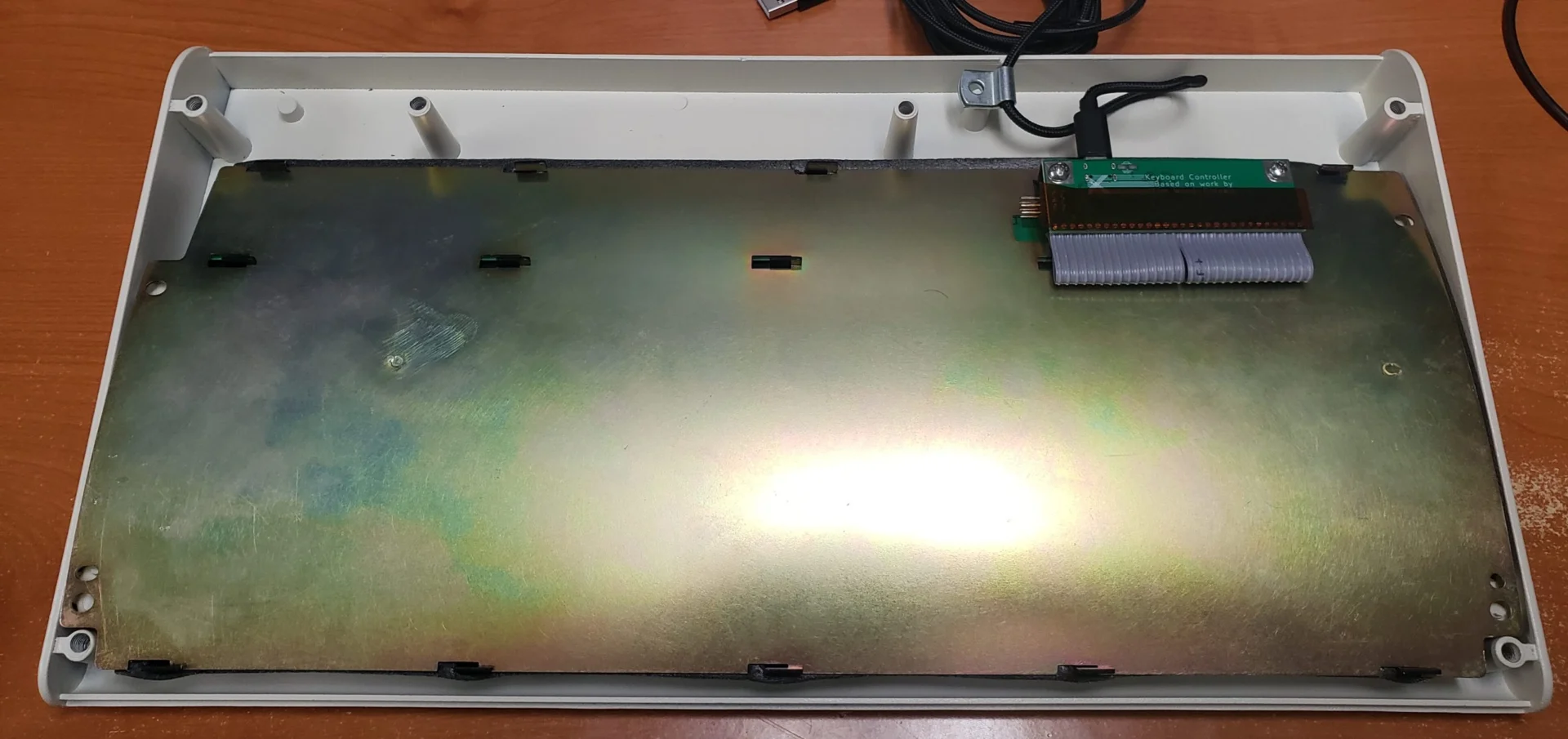
  10. You can make slight adjustments to the internal angle of the inner assembly (for example, to recess inward the higher up keys like the function keys of the F122) by adding a spacer or nut between the bottom inner assembly plate and the top case, but only for the two higher up posts in the top case out of the four posts that secure the BIA to the top case.  For the F122 keyboards, this has been done for you, so if you find two nuts while disassembling the F122, that is what they are used for! 
  11. To close up the inner assembly when you are finished:
    • Only for the F62 and F77, bend the larger tabs outwards a bit before clamping down as this may make it easier to close.  For all models, slide the bottom tabs together until they can’t slide any further (at this point the top tabs should not be engaged – the plate should stick out and not be fully pressed down). For the F62 and F77, use one pair of pliers to press down near one tab, and use another pair of pliers to bend the tab inward to lock it in place, and then repeat for the others.
    • For all models, the last tab (the rightmost one when the part is upside down) is the locking tab so pay extra attention to securing this tab.  For larger keyboards like the M Style keyboards it is often necessary to have a set of four to six C clamps on hand to close the inner assembly, such as 2 inch C Clamps that can be found on amazon for a few dollars apiece.  As noted earlier, no accessories are included with each keyboard so you will have to purchase extra tools for your keyboard.  For the F104 and FSSK inner assemblies, I am able to close them by hand by squeezing the middle of the edges of the top and bottom inner assemblies and then slide them a bit, just enough for the tabs to “catch” the bottom inner assembly slot.  I would squeeze the empty area about inch below the area between F8 and F9 with one hand and squeeze the area to the left of Right Alt with the other hand, and then squeeze and slide together.  For beginners it is probably best to spend the $10 for clamps which can of course be used for other projects.  For the F122, what I sometimes do is put the inner assembly on the floor, supported by two pieces of wood on each side of the upside down top inner assembly.  Then I kneel on the bottom inner assembly while at the same time squeezing the top row of tabs and using my lock jaw pliers to close the bottom right tab.  It requires some trial and error to squeeze the correct areas so that the tabs “catch” the bottom inner assembly and the plates can slide together.  This saves some time installing all of the C clamps but I can’t recommend it as it may result in harm and injury.  Don’t kneel; just buy the $2 clamps and follow the below video!
  12. When putting back together any keyboard, the keyboard should be bottom side up as pictured above.  Be careful to align the classic style F62 and F77 keyboards’ bottom inner assembly plate over the case holes. Keep the keyboard upside down when attaching the bottom case to close up the keyboard.  For the Classic F104/FSSK/F122, don’t forget to screw in the 4 bolts that attach the bottom inner assembly to the top case.  For the Classic F62/F77, the attachment is different; the inner assembly is just placed on top of the top case, then place the bottom case, then screw everything in place.
  13. You may notice lost paint, scratches, and other cosmetic defects inside the case, which is completely normal and to be expected.  These keyboards are not automotive-finish perfect products.
  14. You can also change cases between compact/classic just for F62 and F77. To change from the large case to the small case or vice versa: remove keys, open up keyboard case and bottom inner assembly while keeping keyboard upside down, then switch to the alternative bottom inner assembly metal plate.
  15. You can’t change HHKB style split right shift to standard or vice versa unless you purchase another PCB, top inner assembly, and inner foam as the keys are in slightly different physical location (currently I only have spare parts to accommodate this with F62 and F77 keyboards).
  16. The first video below shows the process to open and close the inner assembly for the larger keyboard models (F104, F122, FSSK), while the second video shows the process for the smaller keyboard models (F62, F77).

Appendix: Maintenance, cleaning, spills, noise dampening, Mods, Project Philosophy, NKRO, Full QMK/Vial Configuration

As noted in the Model F Project Philosophy, the Model F is designed to be your keyboard for decades, just like many of the originals still clicking after nearly 40 years!  This section contains links to various mod projects and advanced topics not needed or necessarily recommended for normal keyboard setup and operation.  You can safely skip this entire section unless you are interested in these topics.

  • For a comprehensive guide to the Model F including many advanced topics, please check out Deskthority forum member darkcruix’s Model F manual.
  • Model F Cleaning:
    • There are many Model F cleaning videos.  Always keep your keyboard unplugged during cleaning and while things are drying.  Always let your keycaps air dry overnight in a non-humid place with a good amount of air flow.  Never reinstall keycaps after only a few hours of drying as there will still be some small droplets that will interfere with keyboard operation later on.  Here’s the first result from a YouTube search:  https://www.youtube.com/watch?v=wPOe0Pmd3gs
    • The important thing is to use only mild dish soap and lukewarm water.  I clean my Model F and Model M keys and barrels, but not springs/flippers, in an ultrasonic cleaner just like what was done in the above video posted by someone else.  I almost never clean the flippers/springs unless there is a residue that cannot be removed with a dry cloth.  Always wait a day before putting the keys back on.  There are so many crevices inside the keys for water to get stuck and this will cause operational issues if they do not air dry.  A fan blowing on the keys, all on a large towel works well.  I gently clean the case with soap and water, and sometimes very carefully with a melamine sponge (be careful as this can take the paint right off and cause damage).
    • Don’t get the controller wet or you will damage it or potentially cause a fire.
  • Liquid spill: First thing to do is take apart the keyboard.  You need to take it apart and dry out everything.  Spilling anything probably requires scrubbing each flipper and the PCB with mild dish soap and water and letting them air dry for a day.
  • Floss mod:
    • In addition to the floss mod described on the Geekhack/Deskthority keyboard forums, another mod to consider is the grease mod, researched and described by the below YouTube user.  Also in my research I have found that pressing the springs down all the way on the flipper (normally there is a 0.2 to 0.3mm gap) reduces the ringing.  I do not offer and have not tried any of these mods but below is some information to consider.
    • The purpose of the grease mod is to reduce the reverberation/ringing after each key is pressed.
    • His comments are copied directly below.
    • Apply Synco Superlube on the inside of the spring with a metal probe…just enough to dampen the vibration
    • As an experiment, I tried a few switches on an XT F. I did nothing to the first XT F in the video…you can hear the sound I’m referring to…it’s like a super-loud, much more intense, sharper and “drier” version of what my (in superb condition) 1988-1989 Model M boards sound like. Then on the second board, I did the Alps spring lube trick on the keypad only. The feel is the same, the click sounds great (to me), the actuation force is ever so slightly less. But the annoying (to me) spring noise virtually disappears.
    • video 1 – detailed key sound (lubed keypad; unmodified other keys):  https://www.youtube.com/watch?v=Kha_cvhZBp8
    • video 2 – typing demo of the unmodified F:  https://www.youtube.com/watch?v=d1j1g-xLF6k
    • video 3 – typing demo of the fully spring lubed F:  https://www.youtube.com/watch?v=yqvr-U9CEuY

    Dab of glue in barrel mod: (placed approximately in the spot of the number 7 mold cavity number below; so that the return of the flipper does not make as much noise)

    Great series of videos showing different new Model F keyboard mods by DT user Twst (floss mod vs. no floss, buzzers, beepers, different solenoids, etc.):  https://www.youtube.com/channel/UCh7FbPSydoafCYMgLrCfk1w/videos
     
  • Using a Model M spacebar in a Model F:
  • Mod:  Custom 3d printed legs / feet for the split ergonomic boards instead of using bumpers (F15 Split Ergonomic, F Split Ortho) https://github.com/vanhornlab/Keebs-ModelF_Split_Ortho

  • Trackpoint mod – adding a trackpoint to your New Model F keyboard

    https://www.modelfkeyboards.com/questions/question/success-trackpoint-mod/

    Here’s a link to the photos from silentbob’s Brand New Model F trackpoint mod.

    https://imgur.com/a/Sp7sfYO

    “I used the Unicomp M13 trackpoint but the others I mentioned will also work. I used the unicomp controller and have two USB cables running out the back. If the current controller has any extra inputs that handle PS2 or some unused GPIO pins then it could be integrated into the existing controller with the stand alone SK8702 trackpoint controller. I plan on going bluetooth in which case I can join the two controllers through a hub internally and not have to worry about two controllers and cables. I used the Unicomp GHB keys with the cutout to clear the trackpoint.”

    Additional non-Model F trackpoint guide:  https://deskthority.net/viewtopic.php?f=7&t=16643&start=

  • Flush mount USB-C mod for Model M style cases:  https://github.com/ipilcher/f104-usb-mod/blob/main/README.md
  • Bluetooth wireless mod:  see additional information here – https://www.modelfkeyboards.com/a-bluetooth-wireless-model-f-keyboard/

Original Model F Topics; 12 Misconceptions about the Model F Keyboard – what initially scares many people away

  • All the ways to make your IBM Model F work with USB
    • I strongly recommend using the original F122 controller with Soarer’s converter (plugs into the IBM controller). It’s what I’m using on all my F122 keyboards. See the attached ZIP file here for some helpful tips gathered from my own experiences and from others.
    • Removing the original controller is not a good idea as the traces are at risk of damage during the desoldering process (has happened to me) and it is completely unnecessary for the F122. Controller removal is only required for the metal case Model F Keyboards (F50, F62, F77, F107).
    • Instead of a $25 teensy I also use an ATmega328 / ATmega32U4 style Pro Micro which is readily available under $10 shipped on eBay.
  • What is the foam for, and do I need to replace it
    • The foam probably served two purposes: first to reduce the possibility of dust and debris entering the inner assembly and affecting the capacitive key sensing, and second, to reduce wobbling of barrels and ensure they are tightly against the capacitive PCB (the large PCB underneath all the keys).
    • New inner foam is strongly recommended to restore all Model F Keyboards (I have foam available for all Model F keyboards except the XT style). I recommend ordering an extra 1-2 pieces as the foam has a limited installed life (while compressed inside the keyboard it loses its resiliency over time and develops compression set, meaning the foam does not rebound to its original thickness). The extra foam should last for years if stored not in a keyboard, in a sealed plastic bag in a climate controlled area. Once production shuts down you won’t be able to purchase it and I’m the only maker of new factory cut Model F foam.

NKRO note as relayed to me

Though these keyboards offer full NKRO, the factory default setting is 6KRO.  Why there is not NKRO by default: When the USB Human Interface Device protocol was designed, they had a limit of 6 keys in there. This is the minimum all systems agree on (including BIOS etc.). NKRO is not standardized and there is a good chance, the keyboard doesn’t work in certain circumstances (for example, some oddball programs support NKRO input from some keyboards but not others, so you may need to contact the developer to fix such bugs). In fact, on a Mac you can’t get into the recovery mode or NVRAM. On a PC, it depends on the UEFI designer, but I have seen problems with HP laptops.

To enable NKRO:  Go into Vial and assign MAGIC_TOGGLE_NKRO to the key occupying the ‘N’ space on Layer 2 (so that pressing Fn + Spacebar + N will toggle NKRO).  This is already done for you with Leyden Jar firmware files.  There is a documented bug in all QMK/Vial for NKRO in certain dual boot/KVM/older computers where the NKRO setting does not persist after reboot (this issue is not limited to this project’s keyboards).  The only current solution appears to be assigning a key command to your keyboard, if you are in this rare situation of specific hardware or older hardware and require NKRO:  “I found keycodes.h ( https://github.com/qmk/qmk_firmware/blob/master/quantum/keycodes.h ). There I got hex code 0x7C01, and I mapped it to the “M” key on Layer 2 [click the #2 layer button in Vial, then double-click the key, type 0x7C01 in the pop up, click ok]…press [Fn+Spacebar+M] after every shutdown/reboot”

A beginner’s guide to full configuration of QMK/Via:

Note:  Please do not read other guides on installing keyboard firmware.  Only follow what is on this page and what is linked on this page.  Do not follow what is on the forums.  This guide is completely unnecessary to do unless you want to change options that cannot be changed in the QMK GUI / Vial GUI. It is a local way of compiling the firmware through the command line to update the factory default solenoid dwell times, add in darkcruix’s patch for excluding certain keys for the solenoid, etc.

July 2023 note:  given major changes to QMK recently, it is best to use an older version until the Model F QMK is refactored, if you are compiling your own QMK instead of using the QMK configurator.  Per a DT forum member:  “I found that I need to go to ./qmk_firmware and “git checkout 0.18.10″, or well, presumably 0.18.17 or prior, because on the qmk_firmware github the next version is marked as breakpoint”

pandrew’s Model F QMK documentation / manual can be found here: https://deskthority.net/viewtopic.php?p=480196#p480196

Rico’s Leyden Jar documentation / source code can be found here:  https://github.com/mymakercorner/vial-qmk/tree/leyden_jar

The Leyden Jar diagnostic tool source code can be found here: https://github.com/mymakercorner/Leyden_Jar_Diagnostic_Tool

Note:  xwhatsit firmware is now deprecated in favor of the newer QMK firmware which was ported over to the Model F xwhatsit controller in 2020. The QMK firmware was deprecated in 2022 as the project moved exclusively to Vial.  To see whether you are currently running QMK or xwhatsit firmware, go to Devices and Printers (Windows) and it should say ibm_capsense_util for xwhatsit firmware and “Brand New Model F Keyboard” for QMK firmware.  For Vial, the firmware should state Model F Labs.

New procedure on Windows 8/10:

Rico recommends https://msys.qmk.fm/ though QMK WSL2 is my recommendation.

install git: https://git-scm.com/install/

install python 3.13 https://www.python.org/downloads/

install QMK MSYS.  launch this program.

create a folder and cd into it, then run the below commands

git clone -b leyden_jar https://github.com/mymakercorner/vial-qmk.git

cd vial-qmk

python3 -m pip install -r requirements.txt

qmk setup -H .

(select option 3)

clone submodules: y

delete all folders in vial-qmk\keyboards except the leyden_jar folder.  then go back to the msys window:

make

(Check the root of the vial-qmk folder for uf2 firmware files.)

Note:  using QMK WSL2 is many times faster than QMK WSYS for Windows (minutes instead of hours to generate dozens of uf2 files).  The following is from Gemini and has worked in my own compilations of Leyden Jar firmware.  If there are errors, you can Google these errors and it may instruct you to run additional commands.

1. Install WSL2
• Enable Features: Open PowerShell as Administrator and run wsl –install. If WSL is already installed, ensure it is version 2 by running wsl –set-default-version 2.
• Restart: Reboot your computer to finalize the virtual machine platform features.
• Installation: Use wsl –install in PowerShell for automatic Ubuntu setup.
2. Install QMK WSL
• Download & Launch: Download the latest QMK WSL installer. https://github.com/qmk/qmk_distro_wsl Once installed, open the QMK WSL shortcut from your Start Menu.
• Initial Setup: Inside the QMK WSL terminal, run the setup wizard:
qmk-admin
Follow the prompts to configure your environment and clone the qmk_firmware repository.
sudo chown -R $USER:$USER /home
most modern Linux distributions (like Ubuntu on WSL) use the command python3 instead of python
3. File System Best Practice
• Stay in Linux: Always keep your qmk_firmware folder within the WSL filesystem (e.g., /home/qmk/qmk_firmware). Accessing files located on your Windows drive (/mnt/c/) from WSL2 is significantly slower.
• Windows Access: You can view your WSL files in Windows File Explorer by navigating to \\wsl$\QMK\home\
4. Compile and Flash
• Compile: Navigate to your firmware folder and run a test build:
qmk compile -kb <keyboard_name> -km default
Replace <keyboard_name> with your specific board (e.g., clueboard/66/rev3).
• Flashing: While compilation happens in WSL2, the easiest way to flash is using the QMK Toolbox on the Windows side. You can copy the generated .bin or .hex file from your WSL directory to Windows to load it into the Toolbox.

create a folder and cd into it, then run the below commands

git clone -b leyden_jar https://github.com/mymakercorner/vial-qmk.git

cd vial-qmk

sudo apt install -y git python3-pip
python3 -m pip install –break-system-packages –user qmk
sudo apt install git
echo ‘PATH=”$HOME/.local/bin:$PATH”‘ >> $HOME/.bashrc && source $HOME/.bashrc :::

python3 -m pip install -r requirements.txt

qmk setup -H .

(select option 3)

clone submodules: y

delete all folders in vial-qmk\keyboards except the leyden_jar folder.  then go back to the msys window:

make

(Check the root of the vial-qmk folder for uf2 firmware files.)

New procedure from scratch Ubuntu install:
download and install Ubuntu 24 (not Ubuntu 25) in a Virtual Machine

open Terminal program and enter one line at a time:

sudo apt update && sudo apt upgrade -y
(click restart at the prompt)
sudo apt-get install open-vm-tools-desktop
sudo reboot
sudo apt install -y git python3-pip
python3 -m pip install –break-system-packages –user qmk
sudo apt install git
echo ‘PATH=”$HOME/.local/bin:$PATH”‘ >> $HOME/.bashrc && source $HOME/.bashrc :::
qmk setup
y

At this point, for xwhatsit firmware, continue by following the instructions in nathana’s readme:  https://www.newfxx-firmware.nconx.com/

At this point, for Leyden Jar firmware, continue by following the below instructions:

(rename the qmk_firmware folder to another name like qmk_firmware_new)
git clone -b leyden_jar –single-branch https://github.com/mymakercorner/vial-qmk.git
(the above step clones a specific github branch)
(rename qmk-vial folder to qmk_firmware)
cd qmk_firmware
python3 -m pip install –break-system-packages –user qmk -r /home/a/qmk_firmware/requirements.txt
qmk config user.keyboard=leyden_jar/f122
(run the above command twice, especially if there is an error like invalid escape sequence)
make leyden_jar/f122:all

Important note:  the Leyden Jar diagnostic utility does not work with the newest Vial, meaning you can’t diagnose things or enter the bootloader with the utility.  You should only use the exact Vial files in the above github project, which includes an older version of Vial.  Do not try to update to the latest Vial unless you are a developer who can spend hours to debug the results.

cd qmk_firmware
qmk config user.keyboard=leyden_jar/f122
make leyden_jar/f122:all

(of course, change the keyboard name above to the correct folder name for your keyboard – see the leyden jar folder for details)

You can compile your own firmware with different numbers of calibration bins and activation offsets. A higher number of calibration bins allows for a margin of safety around keys with different unpressed capacitance levels (for example, if there were only 1 bin then all keys would activate at the same value, but some keys may have an unpressed value close to or higher than the activation level, meaning a key would send a signal to the computer without being pressed.  I like to see the pressed value at least 2 to 3 higher than the DAC Threshold for that key’s bin, and an unpressed value at least 3 less than the DAC Threshold for that key’s bin (with capacitive PCBs, a pressed key may change the capacitance of other keys).  Calibration bins allow for different activation levels based on the initial unpressed level of each key when the keyboard is first plugged in.  More bins is safer but there is a performance penalty that is infinitesimally small, several thousandths of a second.  Rico notes that matrix scans are 3 times faster on the Leyden Jar compared to the xwhatsit controller (720us to scan 18 columns compared to xwhatsit’s around 2ms). In other words, 5 bins would be 5 x 720us = about 3.5ms total scan time for 5 bins on the Leyden Jar compared to 5 x 2ms = 10ms for 5 bins on the xwhatsit. The xwhatsit Vial firmware uses 5 bins, so the RP2040 could even use 15 bins and still have approximately the same scan rate performance as the xwhatsit controller.  Firmwares with 2 bins may be more likely to have issues with one or two keys sending a signal without being pressed, so I do not recommend them.  

When changing the number of Leyden Jar calibration bins, make sure the count of activation offsets matches the number of bins.
example for 3 bins: ACTIVATION_OFFSETS {15,10,10}
example for 2 bins: ACTIVATION_OFFSETS {15,10}

Additionally, you have to manually set the debounce time as it is a constant.  Setting this time too low results in debounce not running at all, so a setting of 10 ms is recommended as an initial test.  Rico notes “What needs to be done for the F122 keyboard is to increase debouncing time so that it is higher than the matrix scan time + additional qmk logic.  Total latency is approximately max(debounce_time, matrix_scanning_time) + qmk logic.  This means that if the matrix scanning takes more time than the debounce time, no debouncing will be done.  With 6 bins we have ~4.3ms scanning time, this is not a huge number.  Sure QMK USB polling rate take an additional 1ms and debouncing takes 5ms on top of that, we still end at ~10ms latency which is more than adequate for normal typing sessions and casual gaming (below this value only the very best players can see the difference, and they are more probably inclined to use a hall effect gaming keyboard). To reduce latencies maybe it would be easier to reduce the debouncing values (and check that it does not introduce double press issues), or even better select another debouncing algorithm (there is one that introduces no delay when detecting key presses, only one when detecting key releases).  To change the debounce time, the following line has to be added in the info.json file of the f122 board:”
“debounce”: 10

The only downside to longer debounce times is a couple thousandths of a second additional input delay.  Many mechanical keyboards are about 10ms anyways, about the same as Leyden Jar-powered keyboards.

commands related to compiling old QMK firmware:

git checkout 0.18.10 –recurse-submodules
mkdir qmk_firmware_andrei
cd qmk_firmware_andrei
git clone http://purdea.ro/qmk_firmware/

do this action-not a command in terminal
copy keyboards/xwhatsit folder to qmk_firmware/keyboards folder
the xwhatsit folder has all the changes in QMK

code changes to make
config.h in the folder of the keyboard you want to update – for example, keyboards/xwhatsit/brand_new_model_f/f77/wcass
lines ~286-287
#define SOLENOID_DEFAULT_DWELL 20
#define SOLENOID_MIN_DWELL 20

comment out (put // in front of) line ~28:
//#define DESCRIPTION QMK firmware for the modelfkeyboards.com reproduction of the IBM Model F keyboards
comment out lines ~199-202:
//#ifndef LINK_TIME_OPTIMIZATION_ENABLE
// #define NO_ACTION_MACRO
// #define NO_ACTION_FUNCTION
//#endif

in config.h, add #define NO_HAPTIC_MOD  – commenting this out should enable the solenoid for modifier keys

in rules.mk:
NKRO_ENABLE = yes # USB Nkey Rollover
add this line at bottom:
LTO_ENABLE = yes # Link Time Optimization – reduces file size
HAPTIC_ENABLE = yes
HAPTIC_DRIVER = SOLENOID
(delete the original haptic_enable line in the rules.mk file before adding the new lines above)

Per BuccoBruce2, “copy the contents of the tmk_core directory from pandrew’s repo into your qmk_firmware folder. Do not overwrite any existing files – they’re probably newer.”

put the json file with your custom layout (the file you created in QMK configurator) in the root of the Home folder
command to set the keyboard – can change F77 to F62 in this example if you have an F62:

qmk config user.keyboard=xwhatsit/brand_new_model_f/f77/wcass
qmk compile “../1.json”
it will give a random name and place the file in the root qmk_firmware folder – not the name of the json file, so if compiling multiple layouts, rename the newly created hex file before proceeding to compile the next layout
../ means go up one folder from qmk_firmware folder

examples:
qmk config user.keyboard=xwhatsit/brand_new_model_f/f77/wcass
qmk compile “../F77_-_ANSI-ISO_-_0-9.json”

to then switch to compiling f62’s:
qmk config user.keyboard=xwhatsit/brand_new_model_f/f62/wcass
qmk compile “../F62_-_ANSI-ISO_-_Regular_2U_or_Split_Backspace.json”
qmk compile “../F62_-_HHKB_-_Regular_2U_Backspace.json”
qmk compile “../F62_-_HHKB_-_Split_Backspace.json”
qmk compile “../zF62_HHKB_split_right_shift_only,_everything_else_ANSI.json”

Compiling/running the xwhatsit capsense utility on Linux:

For Ubuntu:
1. Open the Software & Updates program and select Community-maintained free and open-source software (universe)
2. Extract the precompiled file into a directory
3. Open a terminal and cd into that directory
4. In a terminal run: sudo apt update && sudo apt install gcc gcc-avr avrdude
5. sudo apt install build-essential
6. sudo apt install qtcreator
7. Run sudo ./ibm_capsense_usb_util

The below information was provided by Geekhack member joneslee85 to help with troubleshooting on linux:

* Problem: Linux config tool won’t build with GCC 6.x due to an
intentional breaking change in GCC’s handling of “-Isystem”.
One possible workaround: build the tool and all C++ dependencies with GCC 5.4.x

joneslee85 workaround:  I managed to workaround this issue by sub the -Isystem with -I:

Code:
sed -i ‘s/\-isystem \/usr\/include/\-I\/usr\/include/g’ Makefile

Below is the full code I do on Fedora 32:

Code:
sudo dnf install avr-gcc avr-libc qt5-devel hidapi-devel glibc-headers make gcc
wget https://static.wongcornall.com/ibm-capsense-usb/0.9.0/ibm-capsense-usb_0.9.0.tar.gz
tar xzvf ibm-capsense-usb_0.9.0.tar.gz
cd ibm-capsense-usb_0.9.0/src/util
qmake-qt5 ibm-capsense-usb-util.pro
#replace `-isystem /usr/include` with `-I/usr/include` # Ref: https://bugzilla.redhat.com/show_bug.cgi?id=1835441
sed -i ‘s/\-isystem \/usr\/include/\-I\/usr\/include/g’ Makefile
make

# binary is now in src/ibm_capsense_usb_util

And here are some pandrew utility compiling instructions quoted from Deskthority member NathanA:

pandrew util sources are in his repository, so it all exists under qmk/keyboards/xwhatsit, in a directory called “util”.

At least on Windows, the pandrew util I pretty much build just the same way that he left behind instructions for. (In the “windows_crosscompile” subdirectory.) The main exception is that his instructions encourage you build a docker container, but instead, if you look at the “Dockerfile” file in there, any line that begins with “RUN” you can just copy everything after the word “RUN” and paste it into your Linux shell. The disclaimer is that it assumes a Debian-based Linux distribution is what you are compiling on (which includes Ubuntu). So, apt-get all the packages it says to, then clone the “mxe” repo, and then build the “qtbase” and “hidapi” packages, all as it shows in that Dockerfile. Then run the commands “2a” and “2b” in the README.md file in the “windows_crosscompile” directory.

To update it to support new keyboards, you need to run “python generate_layout.py > kbd_defs.cpp” as it explains in the main README.md that’s in the “util” subdirectory (the one that has all the source code and where you do the build). That command goes through all of the keyboards you have source code for in qmk/keyboards/xwhatsit and automatically learns any new keyboard models and layouts you added there.

Building for Linux is actually extremely tricky, because there isn’t just one “Linux”. There are a whole host of Linux distributions, and you really need to compile a Linux util binary on whatever distribution and version you want to support, if you want it to be guaranteed to run for somebody trying to use the same distribution and version. That means that for Redhat-based Linux distributions, for example, you need to figure out how to install all of the dependencies needed to compile it on that particular distribution…if you compile on Ubuntu, there is no guarantee the result will run on non-Ubuntu. In fact, if you compile on Ubuntu 22.04, there’s no guarantee it will even run on anything but Ubuntu 22.04. It might, it might not. And trying to build Linux versions of pandrew for every conceivable version of Linux that exists out there that someone might be using is likely going to be an exercise in madness.

Additional notes on solenoid configuration in QMK: 

For xwhatsit firmware, you need to follow the xwhatsit manual to turn on the solenoid in the xwhatsit capsense usb utility program. To enable a key to turn it on and off:  as posted by forum members on Deskthority, the solenoid switch is found as “Exp Toggle” in the keymap dropdown in xwhatsit capsense software. I placed it on a layer so I could turn in on and off as I see fit. For QMK you just need to choose the “Any” key and then type HPT_TOG or any of the other QMK options. If you do not know how to do this you’ll need to review the QMK manual for more information.

| Name | Description |
|———–|——————————————————-|
|`HPT_ON` | Turn haptic feedback on |
|`HPT_OFF` | Turn haptic feedback on |
|`HPT_TOG` | Toggle haptic feedback on/off |
|`HPT_RST` | Reset haptic feedback config to default |
|`HPT_FBK` | Toggle feedback to occur on keypress, release or both |
|`HPT_BUZ` | Toggle solenoid buzz on/off |
|`HPT_MODI` | Go to next DRV2605L waveform |
|`HPT_MODD` | Go to previous DRV2605L waveform |
|`HPT_CONT` | Toggle continuous haptic mode on/off |
|`HPT_CONI` | Increase DRV2605L continous haptic strength |
|`HPT_COND` | Decrease DRV2605L continous haptic strength |
|`HPT_DWLI` | Increase Solenoid dwell time |
|`HPT_DWLD` | Decrease Solenoid dwell time |

Buzzer/beeper specifications: per a Deskthority forum member:  “You want to look for a low powered mini speaker rated around 0.5 W (or lower) and maybe 8Ohm.”  And here’s a post on buzzers/beepers mentioning 50 ohm 0.5w seeming to work for one user:  https://deskthority.net/viewtopic.php?p=463031#p463031 
A video of the beeper functioning on a new Model F:  https://www.youtube.com/watch?v=VIwJYRNhpck

Deprecated xwhatsit firmware-specific instructions:

One of the main reasons for the two additional beta firmware options above was that a number of folks had issues with the xwhatsit requirement to manually set the threshold value as the auto setting did not work. If they switched the keyboard around to different computers the threshold value may not always be 100% good with xwhatsit firmware. The other firmwares improved upon xwhatsit by offering a working auto-calibration of the voltage threshold and improving the auto-calibration into many calibration zones on the keyboard as opposed to xwhatsit’s requirement to have one voltage threshold for all keys.

Download the latest xwhatsit firmware

Link to download open source xwhatsit software, firmware, and PCB files

xwhatsit describes the technical underpinnings and background of his project

xwhatsit’s thorough manual and guide to using his controllers

Linux precompiled file (if you have trouble compiling)

How to compile the xwhatsit original firmware hex file on Linux (easier to do than on Windows):

For Ubuntu:
Open the Software & Updates program and select Community-maintained free and open-source software (universe)
In a terminal, run: sudo apt update && sudo apt install make gcc gcc-avr avrdude avr-libc build-essential
To get patch files from GitHub, click on the commit and in the URL, append .patch and then save that as a .patch file. pandrew’s work to create 0.9.2 firmware can be found here: https://github.com/purdeaandrei/ibm_capsense_usb_mods/commits/master
Move the patch files into the src directory
In the terminal cd into the src directory
To change the files based on a patch file, run patch < filename.patch
Run patch files in order from oldest to newest (start with debounce patch, then patch 1, then patch 2, then patch 3 (the latter three patches from pandrew).
Run make and copy the ibm_capsense_usb.hex file that was created
The default debounce is 11. To create the debounce 6 version, edit the scan.h file and change the line with #define SCAN_DB_THRESH_TOP 11 – change to a 6 (I use the debounce 6 version when sending out the Brand New Model F keyboards)
Run make and copy the ibm_capsense_usb.hex file that was created

The open-source controller PCB files used in this project can be downloaded here:  updated_PCB_files.

Important Keycap Removal note (not in the video below):  I use a wire key puller with gentle rocking motion and have no issues removing the caps.  If you are using a lot of strength to pull them straight up or twist them, then you will most certainly break the modules and this will not be covered in the warranty (user damage).

Here is the step-by-step setup video for beam spring keyboards.  Follow this video exclusively to set up your keyboard and perform troubleshooting.  Please note that the Round 2 classic style keyboards do not require almost all of the maintenance and other setup steps in this video as was required by the Round 1 keyboards, for reasons explained on the Round 1 keyboard product page.

https://www.youtube.com/watch?v=RqZCgUF8RWk

The next two videos show beam spring typing tests (first video link) and testing of beam spring modules (second link below).

https://www.youtube.com/watch?v=Ip-L0e1aBmI

https://www.youtube.com/watch?v=4AywyTyvsAs

Only needed for Round 1 boards:  This link shows a page from the IBM manual on how to reattach the beam module if the flyplate (beam metal part for beam flipper) detaches.  This is by far the most common issue that comes up.  https://deskthority.net/wiki/images/c/ca/Manual3.gif

Only needed for Round 1 boards:  This video shows an alternative way to reattach the flyplate.  I find this method to be very helpful.  https://www.youtube.com/watch?v=vc6LwIjzduI

Note:  the Round 2 beam spring modules now have a press fit top instead of a glued on top, so it is extremely easy to take apart the beam module to quickly reseat a detached flyplate or flipper; no need to use the paper clip method.  You can even remove and reattach the press fit top, spring, and o-ring without needing to open up the keyboard, which can sometimes fix an issue of a stuck key (just rotate the press fit top 90, 180, or 270 degrees or replace it, as very rarely the press fit top can cause the module to get stuck when pressed due to manufacturing tolerances.

This third party video shows how to assemble and install MX style plate mount stabilizer inserts, just in case yours fell out during setup (not common).  As a note, this part should not snap in firmly for the beam spring keyboards, as it does in the example video.  It should be loose and you should see the stabilizers move as the spacebar is pressed and released.  The wire slides below the top of the plate while the plastic parts are inserted from above the plate. The reason is that the beam spring modules need extra movement to prevent them from getting stuck (a compromise to combine MX keys and beam spring modules) https://youtu.be/a173Blgfmww

Please note that the keyboard uses Torx T8 screws to prevent the screws from stripping, had they been + / Phillips head.  I recommend getting a screwdriver kit with many bits.

Here is a partial script of the setup video for reference.  As an important note, there are things in the video that have been added and/or changed after this script was created, so follow the manual and video primarily, and not the below script.

Take everything out of the box and inspect for damage.

This paragraph for Round 1 keyboards only: A washer may have fallen off or become loose, so you probably want to glue it back on. Super glue is what I use. If you need to take apart the module for whatever reason, the washer can be removed. I recommend using the method in my video for bulk removal of beam modules.

Here is a video of how the beam module is assembled, for your reference (note:  the Round 2 modules have a press fit top instead of a glued-on washer). The factory has 100% assembled everything for you already. Here are the parts of the beam spring module (show the assembled module as well as each part on screen): beam barrel part A, beam barrel part B, metal part for the beam barrel, metal part for the beam flipper (part of the “flyplate”), flipper, spring, o-ring, and the washer. And here are the rest of the parts: controller, grounding wire, case (there is no separate inner assembly for the round 1 ultra compact beam spring keyboards), capacitive PCB, rubber sheet below the PCB, and the LED lights for the B104s and B122s only.

As a note I will refer to beam module and key interchangeably – of course there is no key installed just yet on each beam module. Now we are going to test each key and note which ones to reattach once we open up the keyboard as required by the initial setup.  Either the modules may have broken in shipping (rare), or the flyplate may have separated and need to be reattached. For these modules we will write down the ones we will need to adjust. 

This paragraph primarily for Round 1 only:  use the wiggle method to try to fix any of the stuck or sluggish beam spring modules; some modules may not be fixable this way.  The beam spring wiggle method is performed as shown here, pressing down and using force to push the white part of the beam module clockwise, and then counterclockwise, about 10 times in each direction. If that does not improve things enough, then you can do the same wiggle method but with the key not pressed.

Round 1 only (not needed for Round 2):  For the ultimate beam spring experience, you could even take off all the key modules to fine tune each one’s sound! Here is the quality control secrets part of this video, to increase the snappiness of the module if you prefer such a sound. The secret is to make slight adjustments to the metal part for beam flipper, which is part of the bottom flyplate part of the beam spring module. This is how the metal part should look like (see the setup video). There should be a fair amount of distance from the metal part’s bent curves to the flipper below it. Also the metal part’s wings should be equally spaced as shown, with about a half inch of space between them. Making them a little bit closer than this will make the beam modules more snappy, though too much may result in the module not working well.

Do not install the keys when doing this test as it will make the rest of the setup very difficult, for reasons you will soon discover.

From left to right, press each module many times. Try pressing it using different amounts of force to try to get it to become stuck, harder to press, or sluggish/slow to return up to the default position. Press with varying angles too. Do not worry if you notice that many keys require adjustments – you may have to adjust a lot more than you would with a Model F keyboard. Be careful with the space bar’s module as that module can only be switched with another trimmed module because the stabilizer wire is in the way (if this module needs replacement, just take it apart and replace all of the module parts except for the cut outer shell with parts from another module; this way you do not have to cut the new module).  If a key module is acting up or is not consistent, you may need to press down on the press fit washer (the black plastic part on top of the beam module) all the way so that it is fully down as far as it will go on the beam barrel part B (the white part).

Now it is time to open up the keyboard and adjust the nonworking keys you could not fix earlier. Put the keyboard upside down on its two foam inserts and open it up. Round 1 note:  the controller and capacitive PCB are mounted to the keyboard bottom plate and it is attached by a grounding wire to the rest of the case, so be careful to just flip over the case as shown. Refer to your list and remove each module. Now you can see why we did not install the keycaps earlier, because it would have prevented us from easily removing each module. As a note the keyboard may now be reversed from left to right, so keep that in mind when removing the modules.  At this time you should tighten the ground controller nut that is connected to the middle part of the case; if it is loose you will experience phantom key presses and other unwanted operation.

Here is the process to fix a stuck module. While you can fix most stuck modules without having to remove the module, it’s easier to fix it with the module outside of the keyboard. Just like the Model F keyboards have a wiggle method to fix stuck keys, the beam spring keyboards also have a wiggle method.  Note:  stuck modules are very rare for Round 2 boards so the wiggle method is not likely to be needed at all.

The metal part for beam flipper is the most common part that falls out of place in any new or original beam spring keyboard.  Here’s the process to reattach the flyplate, which consists of a metal part and a capacitive beam flipper. The beam spring mechanism works by lifting up the capacitive flipper when the key is pressed – this is the opposite of how the Model F keyboard works. In the Model F, the flipper is pressed down when a key is pressed. 

Not needed for Round 2:  here’s the process to fine tune the sound of the beam spring module. In my experience the sound can be fine tuned by adjusting the bend of the metal flyplate ever so slightly inwards or outwards, while taking care to replace or move to another key any key whose other inner metal part is permanently bent. For this reason it is very important to carefully remove the flyplate from this other metal part so as not to permanently bend or “crease” that part.

To accommodate MX-style plate mount stabilizer inserts, the beam spring modules of the space bar has been trimmed a bit.

For all the keys except the space bar, these stabilizer inserts actually hinder operation of the keys and will make them get stuck in almost every instance, so they are neither recommended nor included. You should only use the space bar’s stabilizer insert and leave all others uninstalled. With the beam spring module design, even the widest Right Shift key functions fine and can be pressed even in the extreme corners without the stabilizers. The trimming has no effect on keyboard operation but they do not allow the key to “lock in” to the top of the case like all the other keys. 

Each beam spring hole in the case is notched, so be sure to position things correctly when putting everything back into position. The notch should line up with the hole in the module. For reference you can see how your other modules are installed.  The module may break if you do not pay attention to proper orientation of the module to fit the slot of the module and the notch of the top inner assembly.

Next we are going to install the spacebar, which is the trickiest key to install. This key is preinstalled for all keyboards have a key set in the order.  To adapt the old beam spring modules to have compatibility with Cherry MX style key sets, the space bar requires an MX plate-mount stabilizer insert (and for Round 1 only, an extra spring) to provide enough force for the space bar to return so it does not get stuck.  Just like with the Model F keyboards, installing the beam spring space bar is more of an art than a science.  You can either take apart the keyboard to install the spacebar safely, or you can use a bent metal part like a Model M or Model F spacebar stabilizer wire as shown to support the plastic MX stabilizer so that you do not break it while you are pressing the spacebar down on the MX stabilizer on each side.

Needed for Round 1 only, but you may want it for Round 2 if you prefer a heavier spacebar or the spacebar is not returning after it is pressed:  We are going to insert the spare beam spring into the spacebar area shown and twist the spring a few times either clockwise or counterclockwise as needed. The more the spring is visible on top of the keyboard, the more force the spring will require to press it. I like 5 spaced out “rings” or turns of the spring to be visible, plus the 3 rings pressed together at the ends of each spring, so a total of about 8 rings. This gives the space bar a slightly heavier weighting than the other keys while reducing the chances that the force is not enough to have the spring return after it is pressed. If you prefer a lighter spacebar force, you can twist that spring so less of it is visible outside the keyboard, though as mentioned before if you do too little then the spacebar may not operate properly.  After installing the spare spring or springs, attach the spacebar only to the beam module; do not press down on the MX stabilizer inserts.  If the spacebar appears rotated so that one side is closer to the row of keys above the spacebar, then gently rotate the spacebar in the opposite direction.  It may take a few tries before the spacebar is no longer significantly rotated.  Please do let me know if you do any experimentation with the spacebar and have any recommendations.

We are not yet ready to test the spacebar just yet. Now we will push the 2 MX stabilizer inserts into the space bar. Be sure to push this as shown, with your finger pressing down on the plastic stabilizer part and your other finger below the spacebar as shown (or use the Model F/Model M spacebar stabilizer wire as shown). Be careful with this step as the plastic stabilizer is easy to break, however you can just replace it with a spare purchased elsewhere as they are interchangeable (for Round 1, the other stabilizers may have been trimmed on one side to accommodate tight placement with a 2U wide key’s beam spring module, though as noted before you should only use MX stabilizers with the spacebar and not with any other keys like backspace, enter, shift, or num pad 0.  If you test pressing the spacebar in different areas and it gets stuck, twisting the spring to raise the number of visible rings or moving the extra spacebar spring towards the leftmost or rightmost side underneath the key may help (only do so after installing the spacebar to the MX stabilizer).  

Very important – when testing the various keys after putting everything back, never test without screwing in all of the screws and putting the keyboard down on a flat surface. Do not test with the keyboard on top of the foam inserts. You may accidentally use too much force and push a module out of position. If a module falls out of the locked position in the top case, if you cannot nudge it back in place then the best option is to flip the keyboard upside down and put it on the foam inserts, open up the keyboard, and reseat the modules.  To be safe, for the Round 2 boards I prefer to screw in the keyboard’s inner assembly upside down to the bottom case so that it is secured in place.  Otherwise if the inner assembly falls out of place, the modules will fall out all over the place and you will have to reinstall every module by hand.

You may find that one side of the spacebar has separated from its stabilizer, maybe the space bar is not installed firmly onto the module, or maybe the spring needs to be twisted so it is higher or lower. If you find that the space bar is still not responsive or functional, you may need to follow the above wiggle method to fix a sluggish or stuck module, as it may make the module more smooth and fix issues you may be having. As a last troubleshooting step you can always switch the space bar module with the insides of one of your spare modules (remember you can’t just replace the spacebar module entirely because the housing is specially trimmed just for the spacebar module, but the rest of the beam spring module parts are all interchangeable).  If this module’s outer black housing breaks then you’ll have to trim a new spare module in the same way to match the original spacebar module, using a tool such as a Dremel or other rotary tool kit.

It is normal for the space bar stabilizer to have some movement as the space bar is pressed – it helps with the space bar’s performance – do not glue or tighten this as you may make the space bar not work. If the space bar buzzes, try rotating the spring to a different ending position (i.e. not 360 degrees exactly but maybe 180 degrees, 90 degrees etc.). 

Once the spacebar is good, we can put the bottom plate back. Before doing this, check every module to make sure it is the same height with the other modules. A module that is slightly too high or not seated properly may affect operation of the keyboard. Install all of the screws and make sure everything is tight, but do not overtighten. The bolts should be so undertightened that you could squeeze the bottom and top inner assemblies together and they would move about 0.5 mm closer together.  If you have screwed them so tight that the bottom inner assembly plate is looking curved or bent in the areas of the bolts then you have overtightened; you should loosen each bolt as needed so that the bottom inner assembly plate appears flat and has about 0.5mm of movement when squeezed by hand around all of the edges of the inner assembly where the bolts are located.  

For best results, cover any holes with black electrical tape. It is best to keep dust out of the beam spring modules by covering the keyboard with a dust cover when not in use. For example, I have used the Fight Computer Dust Antistatic Vinyl Keyboard Cover (Keyboard Cover: 20W x2H x9D-Large).  As with the IBM originals, dust affects the capacitive sensing so you may need to occasionally open up the keyboard inner assembly and use a microfiber / lint-free cloth to wipe the large capacitive PCB as well as wipe any flippers with visible dust.  Do not use an air blower as you may blow modules out of place by accident.  A big clump of dust may cause a key not to actuate reliably, or be recorded as pressed when the keyboard is first plugged in, resulting in the key being outputted continuously.

Now we will connect the keyboard to the computer to test each key with the pandrew (for B62 and BSSK) or Rico’s Leyden Jar (for B104 and B122) signal level monitor utility. First, open the utility. Next, connect the keyboard to the computer and click signal level monitor in the utility.  At this stage I find it best to randomly press all of the keys using all of your fingers for a while to ensure that all modules are physically working correctly.  I have found that this also helps to detect keys that are not detected reliably or are repeated when you press the key once, such as a key that appears to be stuck when you press it once but it constantly outputs a signal on the keyboard tester web site.  (The fix for these issues require you to open up the keyboard inner assembly and wipe dust off the PCB and each beam module with visible dust).

Key installation – never install keys with the keyboard on your lap or another uneven or soft surface, such as the protective foam packaging. Always install it on a hard flat surface like a desk. The reason is that you will be using force to press each key onto the module, and on a soft or uneven surface it could push the module out of place. While you are installing the keys, beam modules may also become stuck; lifting up the key with your fingers and then pressing it a few times usually stops the key from becoming stuck again.  If that does not work, follow the wiggle method shown before while the key is installed, but this time be much more gentle.  Be extremely gentle when pressing each key down to install it; you can easily break the white part of the beam module if you press too hard. When removing keycaps with a key puller, ensure that you are not also removing the washer and spring on the top of each beam module.  The “arms” of the key puller should not be too close to the center of the module).

My recommendation is to install all transparent relegendable keys with a piece of tape between key and module so that you do not have to worry about it falling out.  The worst that can happen is that the key won’t be able to be pressed down all the way because the key is already tight – in that instance, just remove the tape and install the key normally.  Due to the variations of tolerances between key stems and keys, occasionally a key may fit so loosely that it falls off easily.  I have not seen this issue at all with the project’s full key set but it may happen with other MX key sets.  I have also seen this with the transparent relegendable MX keys being sold with the project since their tolerances to not appear to be as tight.  This means that if you purchased these relegendable keys or other manufacturers’ keys, it is possible that some keys will fall off if you hold the keyboard upside down or while typing.  There are various safe fixes for this, such as putting a piece of paper or scotch tape between the key cap and the beam spring module’s stem, which you may need to do as you set up this keyboard.  These fixes will completely stop any loose keys from falling out.  

To update your keymapping and/or firmware, please refer to the “Intermediate Topics” section above.

Brand New Beam Spring Keyboards Full Setup Guide